第六十章 USB鼠标键盘(Host)实验
本章我们介绍如何使用STM32H562的USB HOST来驱动USB鼠标/键盘。
本章分为如下几个部分:
60.1 USB鼠标键盘简介
60.2 硬件设计
60.3 程序设计
60.4 下载验证
60.1 USB鼠标键盘简介
传统的鼠标和键盘是采用PS/2接口和电脑通信的,但是现在PS/2接口在电脑上逐渐消失,所以现在越来越多的鼠标键盘采用的是USB接口,而不是PS/2接口的了。
USB鼠标键盘属于USB HID设备。USB HID即:Human Interface Device(人机交互设备)的缩写,键盘、鼠标与游戏杆等都属于此类设备。不过HID设备并不一定要有人机接口,只要符合HID类别规范的设备都是HID设备。关于USB HID的知识,我们这里就不详细介绍了,请大家自行百度学习。
本实验,我们直接移植官方的USB HID例程,官方例程路径:光盘→8,STM32参考资料 →1,STM32CubeH5 固件包 →STM32Cube_FW_H5_V1.0.0 →ProjectsàSTM32H573I-DK →Applications →USBX →Ux_Host_HID,该例程支持USB鼠标和键盘等USB HID设备。本实验我们将移植这个例程到我们的开发板上。
60.2 硬件设计
1. 例程功能
本实验代码,开机的时候先显示一些提示信息,然后初始化USB HOST,并不断轮询。当检测到USB鼠标/键盘的插入后,显示设备类型,并显示设备输入数据:
如果是USB鼠标:将显示鼠标移动的坐标(X,Y坐标),滚轮滚动数值(Z坐标)以及按键(左中右)。
如果是USB键盘:将显示键盘输入的数字/字母等内容(不是所有按键都支持,部分按键没有做解码支持,比如F1~F12)。
2. 硬件资源
1)LED灯
LED0 - PB4
2)串口1(PA9/PA10连接在板载USB转串口芯片CH340上面)
3)正点原子2.8/3.5/4.3/7寸TFTLCD模块(仅限MCU屏,16位8080并口驱动)
4)USB_HOST接口(D-/D+连接在PA11/PA12上)
5)TIM6
60.3 程序设计
60.3.1 程序流程图
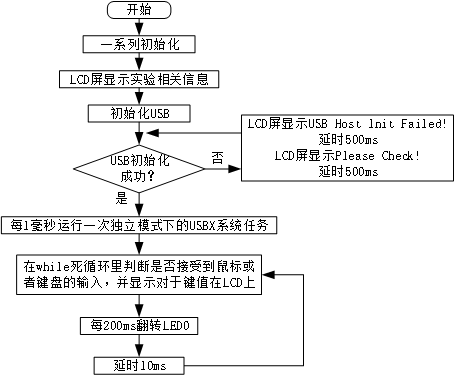
图60.3.1.1 USB鼠标键盘实验(Host)程序流程图
60.3.2 程序解析
这里我们只讲解核心代码,详细的源码请大家参考光盘本实验对应源码。本实验,我们在上一个实验的基础上修改,对照官方HID例子,添加USB相关代码到工程中,最终得到如图60.3.2.1所示的工程:
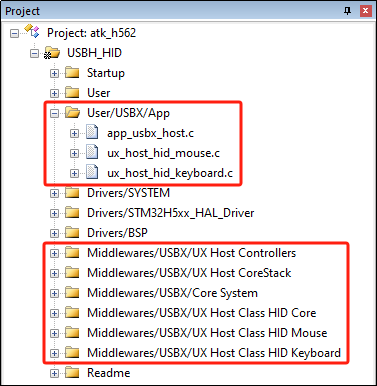
图60.3.2.1 USB鼠标键盘工程分组
1. USB驱动代码
ux_host_hid_mouse.c文件存放鼠标处理函数,总共有两个,定义如下:
UX_HOST_CLASS_HID_MOUSE *mouse = UX_NULL;   /* 鼠标实例 */

/**
 * @brief   鼠标用户处理函数
 * @param   mouse: 鼠标实例
 * @retval  无
 */
__weak void ux_host_hid_mouse_user_process(UX_HOST_CLASS_HID_MOUSE *mouse)
{
    UX_PARAMETER_NOT_USED(mouse);

    return;
}

/**
 * @brief   鼠标处理函数
 * @param   无
 * @retval  无
 */
void ux_host_hid_mouse_process(void)
{
    if (mouse != UX_NULL)
    {
        ux_host_hid_mouse_user_process(mouse);
    }
}
ux_host_hid_mouse_user_process()函数是弱函数,最终会在main.c中重新定义。
ux_host_hid_keyboard.c文件存放键盘处理函数,总共有两个,定义如下:
UX_HOST_CLASS_HID_KEYBOARD *keyboard = UX_NULL; /* 键盘实例 */

/**
 * @brief   键盘用户处理函数
 * @param   keyboard: 键盘实例
 * @retval  无
 */
__weak void ux_host_hid_keyboard_user_process(UX_HOST_CLASS_HID_KEYBOARD
*keyboard)
{
    UX_PARAMETER_NOT_USED(keyboard);

    return;
}

/**
 * @brief   键盘处理函数
 * @param   无
 * @retval  无
 */
void ux_host_hid_keyboard_process(void)
{
    if (keyboard != UX_NULL)
    {
        ux_host_hid_keyboard_user_process(keyboard);
    }
}
ux_host_hid_keyboard_user_process()函数是弱函数,最终会在main.c中重新定义。
app_usbx_host.c提供了USB主机库的回调及MSP初始化函数等,当USB状态机处理完不同事务的时候,会调用这些回调函数,我们通过这些回调函数,就可以知道USB当前状态,比如:是否连接上了?是否断开了?等,根据这些状态,用户应用程序可以执行不同操作,完成特定功能。app_usbx_host_init()和HAL_HCD_MspInit()函数和上一个实验差不多,这里就不贴出来了。下面查看USB主机事件回调函数,其定义如下:
/**
 * @brief   USB主机事件回调函数
 * @param   event: 事件
 * @param   current_class: 类
 * @param   current_instance: 实例
 * @retval  状态
 */
static UINT app_usbx_host_event_callback(ULONG event,
UX_HOST_CLASS *current_class, VOID *current_instance)
{
    switch (event)
    {
        case UX_HID_CLIENT_INSERTION:
        {
            if (((UX_HOST_CLASS_HID_CLIENT *)current_instance)
->ux_host_class_hid_client_handler == ux_host_class_hid_mouse_entry)
            {
                mouse = (UX_HOST_CLASS_HID_MOUSE *)((UX_HOST_CLASS_HID_CLIENT *)
current_instance)->ux_host_class_hid_client_local_instance;
            }
            else if (((UX_HOST_CLASS_HID_CLIENT *)current_instance)->
ux_host_class_hid_client_handler == ux_host_class_hid_keyboard_entry)
            {
                keyboard = (UX_HOST_CLASS_HID_KEYBOARD *)
((UX_HOST_CLASS_HID_CLIENT *)current_instance)
->ux_host_class_hid_client_local_instance;
            }
            break;
        }
        case UX_HID_CLIENT_REMOVAL:
        {
            if (((UX_HOST_CLASS_HID_CLIENT *)current_instance)
->ux_host_class_hid_client_handler == ux_host_class_hid_mouse_entry)
            {
                mouse = UX_NULL;
            }
            else if (((UX_HOST_CLASS_HID_CLIENT *)current_instance)->
ux_host_class_hid_client_handler == ux_host_class_hid_keyboard_entry)
            {
                keyboard = UX_NULL;
            }
            break;
        }
        default:
        {
            break;
        }
    }

    return UX_SUCCESS;
}
该函数用于更新鼠标或者键盘的状态,可以更新鼠标或键盘的插入或拔出状态。
2. main.c代码
下面是main.c的代码,具体如下:
/**
 * @brief   鼠标用户处理函数
 * @param   mouse: 鼠标实例
 * @retval  无
 */
void ux_host_hid_mouse_user_process(UX_HOST_CLASS_HID_MOUSE *mouse)
{
    SLONG mouse_x_position;
    SLONG mouse_y_position;
    ULONG mouse_buttons;
    SLONG mouse_wheel_movement;

    /* 更新显示位置信息 */
if (ux_host_class_hid_mouse_position_get(mouse, &mouse_x_position,
&mouse_y_position) == UX_SUCCESS)
    {
        /* 更新显示X轴位置信息 */
        if (mouse_x_position < 0)
        {
            lcd_show_string(54, 150, 200, 16, 16, "-", BLUE);
            lcd_show_num(62, 150, -mouse_x_position, 5, 16, BLUE);
        }
        else
        {
            lcd_show_string(54, 150, 200, 16, 16, " ", BLUE);
            lcd_show_num(62, 150, mouse_x_position, 5, 16, BLUE);
        }

        /* 更新显示Y轴位置信息 */
        if (mouse_y_position < 0)
        {
            lcd_show_string(54, 170, 200, 16, 16, "-", BLUE);
            lcd_show_num(62, 170, -mouse_y_position, 5, 16, BLUE);
        }
        else
        {
            lcd_show_string(54, 170, 200, 16, 16, " ", BLUE);
            lcd_show_num(62, 170, mouse_y_position, 5, 16, BLUE);
        }
    }

    /* 更新显示按钮信息 */
if (ux_host_class_hid_mouse_buttons_get(mouse, &mouse_buttons) ==
UX_SUCCESS)
    {
        /* 更新显示左键按钮信息 */
        if (mouse_buttons & UX_HOST_CLASS_HID_MOUSE_BUTTON_1_PRESSED)
        {
            lcd_show_string(94, 130, 200, 16, 16, "Left", RED);
        }
        else
        {
            lcd_show_string(94, 130, 200, 16, 16, "Left", BLUE);
        }

        /* 更新显示右键按钮信息 */
        if (mouse_buttons & UX_HOST_CLASS_HID_MOUSE_BUTTON_2_PRESSED)
        {
            lcd_show_string(190, 130, 200, 16, 16, "Right", RED);
        }
        else
        {
            lcd_show_string(190, 130, 200, 16, 16, "Right", BLUE);
        }

        /* 更新显示中间按钮信息 */
        if (mouse_buttons & UX_HOST_CLASS_HID_MOUSE_BUTTON_3_PRESSED)
        {
            lcd_show_string(134, 130, 200, 16, 16, "Middle", RED);
        }
        else
        {
            lcd_show_string(134, 130, 200, 16, 16, "Middle", BLUE);
        }
    }

    /* 更新显示滚轮信息 */
if (ux_host_class_hid_mouse_wheel_get(mouse, &mouse_wheel_movement)
== UX_SUCCESS)
    {
        if (mouse_wheel_movement < 0)
        {
            lcd_show_string(54, 190, 200, 16, 16, "-", BLUE);
            lcd_show_num(62, 190, -mouse_wheel_movement, 5, 16, BLUE);
        }
        else
        {
            lcd_show_string(54, 190, 200, 16, 16, " ", BLUE);
            lcd_show_num(62, 190, mouse_wheel_movement, 5, 16, BLUE);
        }
    }
}

/**
 * @brief   键盘用户处理函数
 * @param   keyboard: 键盘实例
 * @retval  无
 */
void ux_host_hid_keyboard_user_process(UX_HOST_CLASS_HID_KEYBOARD *keyboard)
{
    ULONG keyboard_key;
    ULONG keyboard_state;

    /* 更新显示键值信息 */
if (ux_host_class_hid_keyboard_key_get(keyboard, &keyboard_key,
&keyboard_state) == UX_SUCCESS)
    {
        lcd_show_char(86, 130, keyboard_key, 16, 0, BLUE);
        lcd_show_num(126, 150, keyboard_key, 2, 16, BLUE);
    }
}

int main(void)
{
    uint8_t t = 0;
    uint8_t res;
    uint8_t mode = 0;

    HAL_Init();                           /* HAL库初始化 */
    HAL_ICACHE_Enable();                  /* 使能指令缓存 */
    sys_stm32_clock_init(250, 4, 2, 2);  /* 配置时钟,250MHz */
    delay_init(250);                      /* 初始化延时 */
    usart_init(115200);                   /* 初始化串口 */
    led_init();                           /* 初始化LED */
    lcd_init();                           /* 初始化LCD */

    lcd_show_string(30, 50, 200, 16, 16, "STM32", RED);
    lcd_show_string(30, 70, 200, 16, 16, "USB Mouse/Keyboard TEST", RED);
    lcd_show_string(30, 90, 200, 16, 16, "ATOM@ALIENTEK", RED);

    /* USB主机初始化 */
    res = app_usbx_host_init();
    while (res != 0)
    {
        lcd_show_string(30, 110, 200, 16, 16, "USB Host Init Failed!", RED);
        delay_ms(500);
        lcd_show_string(30, 110, 200, 16, 16, "Please Check!        ", RED);
        delay_ms(500);
    }

    /* 每1毫秒运行一次独立模式下的USBX系统任务 */
    btim_timx_int_init(1000 - 1, 250 - 1);

    while (1)
    {
        if (mouse != UX_NULL)
        {
            if (mode != 1)
            {
                mode = 1;
                lcd_show_string(30, 110, 200, 16, 16, "Mouse", BLUE);
                lcd_show_string(30, 130, 200, 16, 16, "Button: Left Middle Right",
BLUE);
                lcd_show_string(30, 150, 200, 16, 16, "X:      0", BLUE);
                lcd_show_string(30, 170, 200, 16, 16, "Y:      0", BLUE);
                lcd_show_string(30, 190, 200, 16, 16, "W:      0", BLUE);
            }
            ux_host_hid_mouse_process();
        }
        else if (keyboard != UX_NULL)
        {
            if (mode != 2)
            {
                mode = 2;
                lcd_show_string(30, 110, 200, 16, 16, "Keyboard", BLUE);
                lcd_show_string(30, 130, 200, 16, 16, "ASCII:  ", BLUE);
                lcd_show_string(30, 150, 200, 16, 16, "ASCII Code:   ", BLUE);
            }
            ux_host_hid_keyboard_process();
        }
        else
        {
            if (mode != 0)
            {
                mode = 0;
                lcd_fill(0, 110, 239, 319, WHITE);
            }
        }

        if (++t == 20)
        {
            t = 0;
            LED0_TOGGLE();
        }

        delay_ms(10);
    }
}
这里总共3个函数:
ux_host_hid_mouse_user_process()是鼠标用户处理函数,用于更新显示鼠标坐标、左键、右键和滚轮的一些提示信息。
ux_host_hid_keyboard_user_process是键盘用户处理函数,用于更新显示键值信息。
main函数中,先进行系统和外设初始化,显示实验信息、初始化USB等,然后每1毫秒运行一次独立模式下的USBX系统任务,最后在while(1)循环中更新鼠标和键盘的键值等信息,每200ms翻转LED0,提示程序正在运行。
60.4 下载验证
将程序下载到开发板后,然后在USB_HOST端子插入USB鼠标/键盘,注意:此时USB SLAVE口不要插USB线到电脑,否则会干扰!
当USB鼠标/键盘成功识别后,便会显示设备类型:Mouse或者KeyBoard,同时也会显示输入的数据,如图60.4.1和图60.4.2所示:
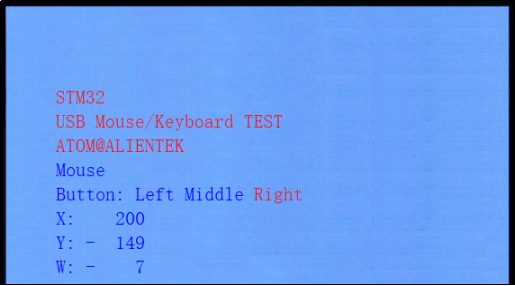
图60.4.1 USB鼠标测试
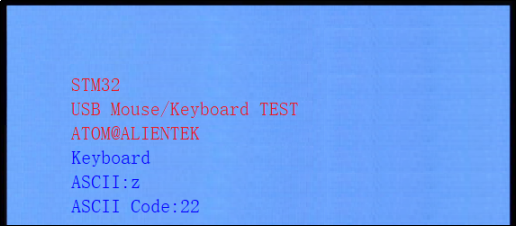
图60.4.2 USB键盘测试
其中,图60.4.1是USB鼠标测试界面,图60.4.2是USB键盘测试界面。
USB鼠标测试界面中,Left:表示鼠标左键,Middle:表示鼠标滚轮键,Right:便是鼠标右键。当对应符号变成红色表示该按键按下,如上图中,表示鼠标右键按下。X:表示鼠标X轴坐标位置,Y:表示鼠标Y轴坐标位置,W表示鼠标滚轮位置。
USB键盘测试界面中,ASCII:表示键盘的字符,ASCII Code:表示键盘字符对应的ASCII码值。
来自 “ ITPUB博客 ” ,链接:https://blog.itpub.net/70040860/viewspace-3107865/ ,如需转载,请注明出处,否则将追究法律责任。

最新文章
- 【直播预告】直击嵌入式开发瓶颈!
- 《PDxxS1步进电机闭环驱动器用户手册_V1.0》第六章
- 《PDxxS1步进电机闭环驱动器用户手册_V1.0》第五章(5.4-5.5)
- 《PDxxS1步进电机闭环驱动器用户手册_V1.0》第五章(5.1-5.3)
- 《PDxxS1步进电机闭环驱动器用户手册_V1.0》第四章(4.4-4.5)
- 《PDxxS1步进电机闭环驱动器用户手册_V1.0》第四章(4.1-4.3)
- 《PDxxS1步进电机闭环驱动器用户手册_V1.0》第1-3章
- 《PDxxS1_CANopen协议控制教程_V1.0》第11章
- 《PDxxS1_CANopen协议控制教程_V1.0》第9-10章
- 《PDxxS1_CANopen协议控制教程_V1.0》第7-8章
