在使用 Claude Code、Codex CLI 还是 Gemini CLI,基本都以 终端作为交互形式,你在使用过程中是否遇到了许多难受的情形:
- 终端性能卡顿,长输出直接掉帧
- Claude 一次输出几百行,滚屏飞快,信息一晃而过
- 无法做到分屏,窗口管理混乱,多窗口需要来回切换
正所谓 工欲善其事,必先利其器,那么极需要一款能满足使用终端场景的工具-- Ghostty。 Anthropic 官方都推荐 Ghostty 作为 Claude Code 的首选终端,主要原因:
- 占用内存占用低,GPU 加速渲染,性能显著优于 iTerm2
- 友好适配 Claude Code、Cursor 等,支持图形协议、一键分屏
- 支持数百种配色主题,零配置开箱即用,也可个性化配置
- 由 Mitchell Hashimoto 主导开发,强调性能与简洁设计
安装
方式一:Homebrew(推荐)
brew install --cask ghostty
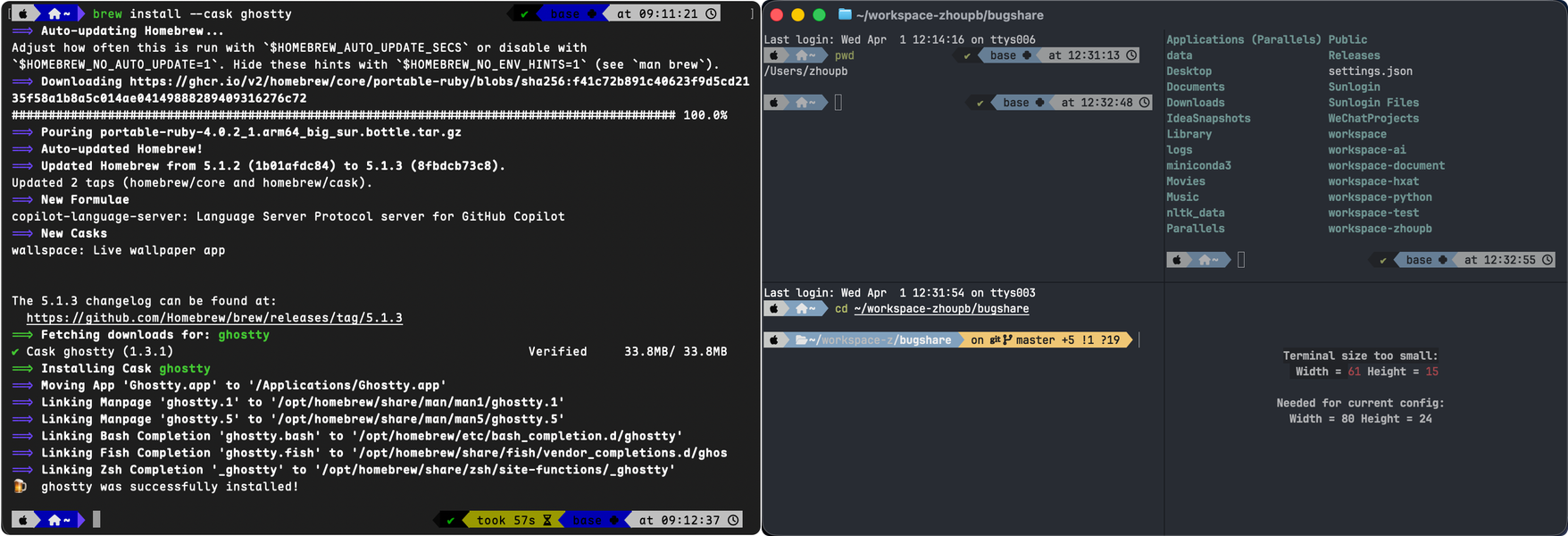
方式二:官网下载
下载对应系统的安装文件 https://ghostty.org/download
配置
Ghostty 的设计理念是让大多数用户无需任何配置即可开箱即用,如果你更喜欢自定义个性化,可以看看以下选项。
个性化配置
打开 Ghostty ,使用快捷键:
Cmd+,或
~/.config/ghostty/config打开配置文件,复制以下:
# === 主题设置 ===
# 跟随系统自动切换明暗主题 dark:,light:
theme = dark:iTerm2 Dark Background,light:iTerm2 Light Background
# === shell 集成 ===
shell-integration = detect
# === 字体设置 ===
font-size = 12
font-thicken = true
adjust-cell-height = 2
# === 窗口设置 ===
window-theme = system
window-save-state = always
background-opacity = 0.8
macos-titlebar-style = transparent
# === 鼠标设置 ===
copy-on-select = clipboard
mouse-hide-while-typing = true
cursor-style = bar
cursor-style-blink = true
cursor-opacity = 0.85
# === 缓冲区 ===
scrollback-limit = 8388608
# === 快速终端 ===
quick-terminal-position = top
quick-terminal-screen = mouse
quick-terminal-autohide = true
quick-terminal-animation-duration = 0.2
# === 安全设置 ===
clipboard-paste-protection = true
clipboard-paste-bracketed-safe = true
修改完后一定要
重载配置:使用快捷键
Cmd + Shift + ,或Ghostty菜单栏操作。
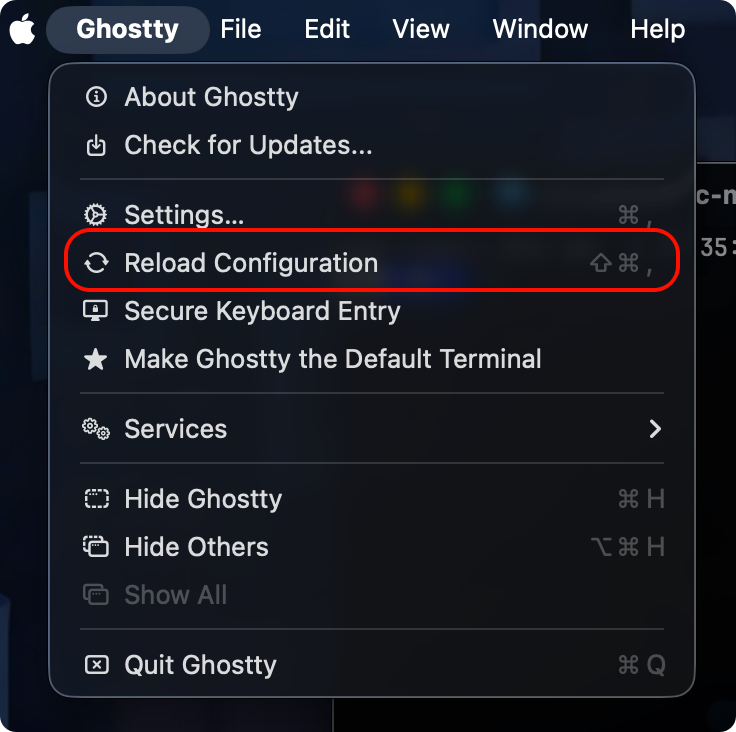
列出主题
查看可用主题列表(命令行预览,所见即所得),CLI:
ghostty +list-themes
更多配置项
更多配置参考: https://ghostty.org/docs/config/reference
快捷键
在
~/.config/ghostty/config可以绑定快捷键
# === 快捷键 ===
# Cmd+`呼出快速终端
keybind = global:cmd+`=toggle_quick_terminal
更多配置项
更多配置参考: https://ghostty.org/docs/config/keybind/reference
常用快捷键
左右分屏:`Cmd + D`
垂直分屏:`Cmd + Shift + D`
切换分屏:`Cmd + [` / `Cmd + ]`
放大/还原当前分屏:`Cmd + Shift + Enter`
关闭当前分屏:`Cmd + W`
重载配置:`Cmd + Shift + ,`
完全退出:`Cmd + Q`
新建标签页:`Cmd + T`
切换标签页:`Cmd + 1 ~ 9`
前后切换:`Cmd + Shift + [` / `Cmd + Shift + ]`
关闭标签页:`Cmd + Shift + W`
开启搜索:`Cmd + F`
跳到滚动开头:`Cmd + ↑`
跳到滚动结尾:`Cmd + ↓`
使用场景
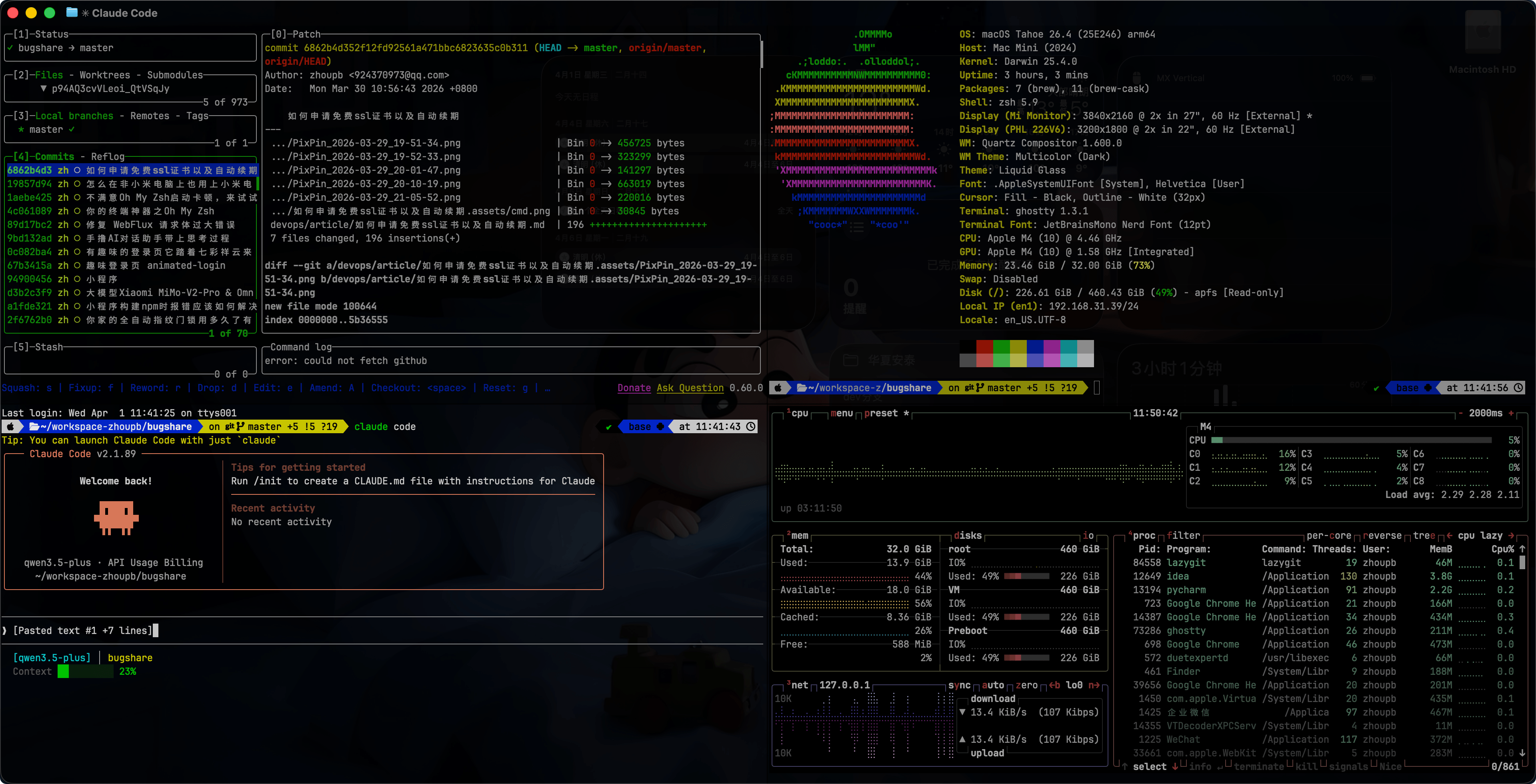
分析一个比较实用的布局场景:
- 左上:项目代码(Git信息)
- 左下:Claude Code(写代码)
- 右上:fastfetch(系统信息)
- 右下:btop(实时监控)
# 安装依赖工具
brew install lazygit fastfetch btop
来自 “ ITPUB博客 ” ,链接:https://blog.itpub.net/70047890/viewspace-3115119/ ,如需转载,请注明出处,否则将追究法律责任。

最新文章
- 不只是“多线程下载”:Hydra,一款真正懂得抢速度的开源下载器
- 一个命令告诉你「这个进程为什么会运行」!比 ps、lsof 更直观的神器:witr
- 告别 IDM!这款 1.5 万 Star 的开源下载神器,让下载速度直接起飞
- 一款“终端里的监控中心”:Glances 让系统状态一目了然
- Mac 上原生开发的开源免费、尽享丝滑数据库工具
- 告别 ELK 全家桶!OpenObserve:一个二进制搞定日志、指标、链路追踪
- 阿里开源的 AI 代码审查工具 open-code-review 来了
- Claude Code 原生终端仪表盘
- 你的 AI 编程 CLI 配置管理工具来了
- macOS 原生定时任务应用,简洁优雅、所见所得
