想不想让你的终端变得更漂亮且实用呢,来试试这款神器-- Oh My Zsh。 安装完成后,每次在命令提示符中敲击键盘,你都能体验到数百个强大的插件和精美的主题。
https://github.com/ohmyzsh/ohmyzsh
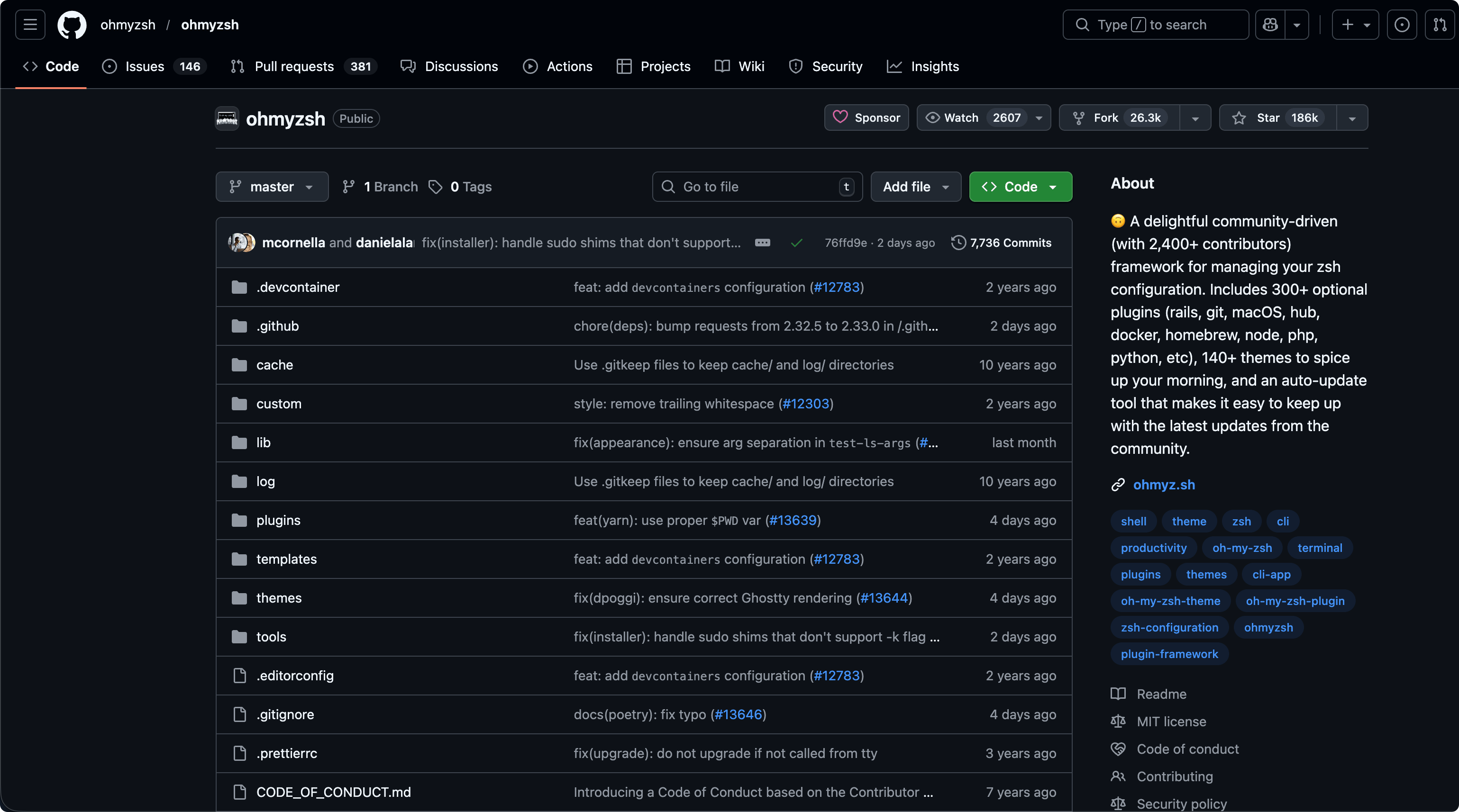
先决条件
- 操作系统:Linux、macOS、Windows(WSL2)
- Zsh:v4.3.9 或更高版本(运行
zsh --version命令确认)
- Linux安装:
apt install zsh - macOS安装:
brew install zsh - curl 或 wget
- 基本基本自带curl
- Git,推荐版本
2.4.11或更高版本
- Linux安装:
apt install git - macOS安装:
brew install git
OhMyZsh是Zsh的一种管理工具,在安装OhMyZsh之前首先得安装Zsh。
Git用来克隆(下载)其代码仓库并管理插件/主题。
brew查看之前文章《用Mac的朋友们,你们都在使用Homebrew了吗》。
基本安装
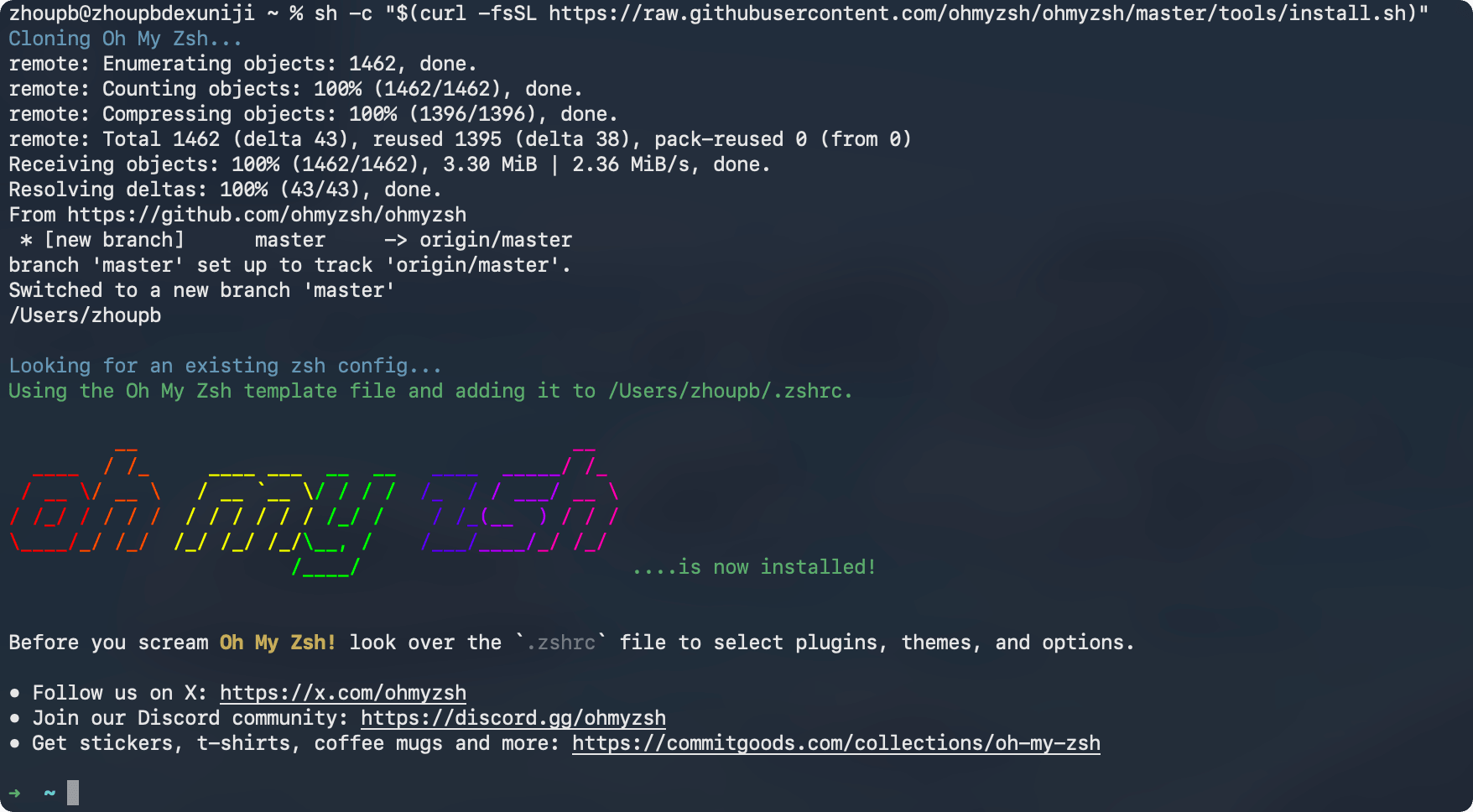
命令行安装
# curl方式
sh -c "$(curl -fsSL https://raw.githubusercontent.com/ohmyzsh/ohmyzsh/master/tools/install.sh)"
# wget方式
sh -c "$(wget -O- https://raw.githubusercontent.com/ohmyzsh/ohmyzsh/master/tools/install.sh)"
如果以上出现网络问题,国内环境可以使用以下链接:
# curl方式
sh -c "$(curl -fsSL https://install.ohmyz.sh/)"
# wget方式
sh -c "$(wget -O- https://install.ohmyz.sh/)"
自带插件
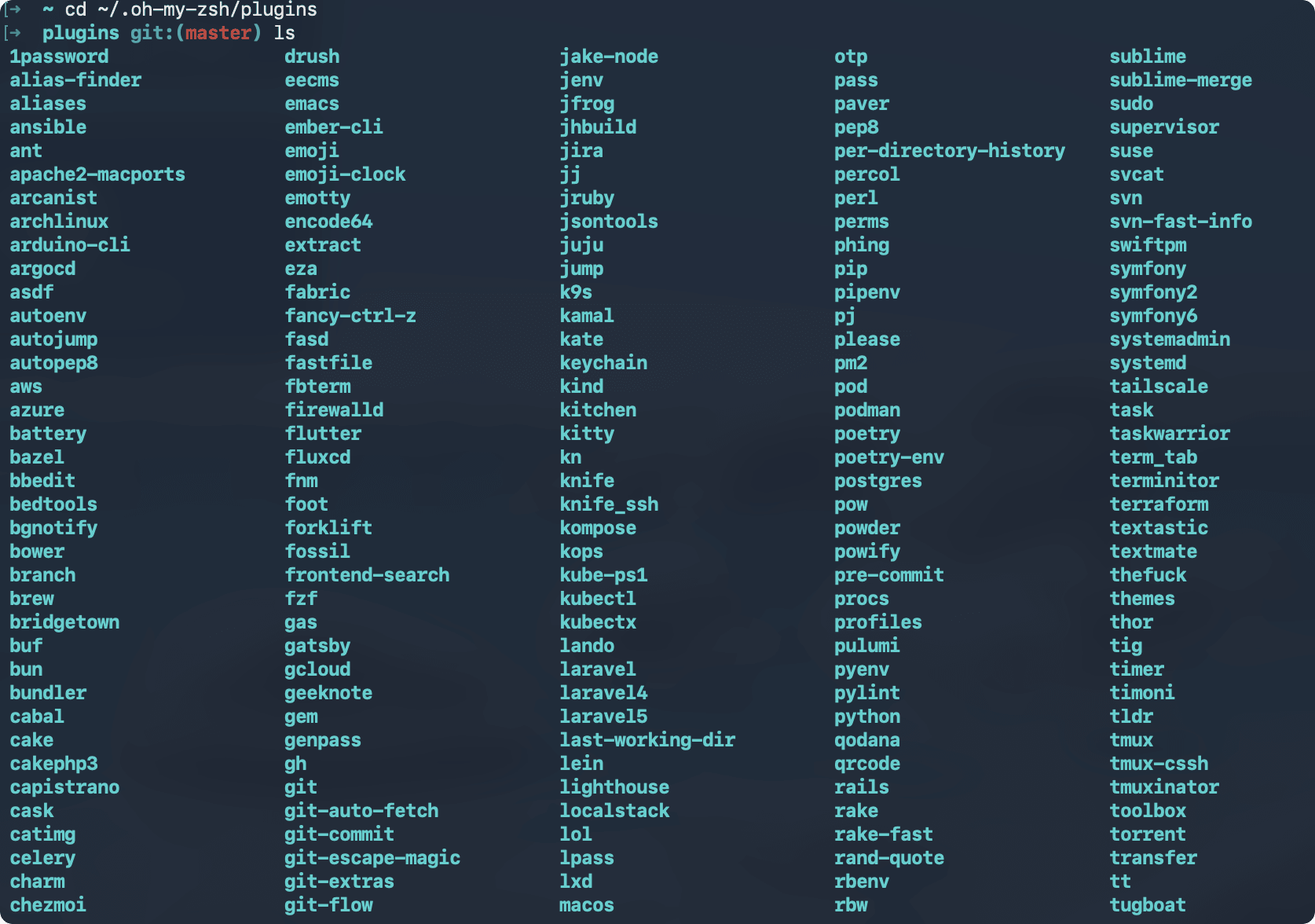
Oh My Zsh 自带大量插件,可以到
~/.oh-my-zsh/plugins目录查看。
插件的详细介绍可以去 https://github.com/ohmyzsh/ohmyzsh/wiki/Plugins 查看。
启用插件
编辑
vi ~/.zshrc,添加插件名称以启用插件。
plugins=(
  git
  macos
)
注意:插件之间用空格(空格、制表符、换行符等)分隔。 请勿使用逗号,否则插件会出错
第三方插件
推荐两款我自用的:
- zsh-autosuggestions( 自动补全)
- zsh-syntax-highlighting( 语法高亮)
下载插件
# zsh-autosuggestions
git clone https://github.com/zsh-users/zsh-autosuggestions ${ZSH_CUSTOM:-~/.oh-my-zsh/custom}/plugins/zsh-autosuggestions
# zsh-syntax-highlighting
git clone https://github.com/zsh-users/zsh-syntax-highlighting.git ${ZSH_CUSTOM:-~/.oh-my-zsh/custom}/plugins/zsh-syntax-highlighting
启用插件
plugins=(
  # ...
  zsh-autosuggestions
  zsh-syntax-highlighting
)
自带主题
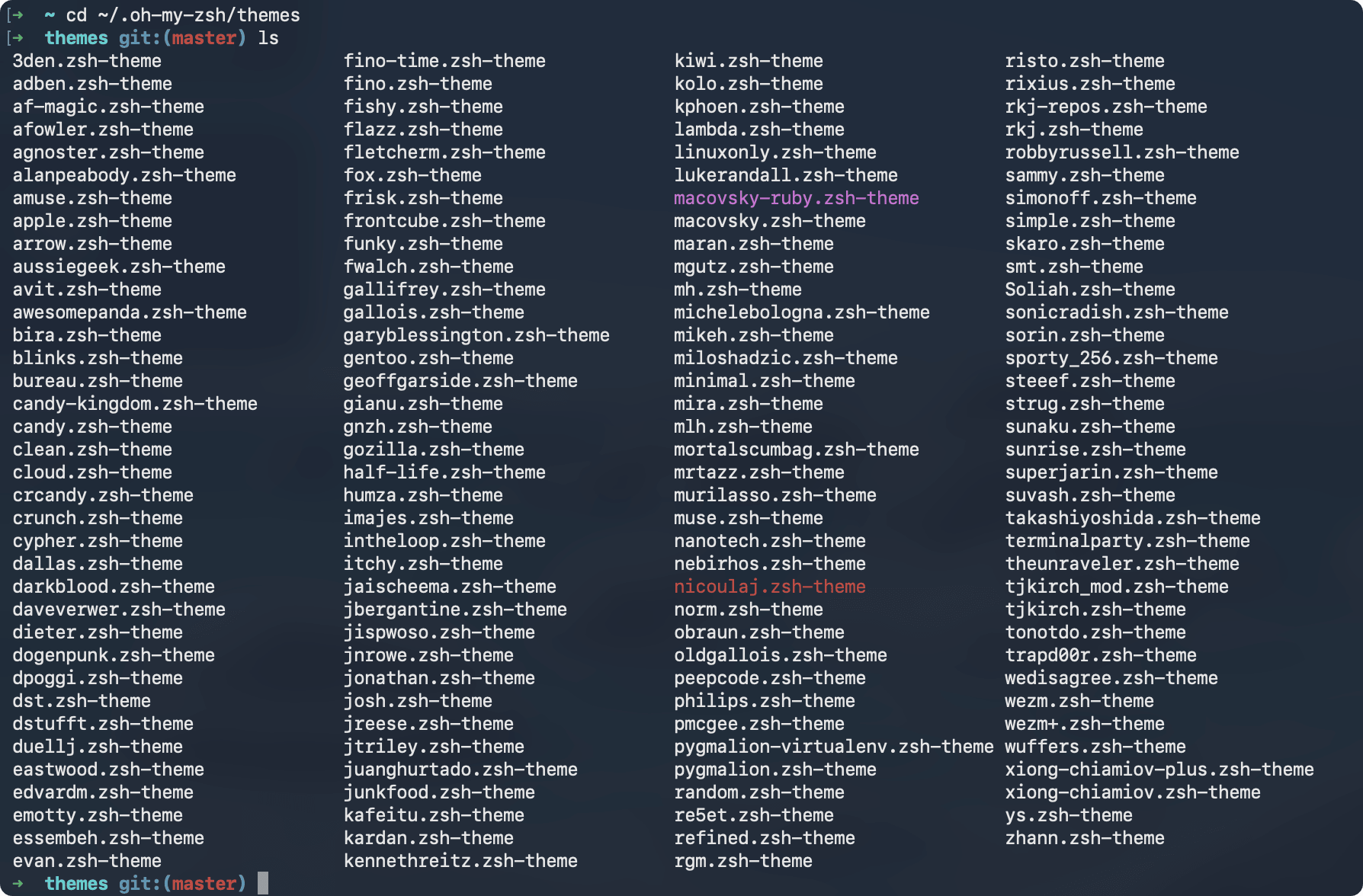
Oh My Zsh 自带的主题非常丰富,可以到
~/.oh-my-zsh/themes目录查看。
主题对应的界面效果可以到 https://github.com/ohmyzsh/ohmyzsh/wiki/Themes 查看
启用主题
编辑
vi ~/.zshrc,更改你选择的主题名称。
ZSH_THEME="robbyrussell"
第三方主题
如果自带主题没有满意的,你也可以使用第三方主题。
https://github.com/romkatv/powerlevel10k,有人称为此主题为 天和之作,不过此主题已经处于 非活跃的状态了。
安装字体
https://github.com/romkatv/powerlevel10k#meslo-nerd-font-patched-for-powerlevel10k
- 下载字体文件(ttf ):
- [MesloLGS NF Regular.ttf]( https://github.com/romkatv/powerlevel10k-media/raw/master/MesloLGS NF Regular.ttf)
- [MesloLGS NF Bold.ttf]( https://github.com/romkatv/powerlevel10k-media/raw/master/MesloLGS NF Bold.ttf)
- [MesloLGS NF Italic.ttf]( https://github.com/romkatv/powerlevel10k-media/raw/master/MesloLGS NF Italic.ttf)
- [MesloLGS NF Bold Italic.ttf]( https://github.com/romkatv/powerlevel10k-media/raw/master/MesloLGS NF Bold Italic.ttf)
- 双击文件安装字体
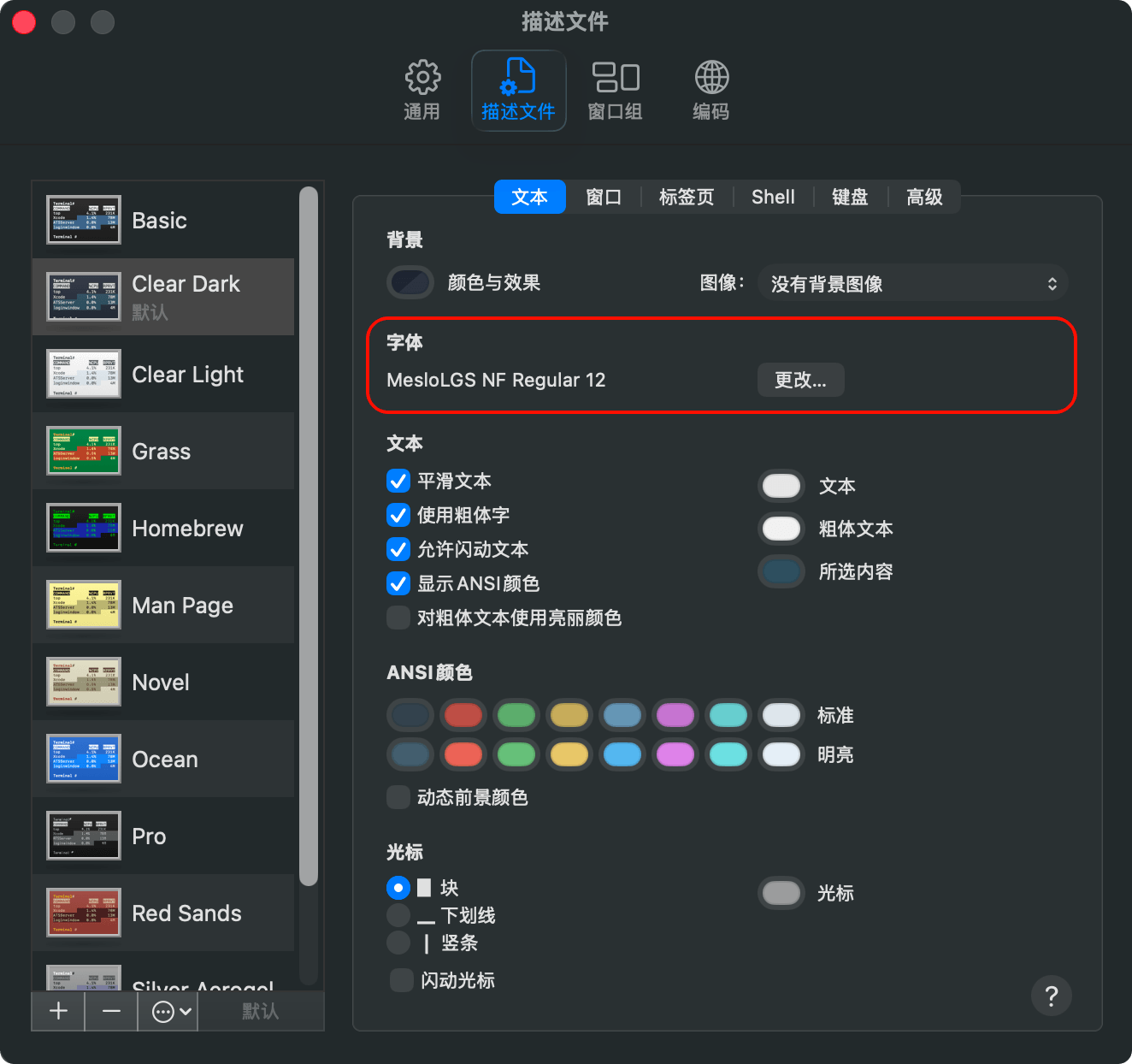
- 配置终端字体
-
Apple Terminal:打开
终端 → 偏好设置 → 描述文件 → 文本,点击
字体下的
“更改” ,然后选择字体系列。
MesloLGS NF
安装主题
终端执行:
git clone --depth=1 https://github.com/romkatv/powerlevel10k.git "${ZSH_CUSTOM:-$HOME/.oh-my-zsh/custom}/themes/powerlevel10k"
国内环境:
git clone --depth=1 https://gitee.com/romkatv/powerlevel10k.git "${ZSH_CUSTOM:-$HOME/.oh-my-zsh/custom}/themes/powerlevel10k"
启用主题
ZSH_THEME="powerlevel10k/powerlevel10k"
配置主题
终端执行(重开终端或执行
source ~/.zshrc):
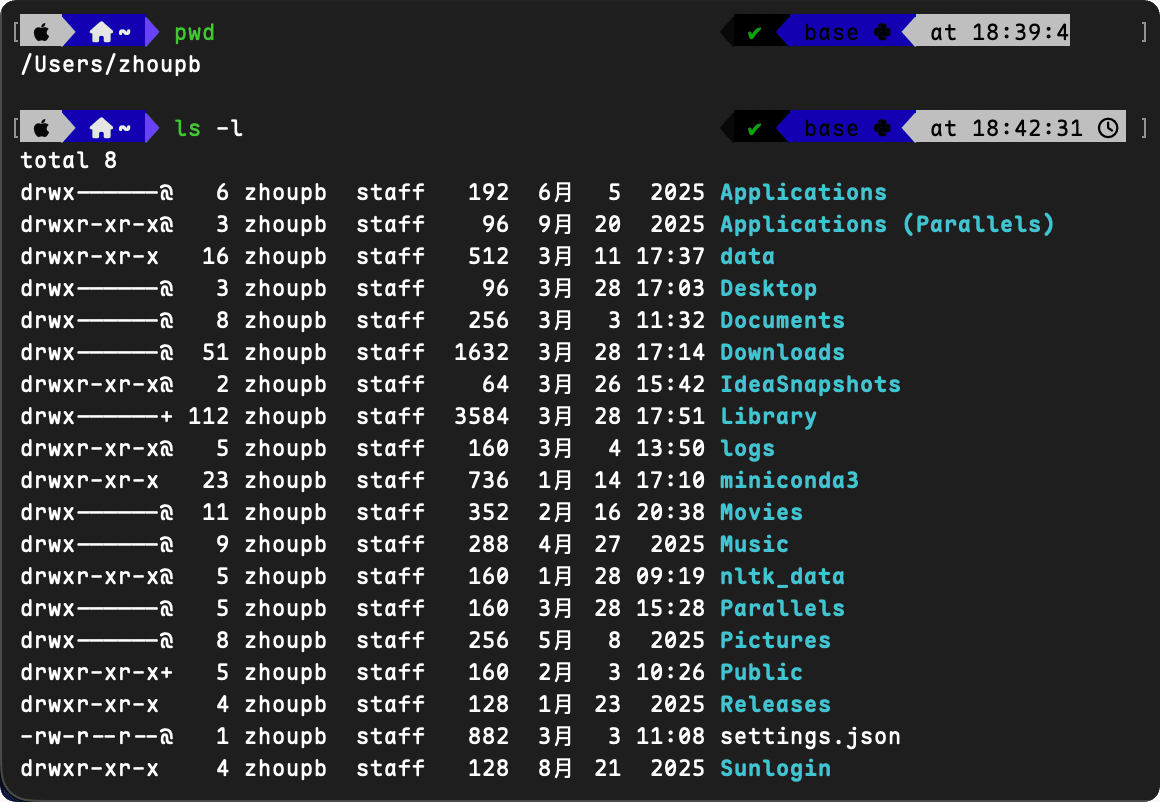
p10k configure
终端交互式,根据自己喜好选择即可。
卸载Oh My Zsh
如果安装后你觉得不好用,卸载也很简单。
uninstall_oh_my_zsh
资源监控
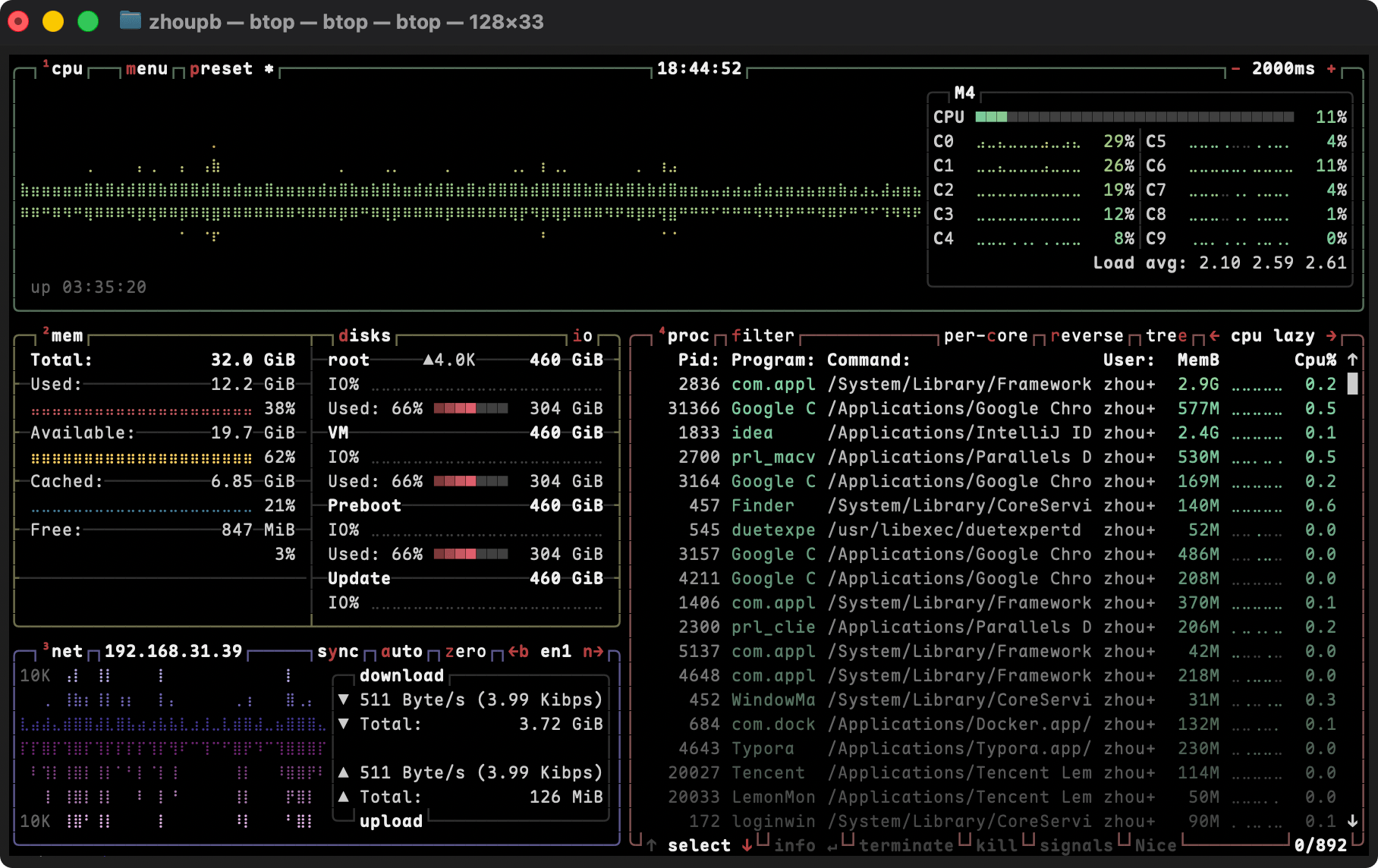
现在你的终端看上去已经很酷炫了,但在使用
top时会显得很平庸,你可以安装一个更好看的工具
btop。
安装
https://github.com/aristocratos/btop
# Linux
dnf install btop
# macOS
brew install btop
验证
终端执行:
btop
来自 “ ITPUB博客 ” ,链接:https://blog.itpub.net/70047890/viewspace-3114823/ ,如需转载,请注明出处,否则将追究法律责任。

最新文章
- 不只是“多线程下载”:Hydra,一款真正懂得抢速度的开源下载器
- 一个命令告诉你「这个进程为什么会运行」!比 ps、lsof 更直观的神器:witr
- 告别 IDM!这款 1.5 万 Star 的开源下载神器,让下载速度直接起飞
- 一款“终端里的监控中心”:Glances 让系统状态一目了然
- Mac 上原生开发的开源免费、尽享丝滑数据库工具
- 告别 ELK 全家桶!OpenObserve:一个二进制搞定日志、指标、链路追踪
- 阿里开源的 AI 代码审查工具 open-code-review 来了
- Claude Code 原生终端仪表盘
- 你的 AI 编程 CLI 配置管理工具来了
- macOS 原生定时任务应用,简洁优雅、所见所得
