最近有朋友比较关注我的低代码表单这块是怎么玩的,有没有一个比较详细的流程?
首先,这个表单是以企业级管理应用为目标来进行架构设计的,所以和其他2C端的低代码在体验上会有所区别。如果没有用过企业级管理系统,可能需要点时间适应。
这里以一个案例来实操,演示如何进行使用,如果需要体验的朋友可以加我V获取。
一、绘制表单
1、根据业务拖拉拽组件
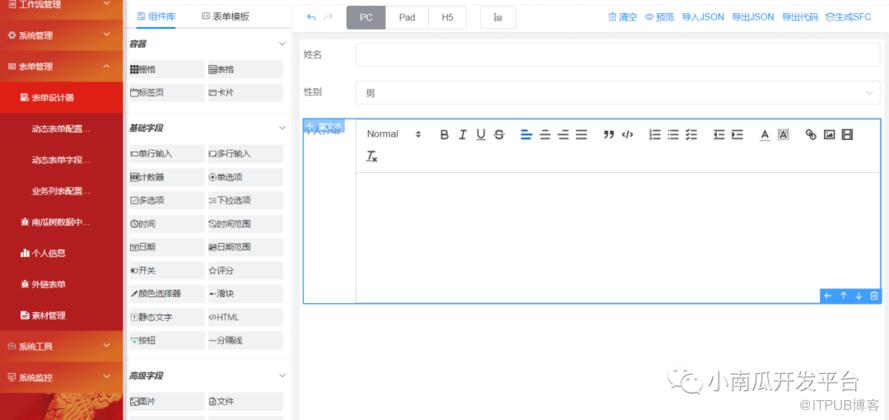
2、导出JSON
点击“导出JSON”按钮
{
  "widgetList": [
    {
      "type": "input",
      "icon": "text-field",
      "formItemFlag": true,
      "options": {
        "name": "input52046",
        "label": "姓名",
        "labelAlign": "",
        "type": "text",
        "defaultValue": "",
        "placeholder": "",
        "columnWidth": "200px",
        "size": "",
        "labelWidth": null,
        "labelHidden": false,
        "readonly": false,
        "disabled": false,
        "hidden": false,
        "clearable": true,
        "showPassword": false,
        "required": false,
        "requiredHint": "",
        "validation": "",
        "validationHint": "",
        "customClass": [],
        "labelIconClass": null,
        "labelIconPosition": "rear",
        "labelTooltip": null,
        "minLength": null,
        "maxLength": null,
        "showWordLimit": false,
        "prefixIcon": "",
        "suffixIcon": "",
        "appendButton": false,
        "appendButtonDisabled": false,
        "buttonIcon": "el-icon-search",
        "onCreated": "",
        "onMounted": "",
        "onInput": "",
        "onChange": "",
        "onFocus": "",
        "onBlur": "",
        "onValidate": ""
      },
      "id": "input52046"
    },
    {
      "type": "select",
      "icon": "select-field",
      "formItemFlag": true,
      "options": {
        "name": "select35772",
        "label": "性别",
        "labelAlign": "",
        "defaultValue": "男",
        "placeholder": "",
        "columnWidth": "200px",
        "size": "",
        "labelWidth": null,
        "labelHidden": false,
        "disabled": false,
        "hidden": false,
        "clearable": true,
        "filterable": false,
        "allowCreate": false,
        "remote": false,
        "automaticDropdown": false,
        "multiple": false,
        "multipleLimit": 0,
        "optionItems": [
          {
            "label": "男",
            "value": "男"
          },
          {
            "label": "女",
            "value": "女"
          }
        ],
        "required": false,
        "requiredHint": "",
        "validation": "",
        "validationHint": "",
        "customClass": "",
        "labelIconClass": null,
        "labelIconPosition": "rear",
        "labelTooltip": null,
        "onCreated": "",
        "onMounted": "",
        "onRemoteQuery": "",
        "onChange": "",
        "onFocus": "",
        "onBlur": "",
        "onValidate": ""
      },
      "id": "select35772"
    },
    {
      "type": "rich-editor",
      "icon": "rich-editor-field",
      "formItemFlag": true,
      "options": {
        "name": "richeditor73546",
        "label": "个人介绍",
        "placeholder": "",
        "labelWidth": null,
        "labelHidden": false,
        "columnWidth": "200px",
        "disabled": false,
        "hidden": false,
        "required": false,
        "requiredHint": "",
        "customRule": "",
        "customRuleHint": "",
        "customClass": "",
        "labelIconClass": null,
        "labelIconPosition": "rear",
        "labelTooltip": null,
        "minLength": null,
        "maxLength": null,
        "showWordLimit": false,
        "onCreated": "",
        "onMounted": "",
        "onValidate": ""
      },
      "id": "richeditor73546"
    }
  ],
  "formConfig": {
    "modelName": "formData",
    "refName": "vForm",
    "rulesName": "rules",
    "labelWidth": 80,
    "labelPosition": "left",
    "size": "",
    "labelAlign": "label-left-align",
    "cssCode": "",
    "customClass": "",
    "functions": "",
    "layoutType": "PC",
    "onFormCreated": "",
    "onFormMounted": "",
    "onFormDataChange": ""
  }
}
二、创建数据表
1、新建动态表单
路径:动态表单配置》新增

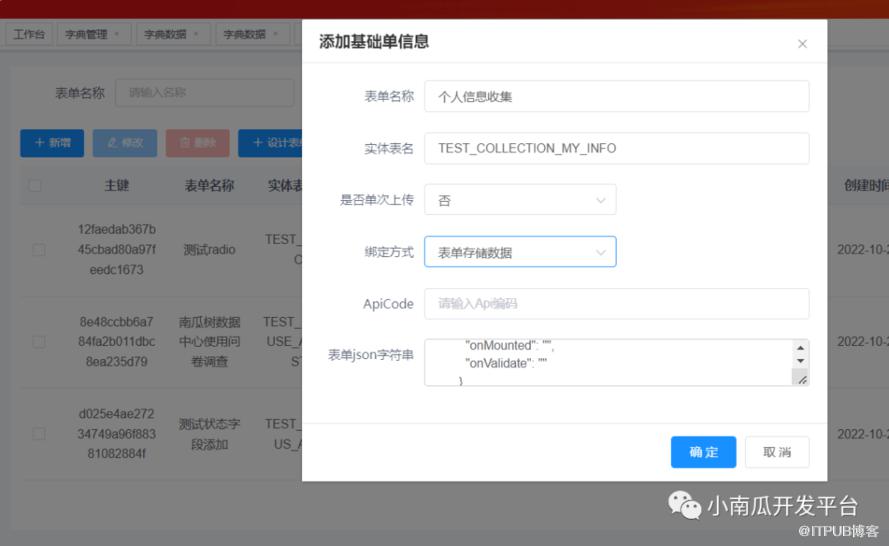
2、粘贴表单JSON串
将绘制表单生成的json串复制到“表单json字符串”中
输入表单名称、实体表名;点击确定,生成对应的表单和库表

三、创建动态列表
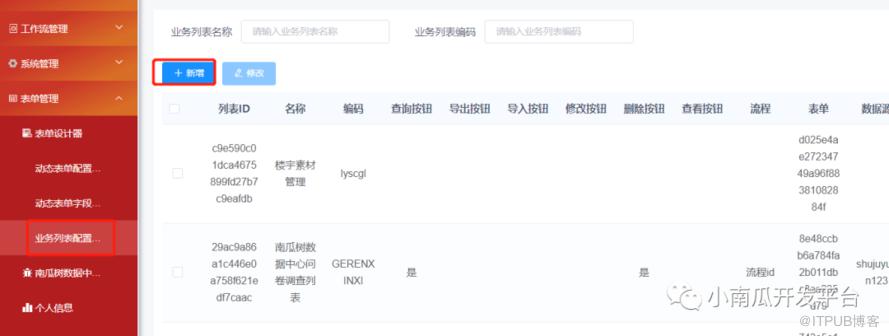
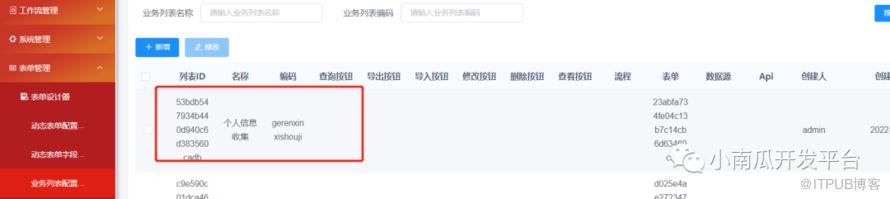
1、新增业务列表
路径:业务列表配置管理》新增
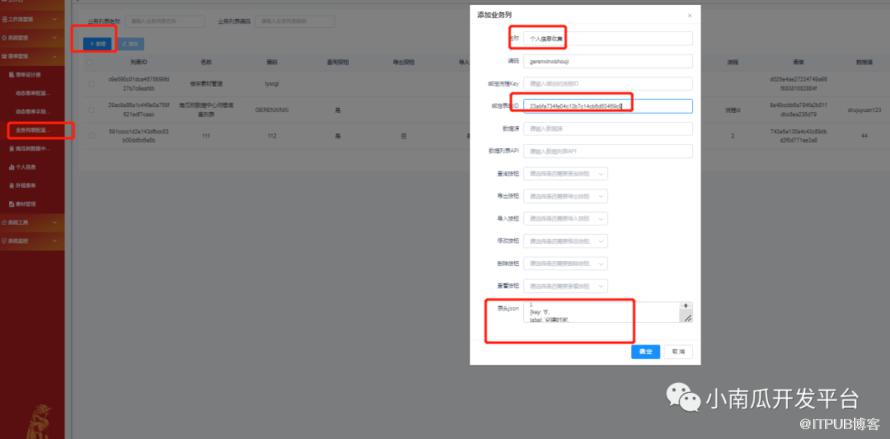
2、绑定表单和列表标题头
将创建的表单ID复制到该列表中
“23abfa734fe04c13b7c14cb6d63469c9”
配置标题头,复制到列表中
key:key值索引,唯一
lable:标题头中文名
prop:对应表单设计器该属性的唯一名称
width:宽度
headerAlign:标题头对齐
align:内容对齐
scope:是否设置为全局
sortable:是否可排序
[
{
key: '1',
label: '姓名',
prop: 'input52046',
width: '150',
headerAlign: 'center',
align: 'right',
scope: false,
sortable: true
},
{
key: '3',
label: '性别',
prop: 'select35772',
width: '150',
headerAlign: 'center',
align: 'right',
scope: false,
sortable: true
},
{
key: '4',
label: '个人介绍',
prop: 'richeditor73546',
width: '150',
headerAlign: 'left',
align: 'left',
scope: false,
sortable: false
},
{key: '6',
label: '创建时间',
prop: 'CREATED_TIME',
width: '150',
headerAlign: 'center',
align: 'center',
scope: false,
sortable: true
}
{
key: '7',
label: '状态',
prop: 'status48624',
width: '150',
headerAlign: 'center',
align: 'right',
scope: false,
sortable: true
},
]
四、配置动态菜单
1、配置菜单
路径:菜单管理》新增
2、配置参数
路由地址:autoListInfo/autoListInfo12 需要唯一
组件路径:autoListInfo/autoListInfo 固定
权限标识:system:autoListInfo:index
路由参数:{"listid":"53bdb547934b440d940c6d383560cadb","formId":"23abfa734fe04c13b7c14cb6d63469c9"}

五、分配角色菜单权限
系统管理》角色管理,给表单管理员分配权限

六、使用动态列表和表单
刷新页面,再表单管理下就可以看到个人信息收集的菜单;点击菜单就可以做CRUD操作了。

原文作者:小南瓜开发平台;如有侵权,请联系管理员删除。

