引言
当提到命令行界面(CLI)时, 我们通常会想到一种强大而高效的方式来与计算机进行交互。在众多的 Shell 中最常用的就数 Bash 和 zsh 了,除此之外还有一颗闪耀的明星 Fish Shell,它以其现代化的设计和强大的特性而备受赞誉,成为许多开发人员和系统管理员钟爱的选择,正如官网宣传的 Finally, a command line shell for the 90s, 翻译过来就是 Fish Shell 是一个为 90 后准备的 Shell,它主要特性如下:
-
安装时就默认集成了很多需要的功能,无法进行大量配置
-
命令行语法高亮,错误会显示红色
-
智能提示
-
可视化配置: 可以使用 Web 网页的进行终端配置
一、安装
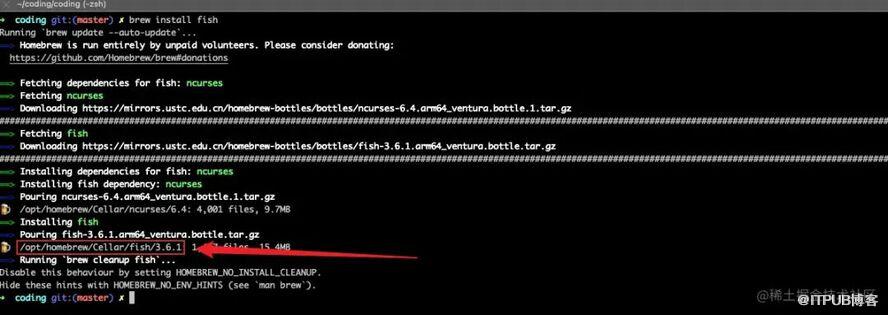
brew install fish
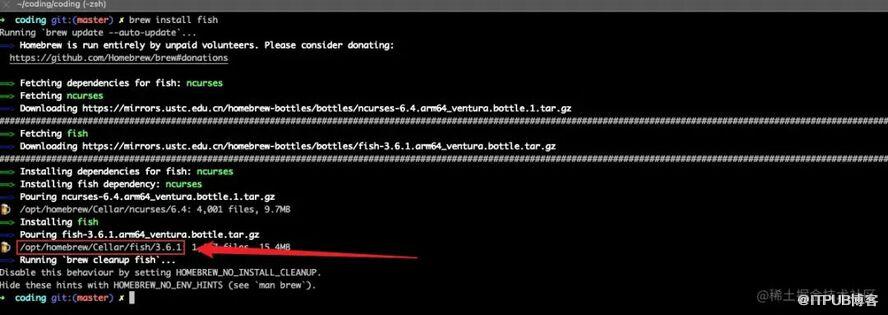
上图中框出的部分是 fish 的安装路径, 这里最好简单记下, 后面需要用到
二、切换
2.1 手动切换
fish

这里如果需要退出 Fish Shell 可执行 exit 命令进行退出
exit

2.2 设置为默认 Shell
sudo vim /etc/shells
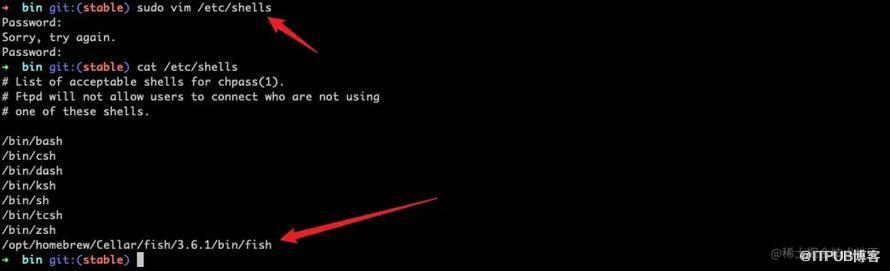
下面我们通过 chsh -s 来切换默认 Shell
chsh -s /opt/homebrew/Cellar/fish/3.6.1/bin/fish

切换完后, 我们重新开一个终端将默认使用 Fish Shell
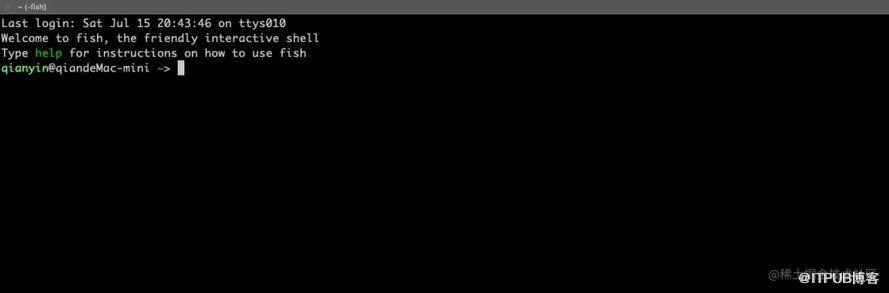
如果需要切换回去, 只需需要执行 chsh -s /bin/zsh 或 chsh -s /bin/bash 即可
chsh -s /bin/zsh
三、好用特性介绍
3.1 命令行语法高亮
1、有效命令默认高亮为蓝色

2、无效命令默认高亮为红色

3、对于有效路径会有下划线提示
4、不匹配的括号或者逗号

3.2 自动补全建议
如果要采纳建议, 可以按下
->

如果只采纳一部分, 可以按下
Alt + ->

3.3 Tab 选项
如果我们需要想查看给定命令是否还有其他可能性, 那么在输入几个字母后, 只需按一下 Tab 键即可
1、如下是输入完 git 直接按 Tab 的结果,它直接列出了所有可能命令以及描述

2、这里是输入 git 以及空格后按下 Tab 的结果, 它将给出 git 的所有可能命令以及描述

-
后按下 Tab 的结果,它将给出 git commit 的所有可能参数以及描述
3.4 基于 Web 的配置器
Fish Shell 相对于其他 Shell 有一个比较有意思的功能, 就是可以通过浏览器来配置或查看 Shell 的主题、提示、功能函数、常量、历史记录、快捷键
1、首先我们需要通过 fish 进入 Fish Shell, 然后再执行 fish_config 命令,这时将自动打开一个配置页面:
fishfish_config

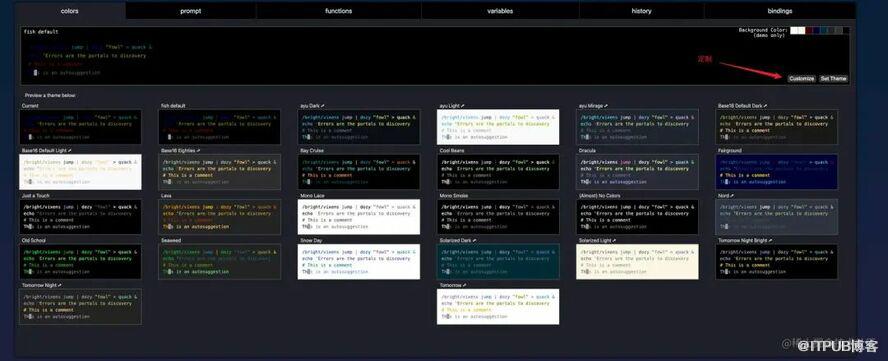
3、第二部分则是设置命令行前面的提示符,同样的官方默认给了很多种选择, 特别的是配置页面没有提供自定义 提示符 的一个入口,如果需要自定义则需要自己修改配置文件,编写函数:


4、第三部分则是列出了所有的功能函数, 可以理解是所有可用命令的实现源码, 这里则不允许进行修改:
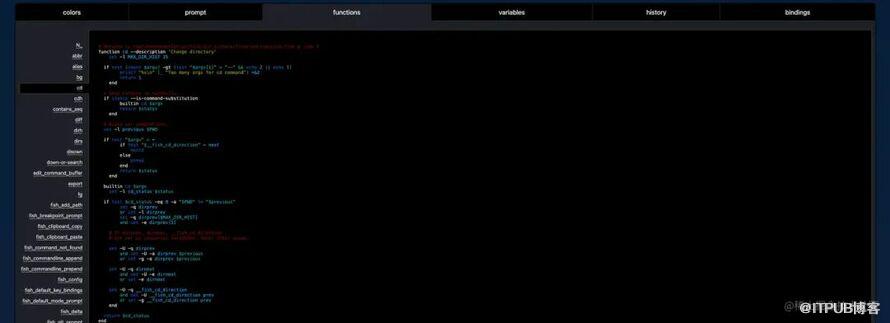
5、第四部分则是列出了所有的常量,这里也不允许进行修改:
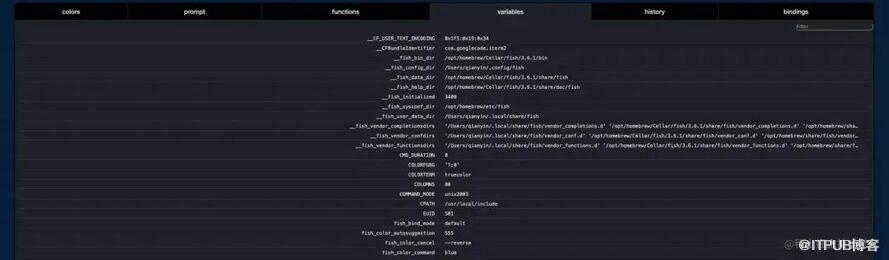
6、第五部分则是记录了所有用过的命令,这里可对历史记录进行一个删除:
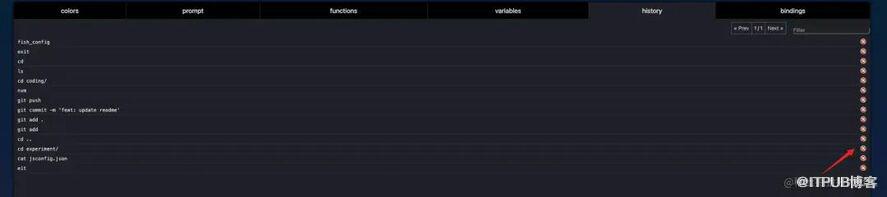
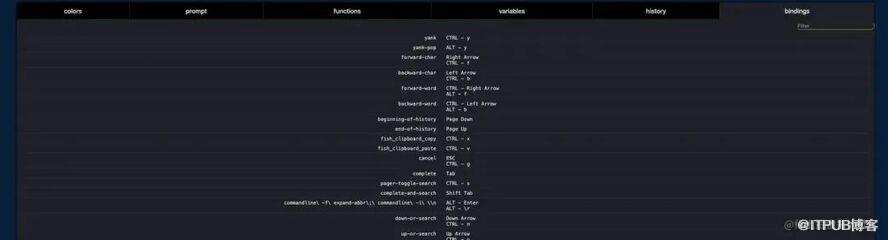
7、第六部分则是快捷键的一个绑定,这里也是不允许进行修改:
3.5 独自的自定义配置文件
Fish Shell 为用户提供了一个独立的配置文件(~/.config/fish/config.fish), 我们可以在这个文件里面写入各种自定义函数、别名、常量…,在每次启动 Fish Shell 后,该文件将被自动加载进来,这里我们可以通过 cat 来查看该配置文件
$ cat ~/.config/fish/config.fishif status is-interactive# Commands to run in interactive sessions can go hereend
vim ~/.config/fish/config.fish
+ alias g "git"+ alias gst "git status"+ alias grs "git reset --soft"+ alias grh "git reset --hard"+ alias gb "git branch"+ alias gba "git branch -a"+ alias gl "git pull"if status is-interactive# Commands to run in interactive sessions can go hereend
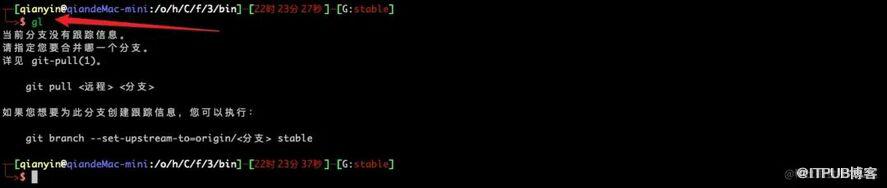
3.6 易懂的语法
Fish Shell 的语法更偏向于高语言, 语法相对来说学起来比较快, 阅读起来也很清晰, 下面是几种常见语法的写法, 更多语法可查阅官网。
1、if 语句
if grep fish /etc/shells echo Found fishelse if grep bash /etc/shells echo Found bashelse echo Got nothingend
2、switch 语句
switch (uname) case Linux echo Hi Tux! case Darwin echo Hi Hexley! case FreeBSD NetBSD DragonFly echo Hi Beastie! case '*' echo Hi, stranger!end
3、while 循环
while true echo "Loop forever"end
4、for 循环
for file in *.txt cp $file $file.bakend
5、函数
# 定义 ll 函数(命令)function llls -lhG $argvend# 重新定义 ls 命令# 函数体内的 ls 之前, 要加上 command, 否则会因为无限循环而报错function lscommand ls -hG $argvend
四、自定「提示符」
方法: 在配置文件 ~/.config/fish/config.fish 中,新增一个 fish_prompt 函数用于定义提示符
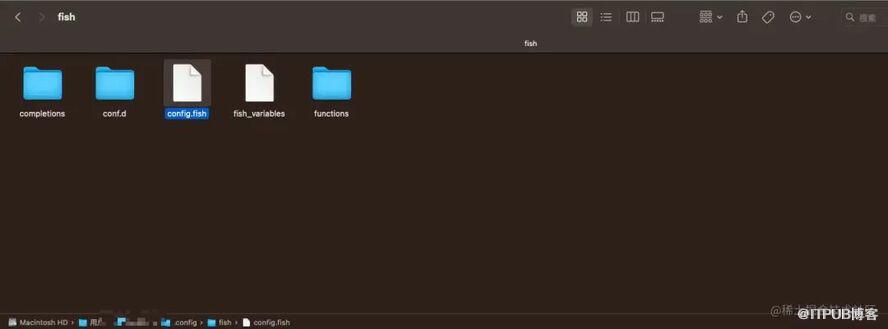
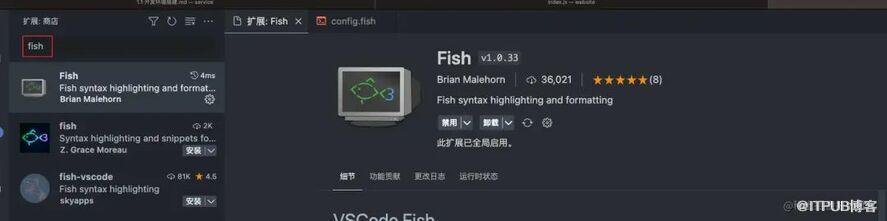
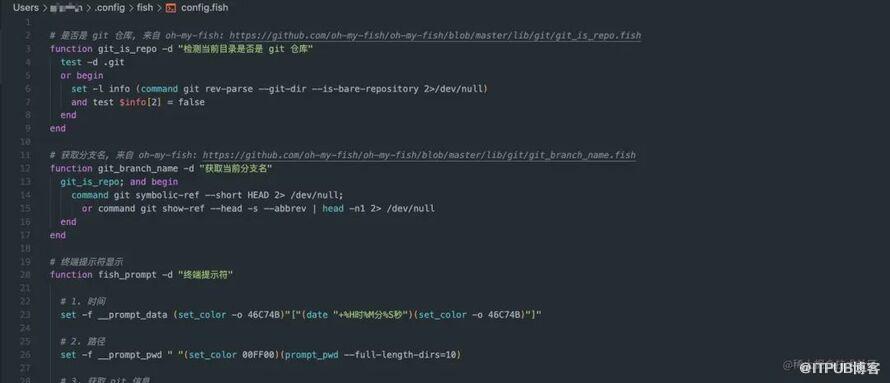
3、下面我们开始定制 提示符,这里我直接给出完整代码,具体讲解可以看注释
关键语法说明:
2>/dev/null 作用是, 命令悄摸摸运行不输出任何日志
set 用于设置变量, -g 表示全局变量, -f 表示函数内部变量, 更多内容可查阅 官方文档
# 是否是 git 仓库, 来自 oh-my-fish:function git_is_repo -d "检测当前目录是否是 git 仓库"test -d .gitor beginset -l info (command git rev- parse --git-dir --is-bare-repository 2>/dev/null)and test $info[ 2] = falseendend# 获取分支名, 来自 oh-my-fish:function git_branch_name -d "获取当前分支名"git_is_repo; and begincommand git symbolic- ref --short HEAD 2> /dev/null;or command git show- ref --head -s --abbrev | head -n1 2> /dev/nullendend# 终端提示符显示function fish_prompt -d "终端提示符"# 1. 时间set -f __prompt_data (set_color -o 46C74B) "["( date "+%H时%M分%S秒")(set_color -o 46C74B) "]"# 2. 路径set -f __prompt_pwd " "(set_color 00FF00)(prompt_pwd --full-length-dirs=10)# 3. 获取 git 信息if git_is_repo# 分支状态图标配置, 更多参考:set -g __fish_git_prompt_char_stagedstate "●" # 存在暂存文件, 图标set -g __fish_git_prompt_char_dirtystate "✚" # 存在未追踪文件, 图标set -g __fish_git_prompt_char_cleanstate "✔" # 项目干净图标# 调用 __fish_git_prompt 读取 git 相关信息, 参考__fish_git_prompt 2 >/dev/ null;# 提交状态set -f __informative_status (set_color -o bryellow)(__fish_git_prompt_informative_status)# 分支信息set -f __branch (set_color brred)(git_branch_name)set -f __prompt_git_info (set_color FF4BFF) " ("(git_branch_name) ": "(set_color red)$__informative_status(set_color FF4BFF) ")"elseset -f __prompt_git_info ""endecho (set_color 00BA00) "┬─"$__prompt_data$__prompt_pwd$__prompt_git_info(set_color normal)echo (set_color 00BA00) "╰─>"(set_color FF635C) "\$ "endif status is-interactive# Commands to run in interactive sessions can go hereend
4、最终效果如下

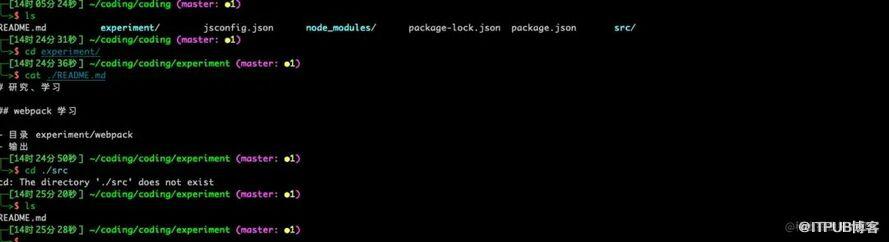
补充:如果想要加上用户名可直接使用常量 $USER
五、修改欢迎语
如下图,每次我们切换到 Fish Shell 都会有欢迎语输出

function fish_greeting echo Hello friend! echo The time is (set_color yellow; date +%T; set_color normal) and this machine is called $hostnameend
作者:墨渊君
链接:
来自 “ ITPUB博客 ” ,链接:https://blog.itpub.net/70013542/viewspace-2996070/ ,如需转载,请注明出处,否则将追究法律责任。

