一般来说,我们在实际的直播电商源码开发场景中都会碰到这种情况


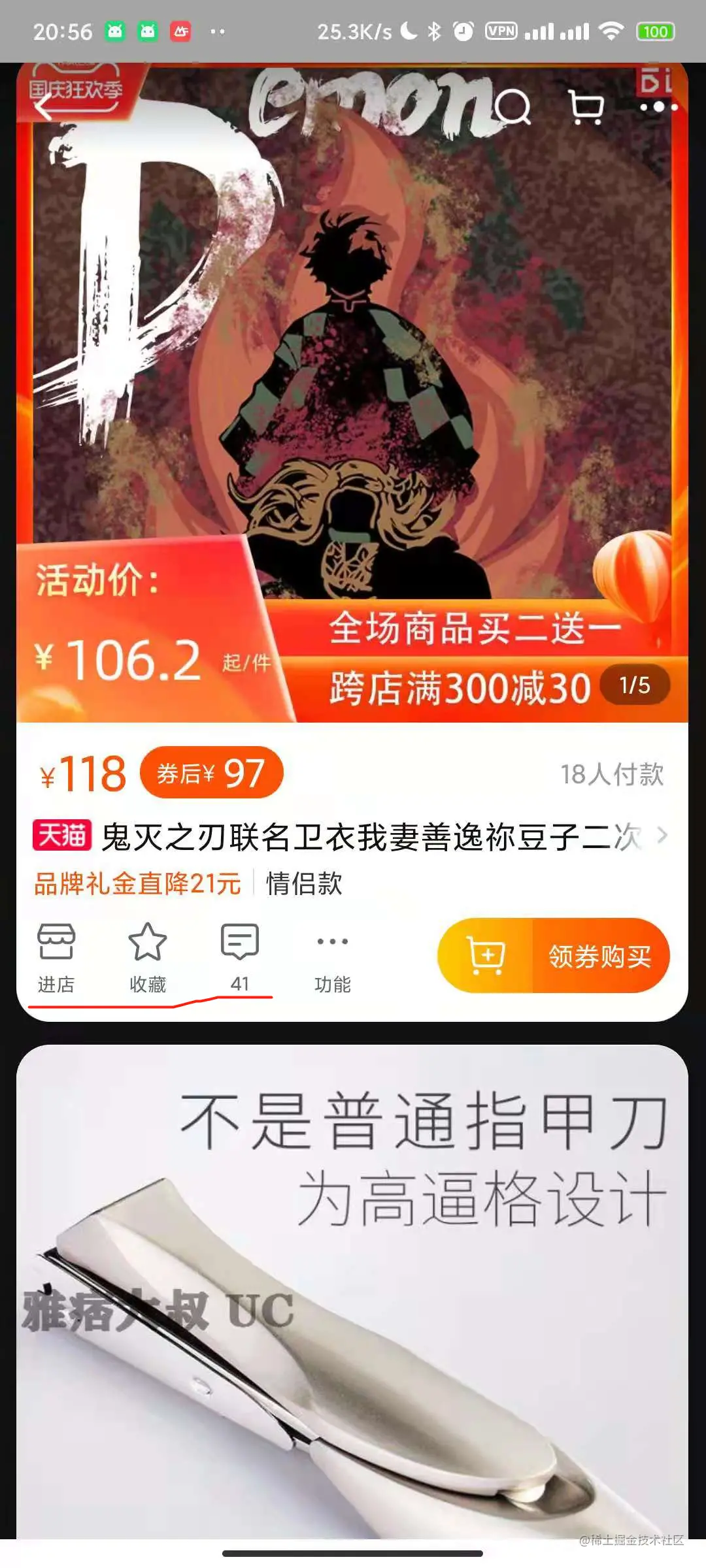
一般来说我们会如下进行布局
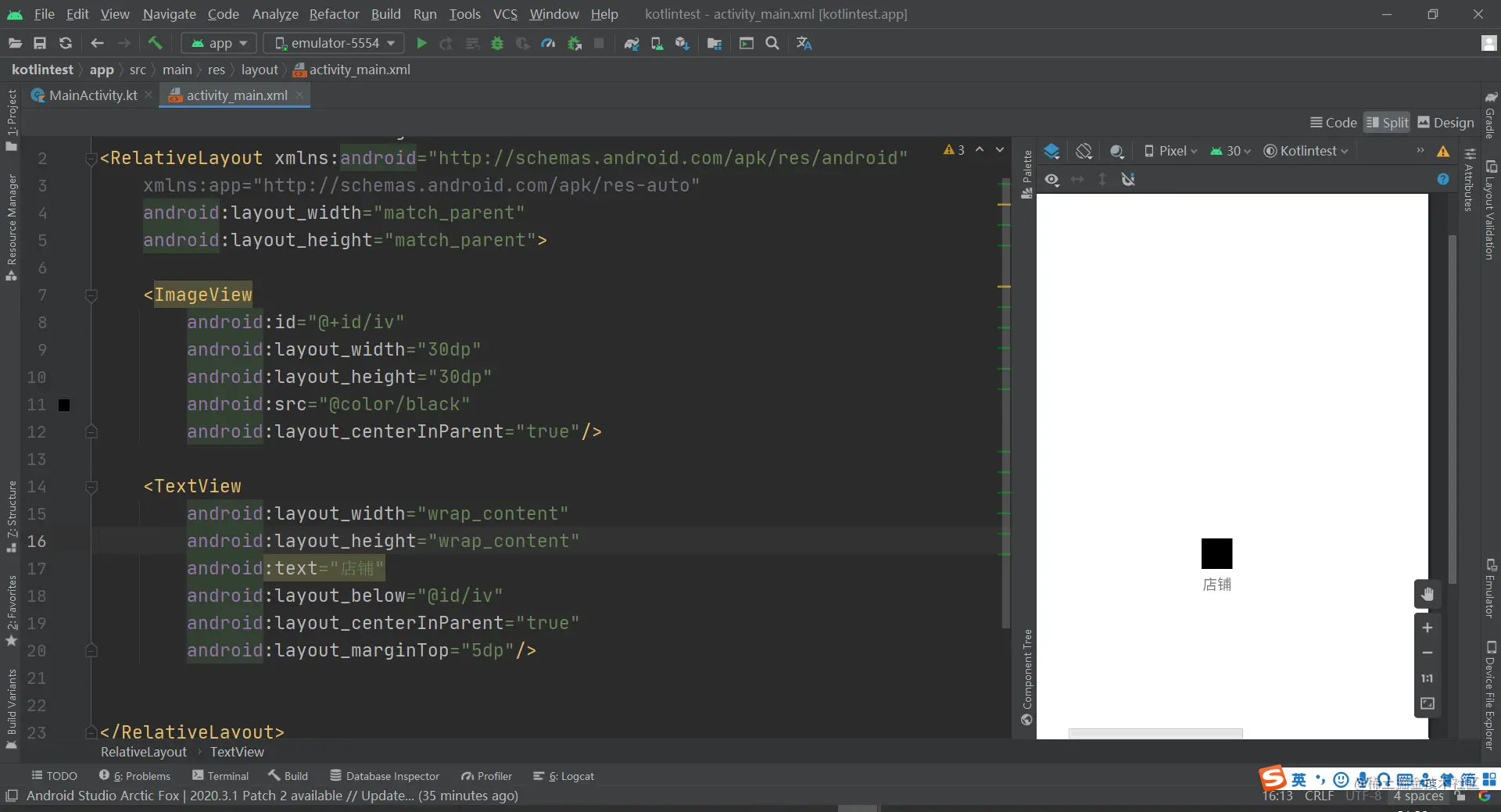
但是要知道,ViewGroup也就是我们根布局,会对子View进行测量,每多一个View就会导致多测量一个View,而且直播电商源码设置点击也不好进行操作.当然如果你说再包一层那我确实没话说
所以我们需要一个更简洁更方便的方法来解决这种让人抓狂的问题
恰巧TextView就为我们提供了一个方式.
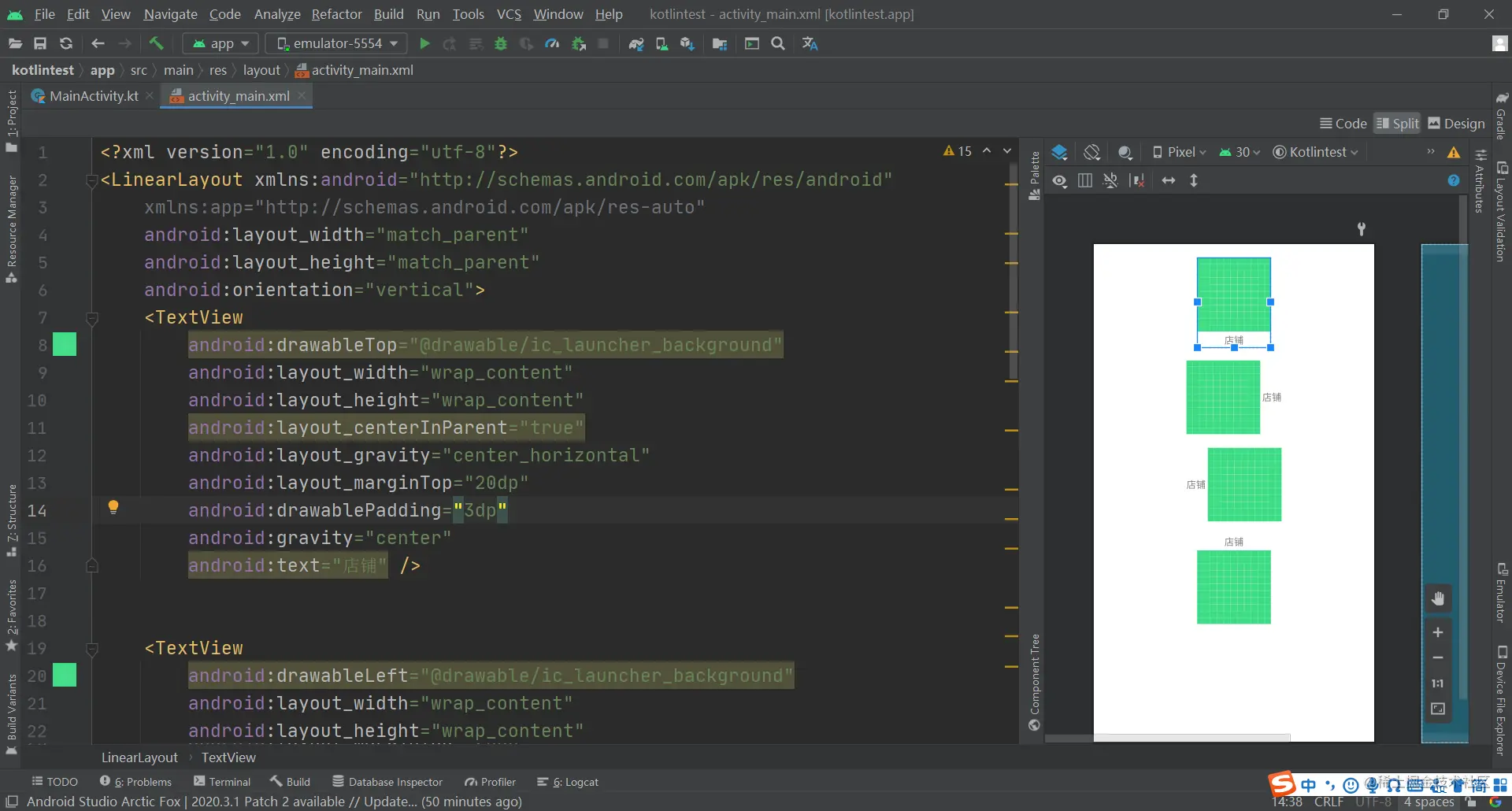
我们可以通过DrawableTop,DrawableBottom.DrawableLeft,DrawableRight为Textview的Drawable设置位置.
但是新的问题出现了,Drawable的大小直播电商源码无法在Xml里进行控制,在不同的手机上他展示的效果很可能会不一致,甚至导致你的布局出现错乱.
当然你可以通过以下方式设置
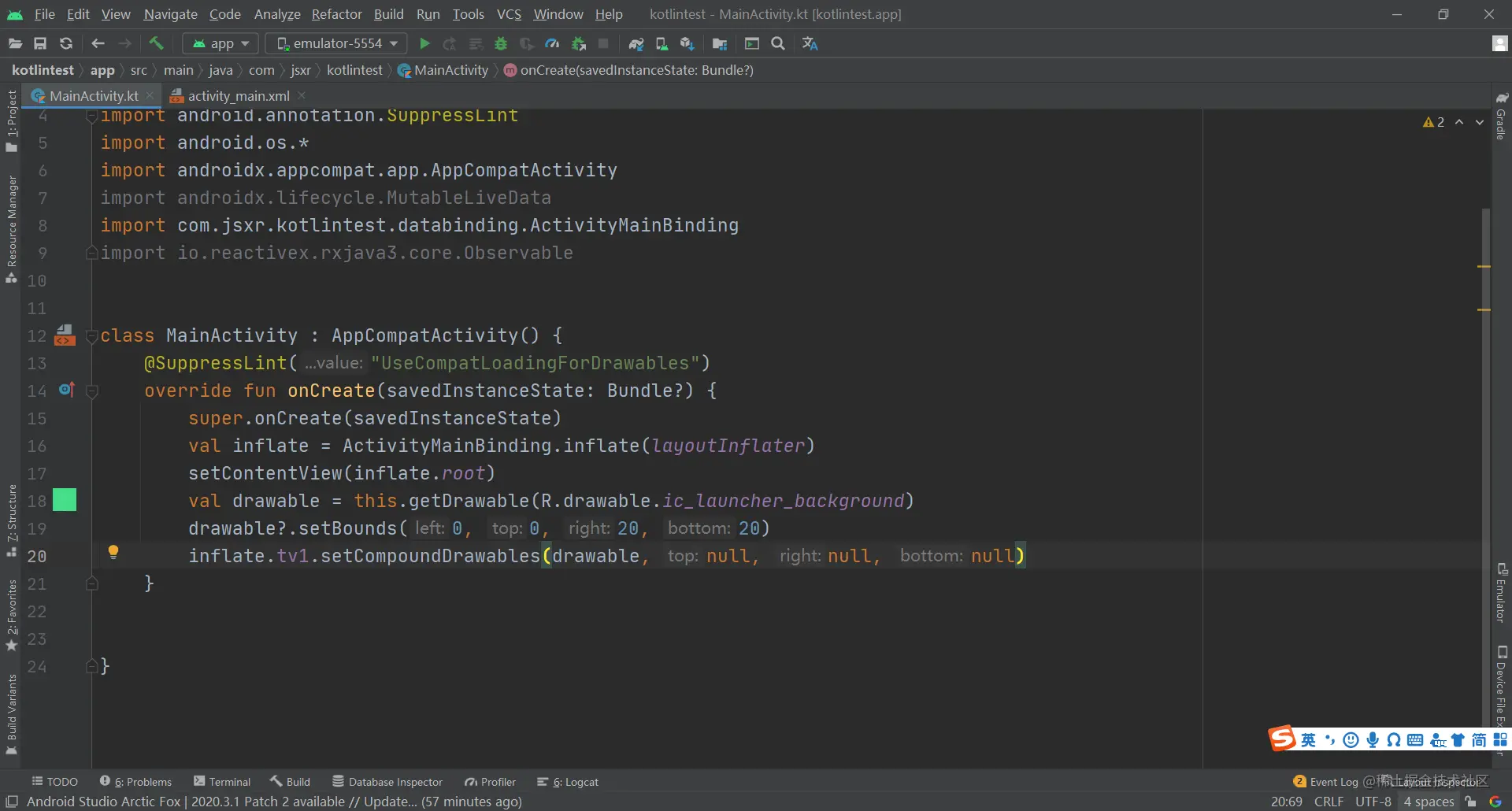
如果你是独立开发,无所谓,如果是协同开发,你这么写会死人的.
这个时候就需要直播电商源码对TextView进行自定义了.
/**
 * 可自定义Drawable的TextView
 * strokeWidth 可设置字体粗细 中粗建议0.3f 默认不加粗
 */
public class DrawableTextView extends androidx.appcompat.widget.AppCompatTextView {
    private final int DRAWABLE_LEFT = 0;
    private final int DRAWABLE_TOP = 1;
    private final int DRAWABLE_RIGHT = 2;
    private final int DRAWABLE_BOTTOM = 3;
    private final int leftDrawableWidth;
    private final int leftDrawableHeight;
    private final int rightDrawableWidth;
    private final int rightDrawableHeight;
    private final int topDrawableWidth;
    private final int topDrawableHeight;
    private final int bottomDrawableWidth;
    private final int bottomDrawableHeight;
    private final float strokeWidth;
    private int leftWidth, rightWidth;//左右图片宽度
    private DrawableListener.DrawableRightListener drawableRightListener;
    private DrawableListener.DrawableLeftListener drawableLeftListener;
    private DrawableListener.DrawableTopListener drawableTopListener;
    private DrawableListener.DrawableBottomListener drawableBottomListener;
    private Context context;
    public DrawableTextView(Context context) {
        this(context, null);
        init(context);
    }
    public DrawableTextView(Context context, AttributeSet attrs) {
        this(context, attrs, 0);
        init(context);
    }
    public DrawableTextView(Context context, AttributeSet attrs, int defStyleAttr) {
        super(context, attrs, defStyleAttr);
        TypedArray typedArray = context.obtainStyledAttributes(attrs, R.styleable.DrawableTextView, defStyleAttr, 0);
        leftDrawableHeight = typedArray.getDimensionPixelSize(R.styleable.DrawableTextView_leftDrawableHeight,
                (int) TypedValue.applyDimension(TypedValue.COMPLEX_UNIT_DIP, -1, getResources().getDisplayMetrics()));
        leftDrawableWidth = typedArray.getDimensionPixelSize(R.styleable.DrawableTextView_leftDrawableWidth,
                (int) TypedValue.applyDimension(TypedValue.COMPLEX_UNIT_DIP, -1, getResources().getDisplayMetrics()));
        rightDrawableHeight = typedArray.getDimensionPixelSize(R.styleable.DrawableTextView_rightDrawableHeight,
                (int) TypedValue.applyDimension(TypedValue.COMPLEX_UNIT_DIP, -1, getResources().getDisplayMetrics()));
        rightDrawableWidth = typedArray.getDimensionPixelSize(R.styleable.DrawableTextView_rightDrawableWidth,
                (int) TypedValue.applyDimension(TypedValue.COMPLEX_UNIT_DIP, -1, getResources().getDisplayMetrics()));
        topDrawableHeight = typedArray.getDimensionPixelSize(R.styleable.DrawableTextView_topDrawableHeight,
                (int) TypedValue.applyDimension(TypedValue.COMPLEX_UNIT_DIP, -1, getResources().getDisplayMetrics()));
        topDrawableWidth = typedArray.getDimensionPixelSize(R.styleable.DrawableTextView_topDrawableWidth,
                (int) TypedValue.applyDimension(TypedValue.COMPLEX_UNIT_DIP, -1, getResources().getDisplayMetrics()));
        bottomDrawableHeight = typedArray.getDimensionPixelSize(R.styleable.DrawableTextView_bottomDrawableHeight,
                (int) TypedValue.applyDimension(TypedValue.COMPLEX_UNIT_DIP, -1, getResources().getDisplayMetrics()));
        bottomDrawableWidth = typedArray.getDimensionPixelSize(R.styleable.DrawableTextView_bottomDrawableWidth,
                (int) TypedValue.applyDimension(TypedValue.COMPLEX_UNIT_DIP, -1, getResources().getDisplayMetrics()));
        strokeWidth = typedArray.getFloat(R.styleable.DrawableTextView_StrokeWidth, 0);
        typedArray.recycle();
        init(context);
    }
    private void init(Context context) {
        //自定义加粗程度 建议0.3f
        if (strokeWidth != 0) {
            TextPaint paint = getPaint();
            paint.setStrokeWidth(strokeWidth);
            paint.setStyle(Paint.Style.FILL_AND_STROKE);
        }
        drawable();
    }
    private void drawable() {
        Drawable[] drawables = getCompoundDrawables();
        for (int i = 0; i < drawables.length; i++) {
            setDrawableSize(drawables[i], i);
        }
        //放置图片
        setCompoundDrawables(drawables[DRAWABLE_LEFT], drawables[DRAWABLE_TOP], drawables[DRAWABLE_RIGHT], drawables[DRAWABLE_BOTTOM]);
    }
    //设置drawableRight 图片的点击监听
    public void setDrawableRightListener(DrawableListener.DrawableRightListener drawableRightListener) {
        this.drawableRightListener = drawableRightListener;
    }
    public void setDrawableLeftListener(DrawableListener.DrawableLeftListener drawableLeftListener) {
        this.drawableLeftListener = drawableLeftListener;
    }
    public void setDrawableTopListener(DrawableListener.DrawableTopListener drawableTopListener) {
        this.drawableTopListener = drawableTopListener;
    }
    public void setDrawableBottomListener(DrawableListener.DrawableBottomListener drawableBottomListener) {
        this.drawableBottomListener = drawableBottomListener;
    }
    @Override
    public boolean onTouchEvent(MotionEvent event) {
        switch (event.getAction()) {
            case MotionEvent.ACTION_UP:
                if (drawableRightListener != null) {
                    Drawable drawableRight = getCompoundDrawables()[DRAWABLE_RIGHT];
                    if (drawableRight != null && event.getRawX() >= (getRight() - drawableRight.getBounds().width())
                            && event.getRawX() < getRight()) {
                        drawableRightListener.drawableRightListener(this);
                        return true;
                    }
                }
                if (drawableLeftListener != null) {
                    Drawable drawableLeft = getCompoundDrawables()[DRAWABLE_LEFT];
                    if (drawableLeft != null && event.getRawX() <= (getLeft() + drawableLeft.getBounds().width())
                            && event.getRawX() > getLeft()) {
                        drawableLeftListener.drawableLeftListener(this);
                        return true;
                    }
                }
                if (drawableTopListener != null) {
                    Drawable drawableTop = getCompoundDrawables()[DRAWABLE_TOP];
                    if (drawableTop != null && event.getRawY() <= (getTop() + drawableTop.getBounds().height())
                            && event.getRawY() > getTop()) {
                        drawableTopListener.drawableTopListener(this);
                        return true;
                    }
                }
                if (drawableBottomListener != null) {
                    Drawable drawableBottom = getCompoundDrawables()[DRAWABLE_BOTTOM];
                    if (drawableBottom != null && event.getRawY() >= (getBottom() - drawableBottom.getBounds().height())
                            && event.getRawY() < getBottom()) {
                        drawableBottomListener.drawableBottomListener(this);
                        return true;
                    }
                }
                break;
        }
        return super.onTouchEvent(event);
    }
    @Override
    protected void onDraw(Canvas canvas) {
        super.onDraw(canvas);
    }
    //设置图片的高度和宽度
    private void setDrawableSize(Drawable drawable, int index) {
        if (drawable == null) {
            return;
        }
        //左上右下
        int width = 0, height = 0;
        switch (index) {
            case DRAWABLE_LEFT:
                width = leftDrawableWidth;
                height = leftDrawableHeight;
                break;
            case DRAWABLE_TOP:
                width = topDrawableWidth;
                height = topDrawableWidth;
                break;
            case DRAWABLE_RIGHT:
                width = rightDrawableWidth;
                height = rightDrawableWidth;
                break;
            case DRAWABLE_BOTTOM:
                width = bottomDrawableWidth;
                height = bottomDrawableHeight;
                break;
        }
        //如果没有设置图片的高度和宽度具使用默认的图片高度和宽度
        if (width < 0) {
            width = drawable.getIntrinsicWidth();
        }
        if (height < 0) {
            height = drawable.getIntrinsicHeight();
        }
        if (index == 0) {
            leftWidth = width;
        } else if (index == 2) {
            rightWidth = width;
        }
        drawable.setBounds(0, 0, width, height);
    }
}
必要的注释,我已经写在代码里了.里面其实我做了一些自己的常用的封装..
- 对于Drawable的点击监听,因为有时候实际的业务场景很复杂,阴间的产品需求可能会让你只能对Drawable点击触发事件
- 设置字体的粗细程度,Textview我们虽然可以设置是否粗细,但是官方提供的API设置的太粗了,你仔细看蓝湖上的字体粗细,有很大差别.
以下是使用方式
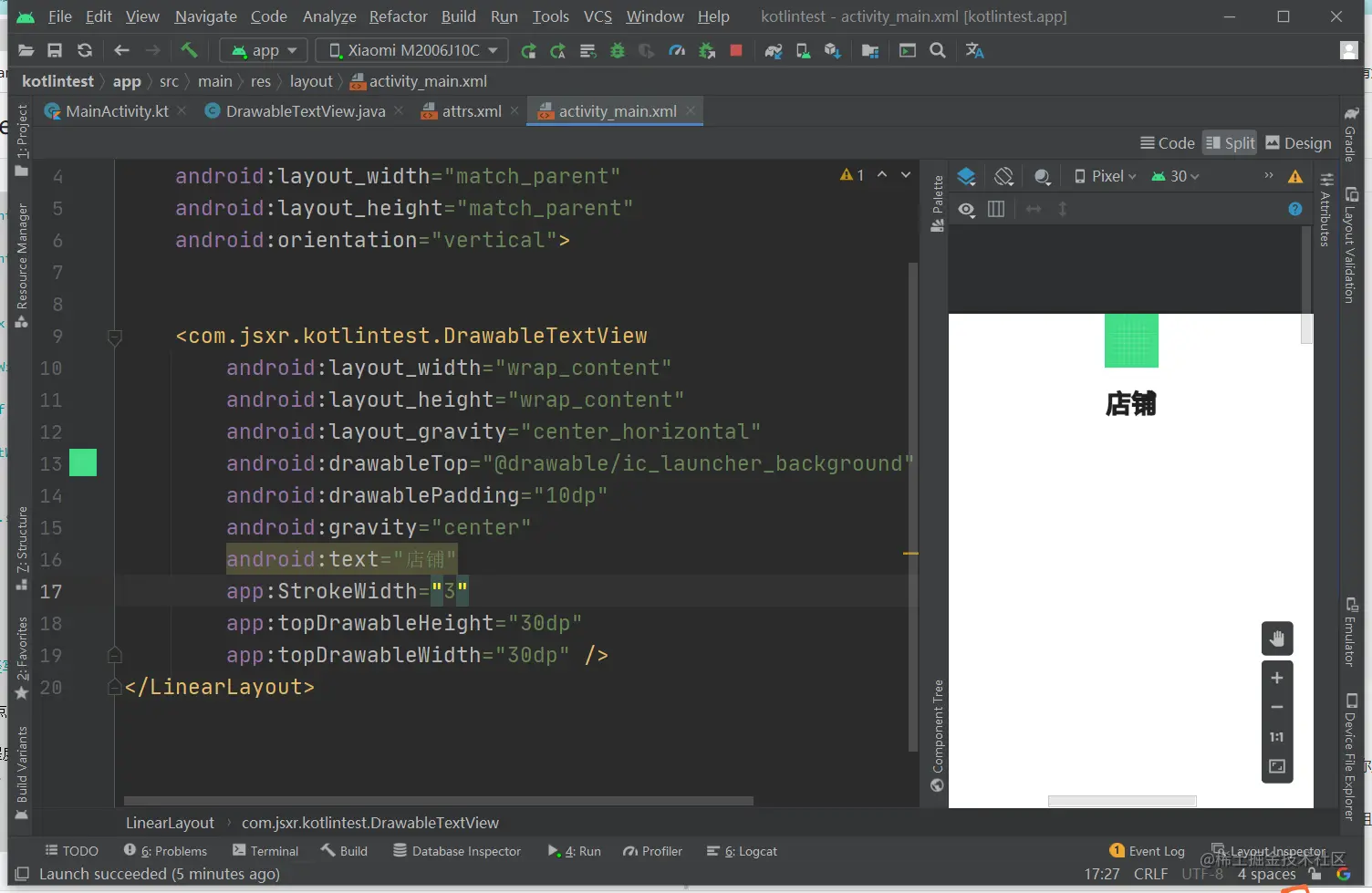
上面可以看到我的StrokeWidth是3,这个我给予的是float,你按照自己的感觉设置即可.
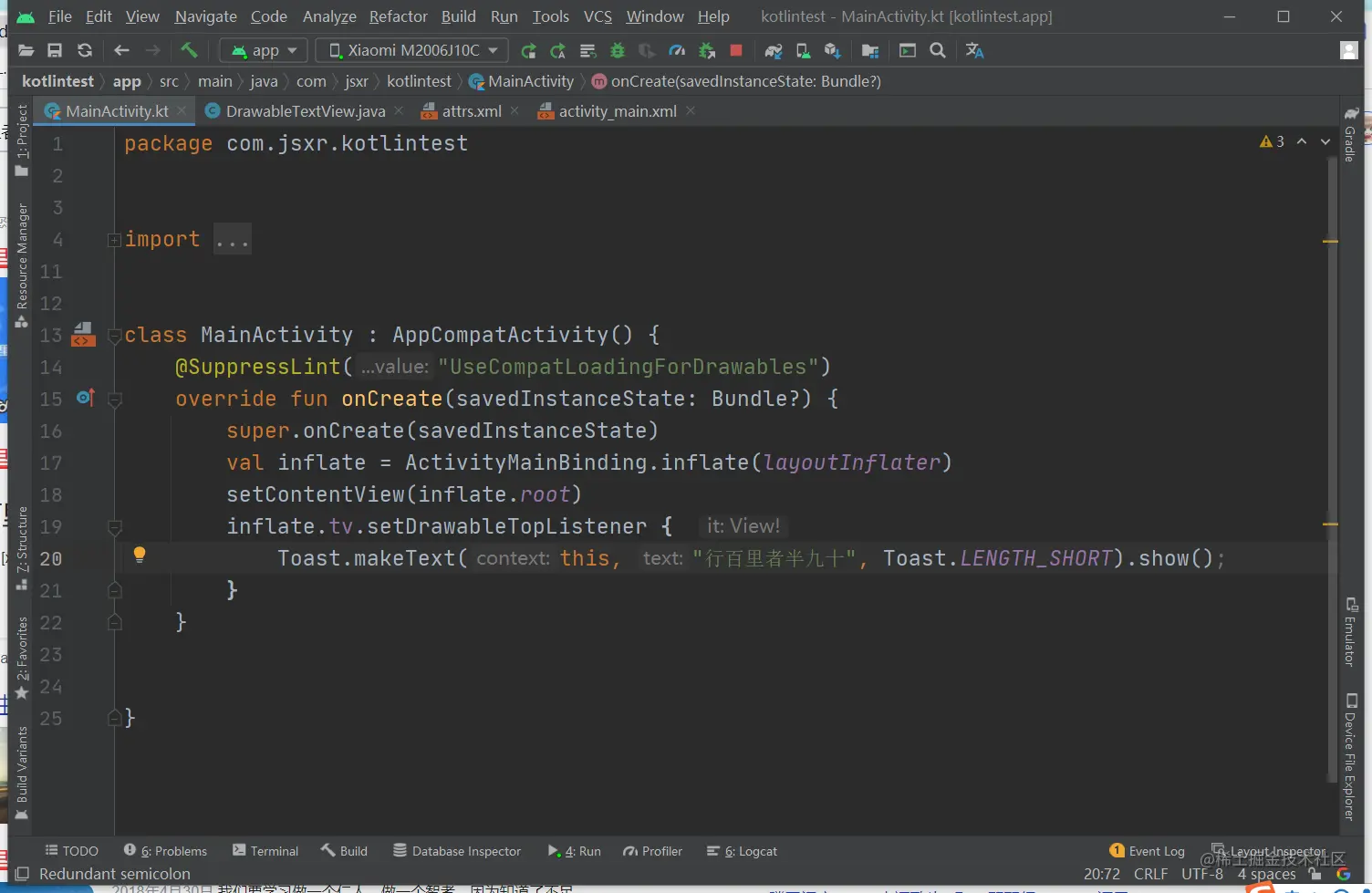
监听要设置直播电商源码Drawable位置的监听,如果你的xml是DrawableLeft,在Activity里你设置的DrawableTop点击事件他是不会生效的.
为了方便大家复制下面是attrs里的配置
<!--drawableTextView-->
<declare-styleable name="DrawableTextView">
    <attr name="leftDrawableWidth" format="dimension" />
    <attr name="leftDrawableHeight" format="dimension" />
    <attr name="rightDrawableWidth" format="dimension" />
    <attr name="rightDrawableHeight" format="dimension" />
    <attr name="topDrawableWidth" format="dimension" />
    <attr name="topDrawableHeight" format="dimension" />
    <attr name="bottomDrawableWidth" format="dimension" />
    <attr name="bottomDrawableHeight" format="dimension" />
    <attr name="StrokeWidth" format="float" />
</declare-styleable>
其实上面的封装没有什么高深的东西,都是一些基础,不过一些涉及的东西比较乱而已,大家不用太注意细节,只要能解决直播电商源码中的实际问题即可.
声明:本文由云豹科技转发自只是未遇见博客,如有侵权请联系作者删除
来自 “ ITPUB博客 ” ,链接:https://blog.itpub.net/70002045/viewspace-2794969/ ,如需转载,请注明出处,否则将追究法律责任。

