小菜最近在学习实现 在线直播源码的小动画,说来惭愧,工作这么久了一直没有认真了解过动画这部分,今天特意学习一下 Android 的基本动画。
Android 的基本的动画包括 alpha(透明度)/ scale(缩放)/ translate(位移) / rotate(旋转)四种,小菜今天学习实现一下在线直播源码渐变缩放动画效果。
Activity 绑定动画事件:
mBtn1.setOnClickListener(new View.OnClickListener() {
    @Override
    public void onClick(View v) {
        mV1.startAnimation(AnimationUtils.loadAnimation(AnimActivity.this, R.anim.anim_scale));
    }
});

layout.xml 显示动画效果
<?xml version="1.0" encoding="utf-8"?>
<LinearLayout xmlns:android="http://schemas.android.com/apk/res/android"
    android:layout_width="match_parent"
    android:layout_height="match_parent"
    android:orientation="vertical" >
  <Button
      android:id="@+id/anim_btn1"
      android:layout_width="match_parent"
      android:layout_height="wrap_content"
      android:layout_marginBottom="40dp"
      android:text="开始动画" />
  <View
      android:id="@+id/anim_v1"
      android:layout_width="300dp"
      android:layout_height="150dp"
      android:layout_gravity="center"
      android:background="@color/colorAccent" />
</LinearLayout>
anim.xml 设置动画属性
<?xml version="1.0" encoding="utf-8"?>
<scale xmlns:android="http://schemas.android.com/apk/res/android"
    android:duration="3500"
    android:fromXScale="0.0"
    android:fromYScale="0.0"
    android:pivotX="100%p"
    android:pivotY="100%p"
    android:toXScale="1.0"
    android:toYScale="1.0" />
代码很简单,小菜接下来逐条学习一下 anim_scale 中各条属性:
1. android:duration="3500"
duration 代表动画过程中持续时常;
2. android:fromXScale="0.0"
fromXScale 代表初始时横向 View 比例,0.0为从没有开始动画,1.0即 View 原尺寸,2.0即 View 原尺寸两倍;建议与 toXScale 共同使用;
3. android:fromYScale="0.0"
fromYScale 为初始时纵向 View 比例,与 fromXScale 使用相同;
4. android:toXScale="1.0"
toXScale 代表动画过程中横向变化尺寸比例,一般与 fromXScale 共同使用;
5. android:toYScale="1.0"
toYScale 代表动画过程中纵向变化尺寸比例,一般与 fromYScale 共同使用;
6. android:pivotX="100%p" android:pivotY="100%p"
pivotX 和 pivotY 是小菜重点学习的地方,小菜理解为动画起点坐标,可以为整数值、百分数(或者小数)、百分数p 三种样式。
- 整数值:android:pivotX="100"
整数值类型是相对于自身 View 来定义,以自身 View 左上角的点为原点,水平向右为正,竖直向下为正的坐标系中计算,设置的整数值为 px,为固定值。
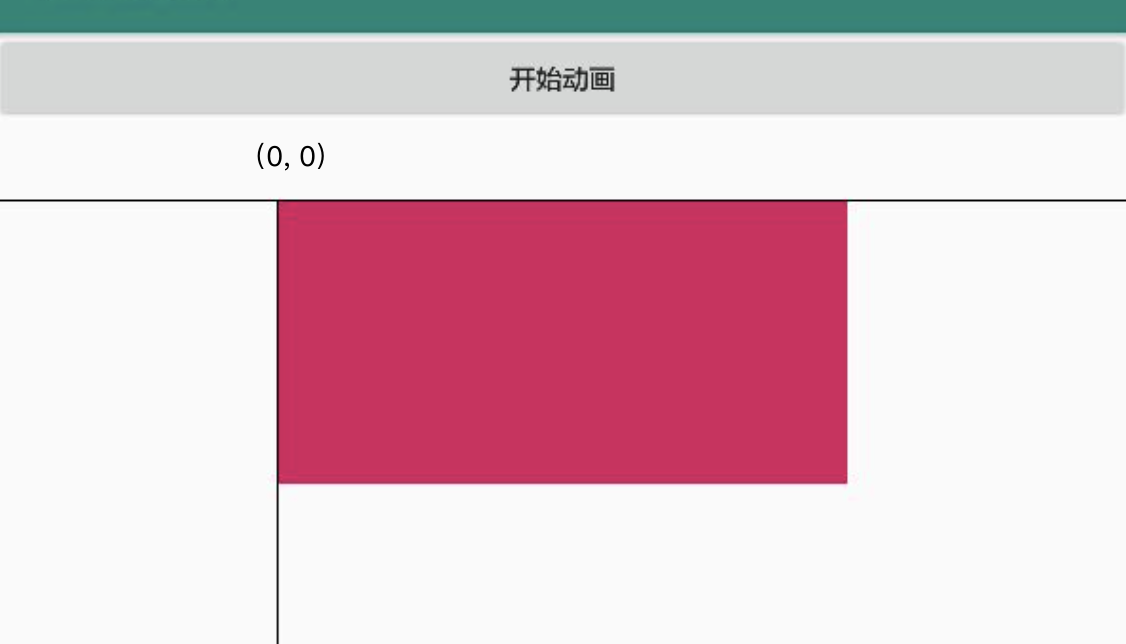
- 百分数/小数:android:pivotX="100%"
百分数/小数类型是相对于自身 View 来定义,与整数值类似,只是坐标点是以自身 View 尺寸比例来计算而非固定值。
<?xml version="1.0" encoding="utf-8"?>
<LinearLayout xmlns:android="http://schemas.android.com/apk/res/android"
    android:layout_width="match_parent"
    android:layout_height="match_parent"
    android:orientation="vertical" >
  <Button
      android:id="@+id/anim_btn1"
      android:layout_width="match_parent"
      android:layout_height="wrap_content"
      android:layout_marginBottom="40dp"
      android:text="开始动画" />
  <FrameLayout
      android:layout_width="match_parent"
      android:layout_height="wrap_content" >
    <FrameLayout
        android:layout_width="match_parent"
        android:layout_height="wrap_content" >
      <View
          android:id="@+id/anim_v1"
          android:layout_width="300dp"
          android:layout_height="150dp"
          android:layout_gravity="center"
          android:background="@color/colorAccent" />
    </FrameLayout>
    <View
        android:layout_width="match_parent"
        android:layout_height="1dp"
        android:background="@android:color/background_dark" />
    <View
        android:layout_width="1dp"
        android:layout_height="match_parent"
        android:layout_gravity="center"
        android:layout_marginRight="150dp"
        android:background="@android:color/background_dark" />
  </FrameLayout>
</LinearLayout>
- 百分数 + p:
这种方式是最特殊的,小菜理解为自身 View 与相对于某个父容器的大小,并非单纯的根据父容器大小尺寸位置。小菜为了测试方便,设置了一个固定的 400dp*400dp 的 LinearLayout,测试百分数 + p 的方式都正常,但是如果设置 View 居中或其他情况时跟小菜想的很有差距,小菜测试了很久,终于有一些了解。
百分比 + p 这种方式是相对的,既与父容器相关也与自身 View 相关,当设置 View 位置为居中或其他位置时,整个移动的坐标系也会变化,原点并非直接父容器左上角而是自身 View 左上角,整个移动布局根据 View 平移;而父容器是一个框架,动画的范围大小为父容器大小且只在父容器中进行展示。如图:
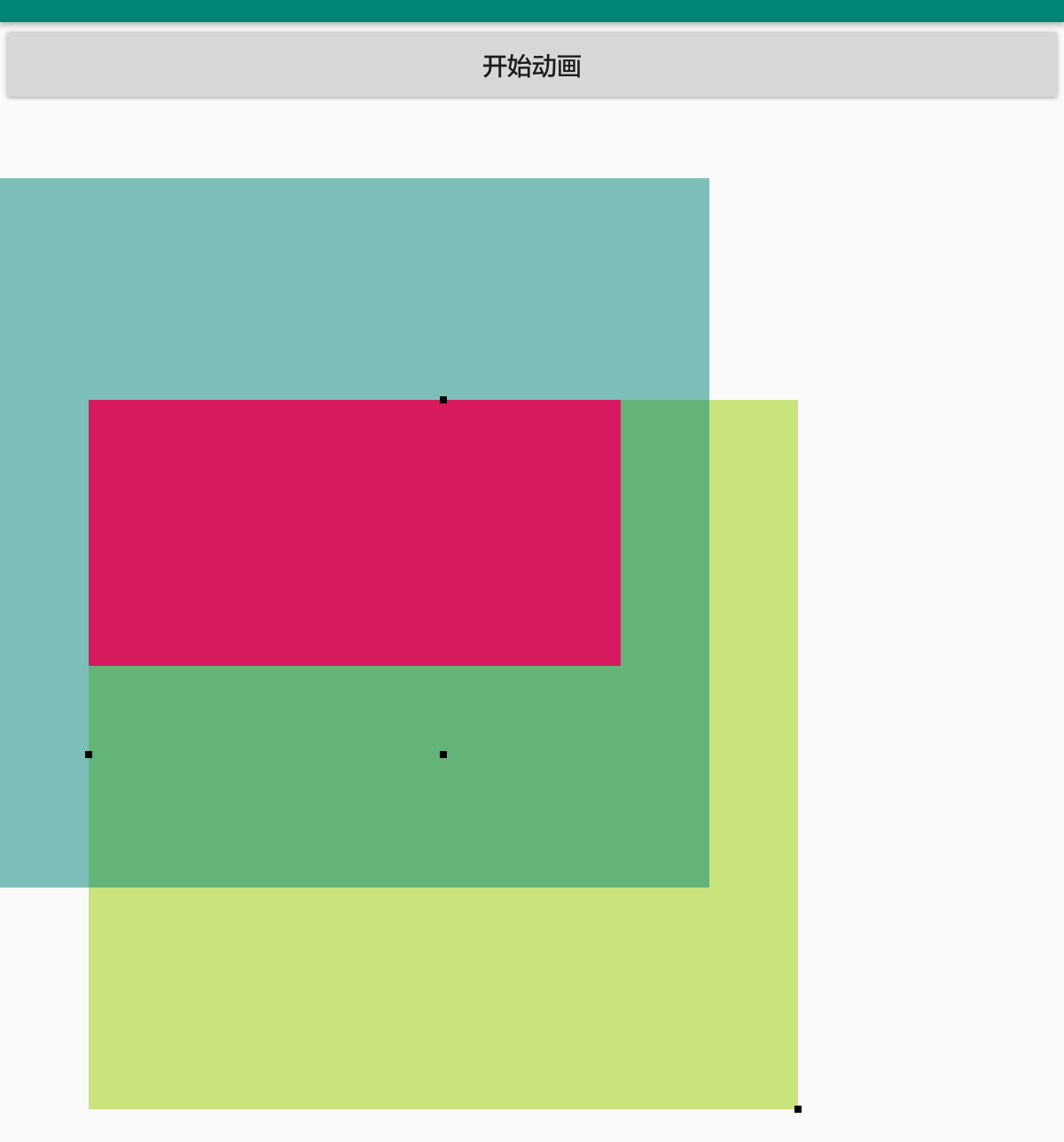
小菜这才了解到刚开始测试时并未设置 LinearLayout 的 gravity 或自身 View 的 layout_gravity 属性,默认是居左上角,此时与父容器左上角重合。
<?xml version="1.0" encoding="utf-8"?>
<LinearLayout xmlns:android="http://schemas.android.com/apk/res/android"
    android:layout_width="match_parent"
    android:layout_height="match_parent"
    android:orientation="vertical" >
  <Button
      android:id="@+id/anim_btn1"
      android:layout_width="match_parent"
      android:layout_height="wrap_content"
      android:layout_marginBottom="40dp"
      android:text="开始动画" />
  <FrameLayout
      android:layout_width="wrap_content"
      android:layout_height="wrap_content" >
    <LinearLayout
        android:layout_width="400dp"
        android:layout_height="400dp"
        android:background="#8099cc00"
        android:layout_marginLeft="50dp"
        android:layout_marginTop="125dp"
        android:gravity="center"
        android:orientation="horizontal" />
    <LinearLayout
        android:layout_width="400dp"
        android:layout_height="400dp"
        android:background="#80008577"
        android:gravity="center"
        android:orientation="horizontal" >
      <View
          android:id="@+id/anim_v1"
          android:layout_width="300dp"
          android:layout_height="150dp"
          android:background="@color/colorAccent"
          android:gravity="center"
          android:text="Hello World!" />
    </LinearLayout>
    <View
        android:layout_width="4dp"
        android:layout_height="4dp"
        android:layout_marginLeft="248dp"
        android:layout_marginTop="123dp"
        android:background="@android:color/background_dark" />
    <View
        android:layout_width="4dp"
        android:layout_height="4dp"
        android:layout_marginLeft="48dp"
        android:layout_marginTop="323dp"
        android:background="@android:color/background_dark" />
    <View
        android:layout_width="4dp"
        android:layout_height="4dp"
        android:layout_marginLeft="248dp"
        android:layout_marginTop="323dp"
        android:background="@android:color/background_dark" />
    <View
        android:layout_width="4dp"
        android:layout_height="4dp"
        android:layout_marginLeft="448dp"
        android:layout_marginTop="523dp"
        android:background="@android:color/background_dark" />
  </FrameLayout>
</LinearLayout>
7. android:interpolator="@android:anim/accelerate_decelerate_interpolator"
interpolator 代表缩放动画曲线,即动画由大变小,变换速率等
小菜正在从零学习实现在线直播源码的动画效果,不对的请多多指正!
声明:本文由云豹科技转发自阿策~博客,如有侵权请联系作者删除
来自 “ ITPUB博客 ” ,链接:https://blog.itpub.net/70002045/viewspace-2792257/ ,如需转载,请注明出处,否则将追究法律责任。

