CI-CD for a piece of java code in Jenkins with Helm, Kubernetes and AWS ECR
A brief CI-CD workflow for deployment with Jenkins
A brief CI-CD workflow for deployment with Jenkins

by Yi Weng
Jenkins has a web UI driven and manageable pipeline plugin, which provides stages traceable logs and management. In this article, users can implement a project’s entire build/deploy pipeline in a Jenkinsfile for a piece of helloworld java code in AWS EC2 Kubernetes environment, and store their code versioning as docker images in AWS ECR. This article will demonstrate a process of jenkins pipeline with Helm deployment in Kubernetes in the AWS platform. And welcome to contact me if you have any idea.

All source code and files are available in following github. This short guide of CI/CD process provides 3 stages in Jenkinsfile:
In Kubernetes deployment setting, we set the strategy of inflection as 1 by 1 in this guide. e.g. It can emit the new code in one pod by one pod, which means if the deployed pod is working successfully, it will inflect the next. If it is not, it will stop and let the old version remains working.
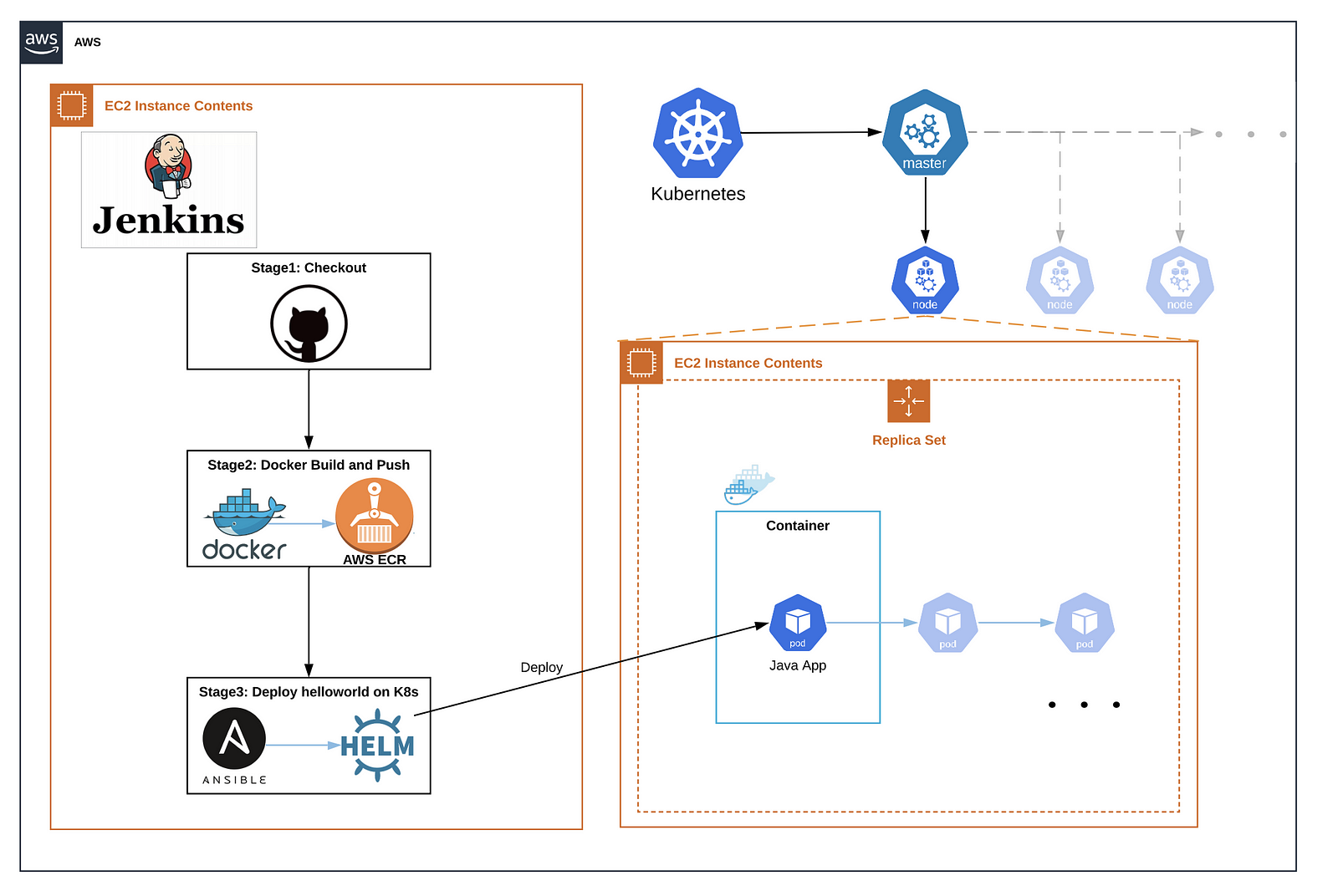
We bases on AWS resources to process this short project, so you may have a AWS account or other cloud platform tool to complement this guide.
Step1: You should install Jenkins and Docker into your instance with the following guides as prerequisites. Jenkins installation and Docker installation. Please note, users should use following commands in instance. In order to use docker commands, we need to add jenkins user into docker group. Modifies file permissions should be changed to root:docker yet. After that, restart the docker service.
sudo usermod -aG docker jenkins
chmod root:docker /var/run/docker.sock
sudo systemctl restart docker
To verify that docker is correctly running, just type:
sudo systemctl status docker
You will see the docker running status.
Step2: Setting kubernetes into AWS EC2 with kops and kubeclt. I deployed a simple kubernetes which is my production environment into my AWS by kops commands with following cluster installation guide.
You may need to set a peer connection if your jenkins instance is in the different vpc from a private kubernetes vpc. In order to let jenkins users manage kubernetes cluster, you should add both two sides route into route tables as well.
Step3: Installing Ansible and Helm Package. In stage 3, Jenkins will use Ansible script locally to deploy our Helm chart. Therefore, Ansible and Helm should be installed and configured into Jenkins instance by following guides, Ansible installation and Helm installation.
The dockerfile is a set of configurations of recreation an admin user and its group which is our working user instead of root user and preinstallation of JDK11. It is because I want my container user to inherit my kube node user privilege to coordination work with other resources in my whole project.
FROM debian:latest
ARG =1000
ARG =1000
# Generate user and group
# We make both USER_ID and GROUP_ID optional.
# Building an image using --build-arg
RUN if getent group admin ; then groupdel admin; fi &&\
    groupadd -g ${} admin &&\
    useradd -l -u ${} -g admin admin &&\
    install -d -m 0755 -o admin -g admin /home/admin &&\
    chown --changes --silent --no-dereference --recursive \
    --from=41:41 ${}:${} \
        /home/admin
# Install dependencies
RUN apt-get update -y && \
  apt-get install openjdk-11-jre-headless -y
# Add java files
ADD code/HelloWorld.java /home
ADD startup.sh /home
RUN chown -R admin:admin /home
# Set USER variable
#USER admin
USER admin
Before setting Jenkins pipeline, we need to install plugins of Amazon ECR plugin, Blue Ocean, Docker plugin and Pipeline in Jenkins Plugin Manager which can simplify our commands in Jenkinsfile. After the plugins installation, we can use blue ocean to create a new pipeline with a connection with owned git repository. Put your repository URL cloned from my repo above into the blank. To create a new pipeline-job:
 Jenkins Blue Ocean Pipeline UI
For setting a AWS Credentials, you need to put your own access Key ID and Secret Access Key into the related blank.
 Jenkins Add Credentials UI
Add your AWS credentials into your pipeline job to grant Jenkins user permission to visit AWS ECR repository.
 Jenkins Pipeline job Configure
The Jenkinsfile from the github specifies the process of continuous deployment with 4 stages. Firstly, you need to put your AWS ECR link found in your Amazon Container Services Repositories UI into the 4th line instead of the content of ‘https:// 123456123456.dkr.ecr.ap-southeast-2.amazonaws.com’ .
 AWS ECR Repositories
node {
    def Namespace = "default"
    def ImageName = "helloworld.k8s.java.repo"
    def ECRLink = "https://.dkr.ecr.ap-southeast-2.amazonaws.com"
    stage ('checkout'){
        final scmVars = checkout(scm)
        ImageTag = "${checkout(scm).GIT_COMMIT}"
    }

    stage('Docker Build and Push'){
        dir("${env.WORKSPACE}"){
            docker.build("${ImageName}:latest")
        }

        docker.withRegistry("${ECRLink}", 'ecr:ap-southeast-2:helloworld-ecr'){
            docker.image("${ImageName}").push("${ImageTag}")
        }
     }
    stage('Deploy helloworld on K8s'){
        dir("${env.WORKSPACE}"){
            sh "ansible-playbook ./CI-CD/deploy/Jenkins_deploy_playbook.yml  --extra-vars ECRLink=${ECRLink}  --extra-vars ImageName=${ImageName} --extra-vars imageTag=${ImageTag} --extra-vars Namespace=${Namespace}"
        }
    }
}
In stage ‘checkout’, pipeline pulls the content from github and records the commit regarded as a long length digits.
In stage ‘Docker Build and Push’, pipeline builds the current code into docker image with the tag of image name and ‘latest’. And it pushes this image to destined repository with a recorded tag.
In stage ‘Deploy helloworld on K8s’, pipeline runs the Ansible script CI-CD/deploy/Jenkins_deploy_playbook.yml locally with passing 4 parameters of ECRLink, ImageName, Namespace and imageTag to Helm chart deployment. This script will try to create a Helm chart firstly. If the chart name exists, it will ignore the creation and process to deploy a new application deployment. If the deployment name exists, it will ignore this step and process to update that deployment.
- hosts: localhost
  vars:
    ECRLink: ""
    ImageName: ""
    Namespace: ""
    imageTag: ""
  gather_facts: no
  connection: local
  tasks:
    - name: Create Namespace {{ Namespace }}
      command: "/snap/bin/kubectl create namespace {{ Namespace }}"
      ignore_errors: yes
    - name: Deploy App
      command: "/usr/local/bin/helm install --name=HelloWorld --namespace={{ Namespace }} ../helm --set image.ECRLink={{ ECRLink }} --set image.repository={{ ImageName }} --set image.tag={{ imageTag }} --set namespace={{ Namespace }}"
      delegate_to: localhost
      ignore_errors: yes
    - name: Update App
      command: "/usr/local/bin/helm upgrade --wait --recreate-pods --namespace={{ Namespace }} --set image.ECRLink={{ ECRLink }} --set image.repository={{ ImageName }} --set image.tag={{ imageTag }} --set namespace={{ Namespace }} HelloWorld ../helm"
      delegate_to: localhost
The Helm charts for our project are located at ./CI-CD/helm/templates. You can replace the yamls with your own files for deployment and services. Here’s the deployment_helloworld.yaml we will use:
kind: Deployment
apiVersion: extensions/v1beta1
metadata:
  name: helloworld-deployment
spec:
  replicas: 1
  strategy:
    rollingUpdate:
      maxSurge: 1
      maxUnavailable: 1
    type: RollingUpdate
  template:
    metadata:
      labels:
        app: helloworld.app
        tier: backend
    spec:
      containers:
        - name: helloworld
          image: {{.Values.image.ECRLink}}/{{ .Values.image.repository }}:{{ .Values.image.tag }}
          workingDir: /home/
          command: ["/bin/sh"]
          args: ["./startup.sh"]
      restartPolicy: Always
You can access kubernetes pod to check the output. Let’s click Build Now button on Jenkins UI. After the pipeline completes successfully. Let’s try to verify that the Container is running:
kubectl get pod helloworld-deployment
Get a shell to the running Container:
kubectl exec -it helloworld-deployment -- /bin/bash
We already set our java code deployment into kubernetes with Jenkins pipeline. Let’s try to use to the new output of ‘Hello World 2nd!’ in the 9th line of code.
public class HelloWorld
{
   public static void main(String[] args)
   {
      // TODO change the string to what you like!
      System.out.println("Hello World 2nd!");
   }
}
Let’s try to verify that the Container is running again:
kubectl get pod helloworld-deployment
Get a shell to the running Container:
kubectl exec -it helloworld-deployment -- /bin/bash
We use Jenkins pipeline tool build a simple CI-CD workflow which integrates tools of Docker, Ansible, AWS ECR and Helm. By using Helm chart, we have versioning control for our deployment in Kubernetes. And Kubernetes provides flexible deployment update and rollback mechanism. It should be glad to see that if you find this article is helpful on the real practice.
Thanks for reading! Please feel free to contact me if you have any questions.
来自 “ ITPUB博客 ” ,链接:https://blog.itpub.net/69958692/viewspace-2671108/ ,如需转载,请注明出处,否则将追究法律责任。

北京盛拓优讯信息技术有限公司. 版权所有 京ICP备16024965号-8 北京市公安局海淀分局网监中心备案编号:11010802021510 niuxiaotong@pcpop.com 17352615567 未成年人举报专区
广播电视节目制作经营许可证(京) 字第1234号 中国互联网协会会员
违法和不良信息举报电话:18101376593
