PC_Web端
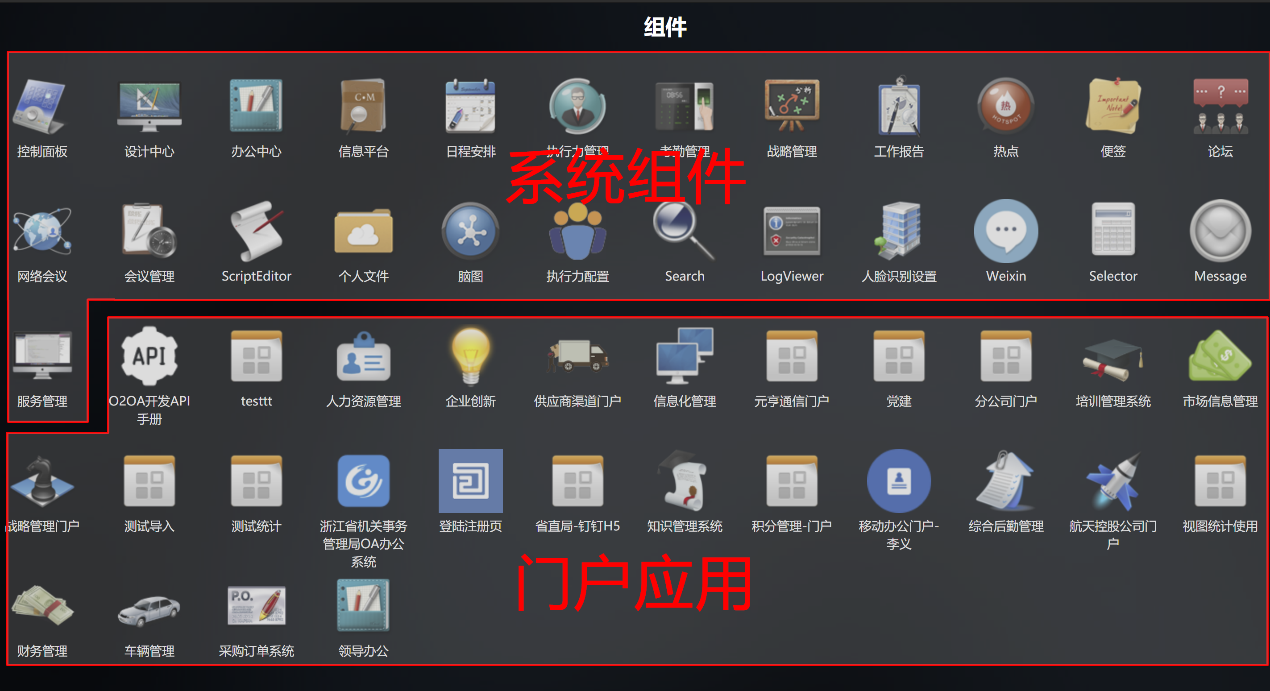
点击平台主菜单后,出现组件列表界面

其中包含两部分内容:
1)系统内置的 平台组件
2)用户自己设计的 门户应用
如下图所示:
点击左右箭头,会切换到“应用”,其中包含了 流程应用管理 模块 、 内容 信息栏目 和 数据视图统计应用 。如下图所示界面:
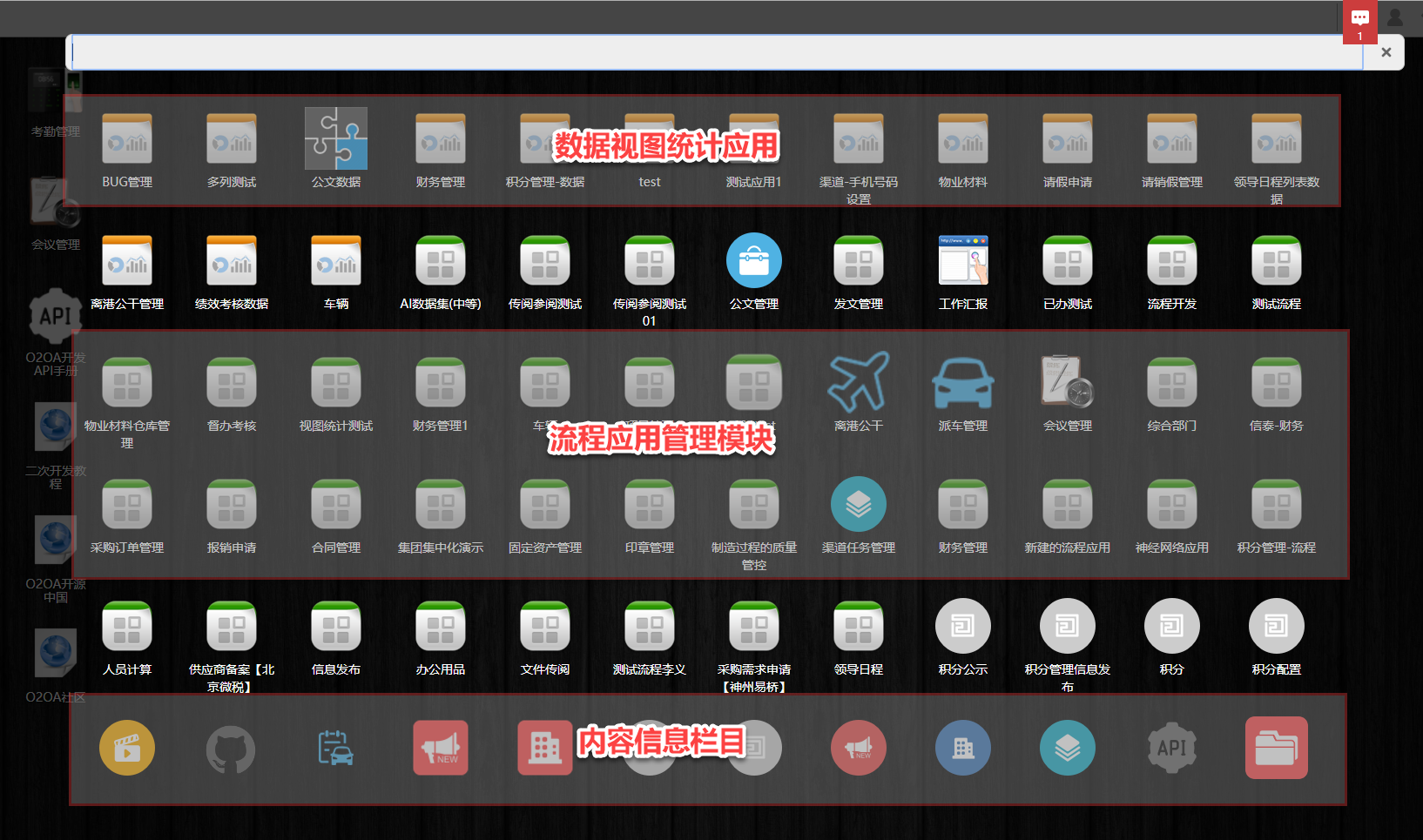
自定义应用的 可见 性设置
配置门户应用、流程应用管理界面、内容管理应用和数据中心应用的可见和隐藏权限基本一致,用管理员账号打开对应平台设计中的应用,在“属性”中设置可见范围,如下图:

系统 应用 的可见和隐藏
如果要控制系统应用的可见和隐藏,我们可以如下操作:
用管理员账号打开“控制面板”-“系统设置”,进入“界面设置”-“模块部署”,如下图:
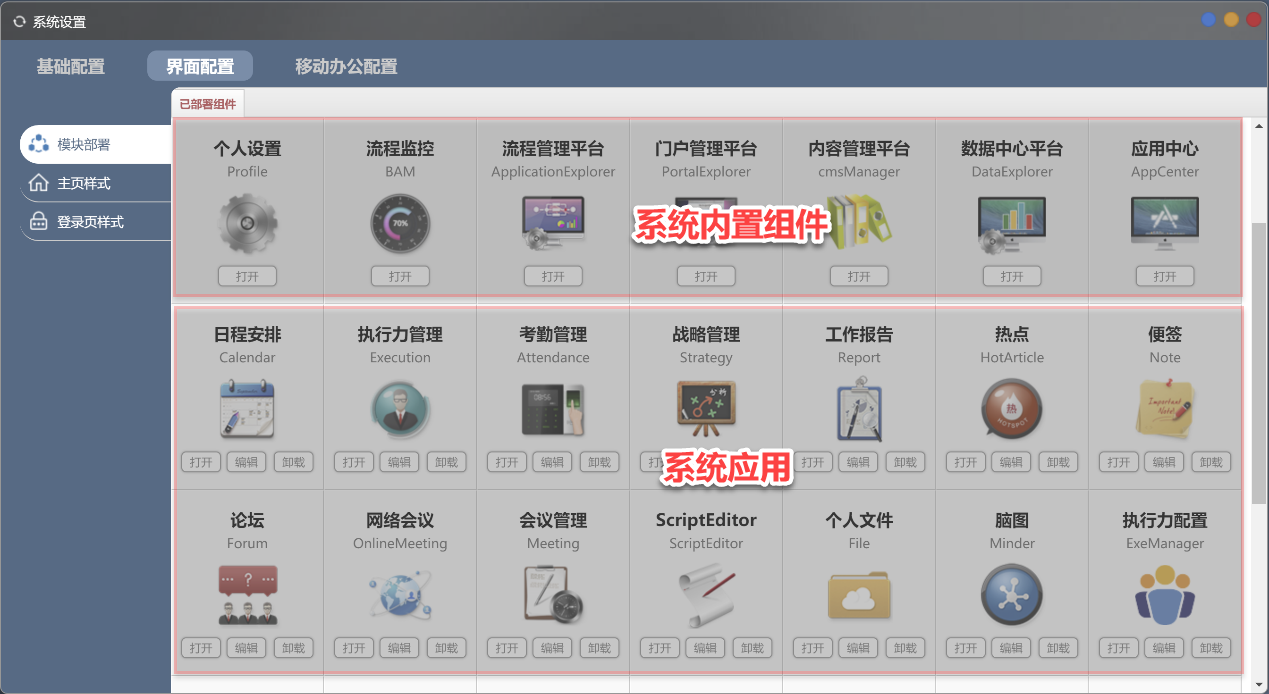
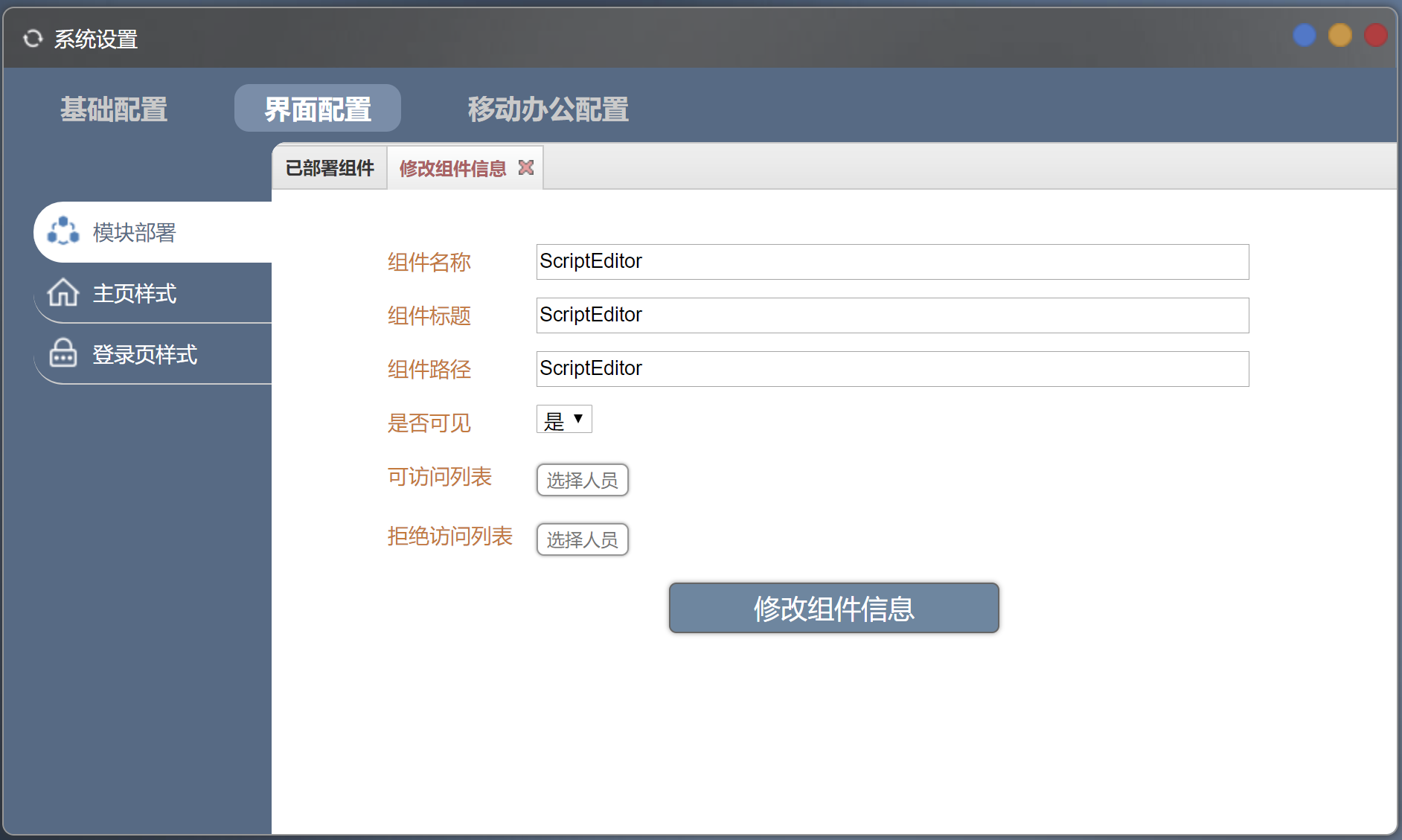
这里的模块包括:系统 内置组件 和 系统应用 ,对于系统应用,我们只需要点击“编辑”按钮,设置“是否可见”或者“可访问列表”或者“拒绝访问列表”,或者我们可以直接“卸载”它。
内置组件 的可见和隐藏
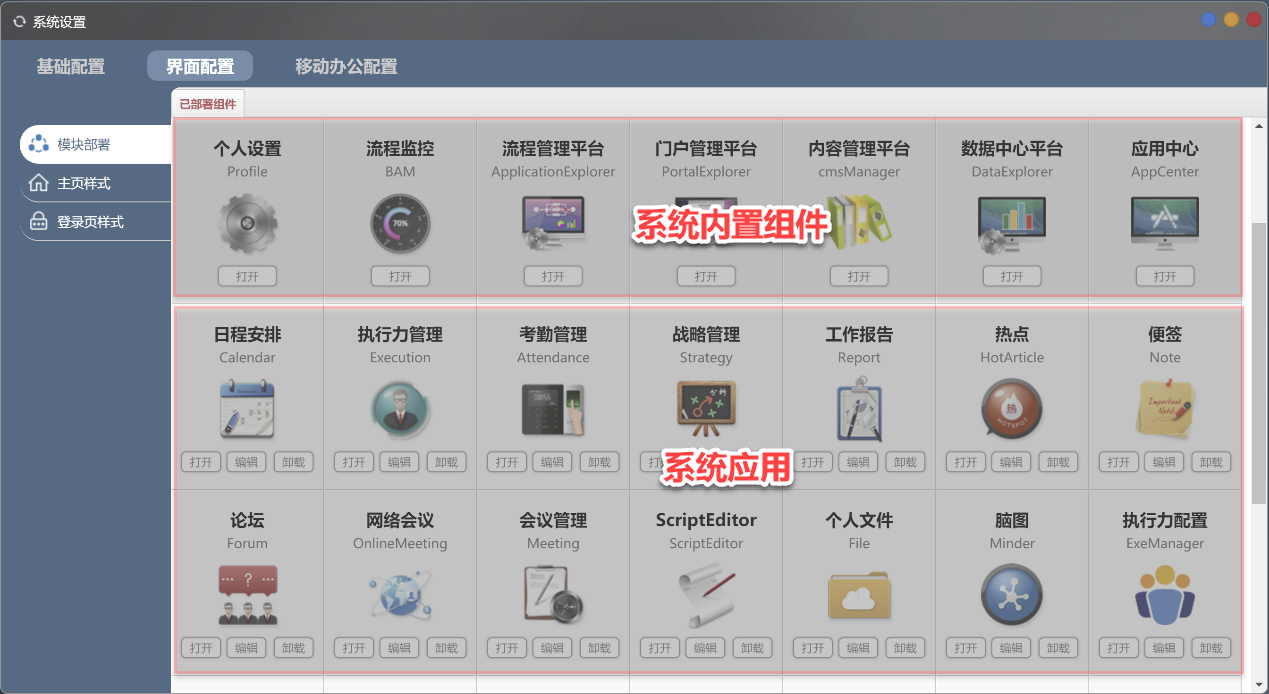
对于系统内置模块,我们无法在模块部署界面进行权限和可见性的设置。此时,我们可以修改配置文件。
系统菜单内置组件列表可见性配置
文件路径:/o2server/servers/webServer/ o2_core /o2/xDesktop/$Layout/applications.json

Json文件内容如下:
[
  {
    "name": "ControlPanel",
    "path": "ControlPanel",
    "title": "控制面板",
    "iconPath": "appicon.png",
    "allowList": [],
    "denyList": []
  },
  {
    "name": "DesignCenter",
    "path": "DesignCenter",
    "title": "设计中心",
    "iconPath": "appicon.png"  },
  {
    "name": "TaskCenter",
    "path": "process.TaskCenter",
    "title": "办公中心",
    "iconPath": "appicon.png",
    "widgetName": "TaskWidget",
    "widgetTitle": "待办列表",
    "widgetIconPath": "widgeticon.png"  },
  {
    "name": "cms",
    "path": "cms.Index",
    "title": "信息平台",
    "iconPath": "appicon.png"  }
]
中allowList表示允许访问的用户列表,denyList表示拒绝访问的用户列表,可配置人员名称、角色或群组。
“系统菜单”-“控制面板 ” 应用可见性配置
文件路径:/o2server/servers/webServer/ x_component_ControlPanel /$Main/applications.json
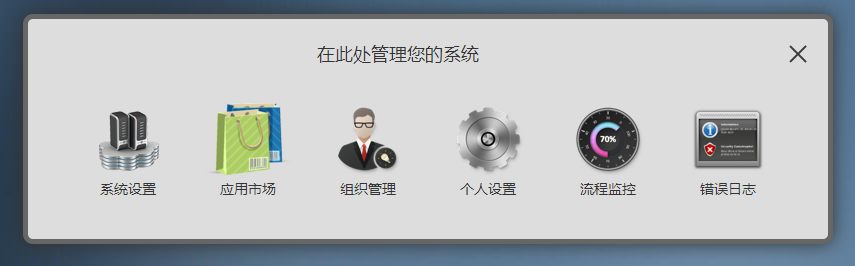
Json文件内容如下:
[
  {
    "name": "Setting",
    "path": "Setting",
    "title": "系统设置",
    "iconPath": "appicon.png",
    "allowList": ["xadmin", "Manager"]
  },
  {
    "name": "AppMarket",
    "path": "AppMarket",
    "title": "应用市场",
    "iconPath": "appicon.png",
    "allowList": ["xadmin", "Manager"]
  },
  {
    "name": "ANN",
    "path": "ANN",
    "title": "神经网络模型",
    "iconPath": "appicon.png",
    "allowList": ["xadmin", "Manager"]
  },
  {
    "name": "Org",
    "path": "Org",
    "title": "组织管理",
    "iconPath": "appicon.png"  },
  {
    "name": "Profile",
    "path": "Profile",
    "title": "个人设置",
    "iconPath": "appicon.png"  },
  {
    "name": "BAM",
    "path": "BAM",
    "title": "流程监控",
    "iconPath": "appicon.png"  },
  {
    "name": "LogViewer",
    "title": "错误日志",
    "path": "LogViewer",
    "iconPath": "appicon.png",
    "allowList": ["xadmin", "Manager"]
  }
]
“系统菜单”-“ 设计中心 ” 应用可见性配置
文件路径:/o2server/servers/webServer/ x_component_DesignCenter /$Main/applications.json
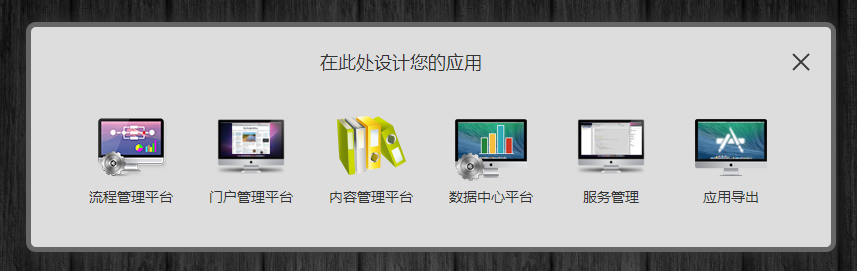
Json文件内容如下:
[
  {
    "name": "ApplicationExplorer",
    "path": "process.ApplicationExplorer",
    "title": "流程管理平台",
    "iconPath": "appicon.png"  },
  {
    "name": "PortalExplorer",
    "path": "portal.PortalExplorer",
    "title": "门户管理平台",
    "iconPath": "appicon.png"  },
  {
    "name": "cmsManager",
    "path": "cms.Column",
    "title": "内容管理平台",
    "iconPath": "appicon.png"  },
  {
    "name": "DataExplorer",
    "path": "query.QueryExplorer",
    "title": "数据中心平台",
    "iconPath": "appicon.png"  },
  {
    "name": "service.ServiceManager",
    "path": "service.ServiceManager",
    "title": "服务管理",
    "iconPath": "appicon.png"  },
  {
    "name": "AppCenter",
    "path": "AppCenter",
    "title": "应用导出",
    "iconPath": "appicon.png",
    "allowList": ["xadmin", "Manager"]
  }
]
系统设置 “模块部署”的模块可见 性配置
文件路径:/o2server/servers/webServer/ o2_core /o2/xDesktop/$Layout/components.json
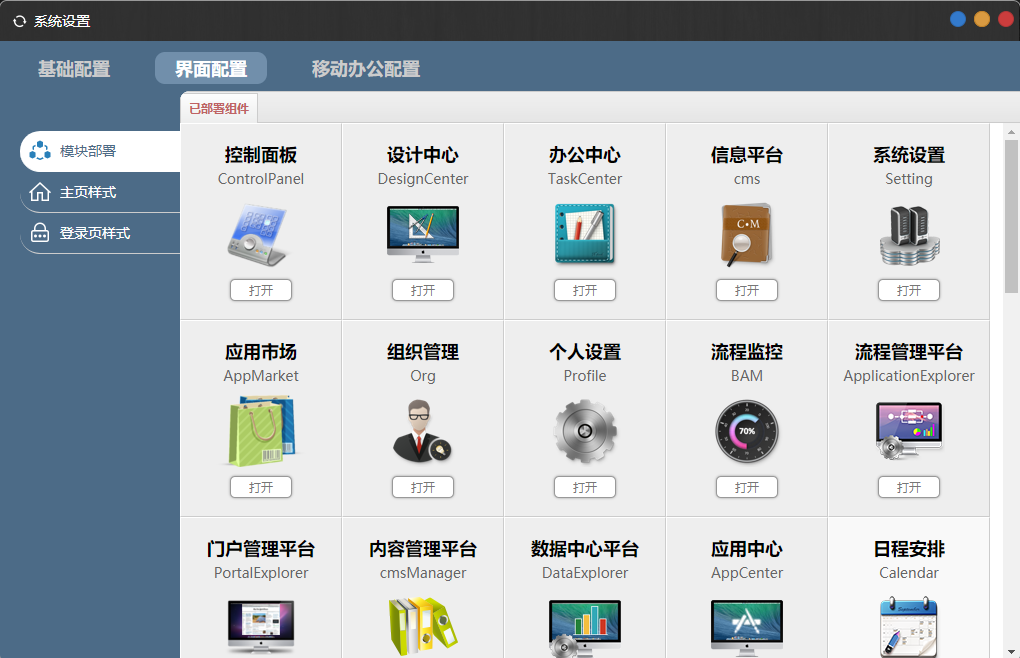
如果在“系统设置” 的 “模块部署”中也不出现某个内置组件,您可以修改一下json文件:
[
  {
    "name": "ControlPanel",
    "path": "ControlPanel",
    "title": "控制面板",
    "visible": true,
    "iconPath": "appicon.png"  },
  {
    "name": "DesignCenter",
    "path": "DesignCenter",
    "title": "设计中心",
    "visible": true,
    "iconPath": "appicon.png"  },
  {
    "name": "TaskCenter",
    "path": "process.TaskCenter",
    "title": "办公中心",
    "iconPath": "appicon.png",
    "visible": true  },
  {
    "name": "cms",
    "path": "cms.Index",
    "title": "信息平台",
    "visible": true,
    "iconPath": "appicon.png"  },
  {
    "name": "Setting",
    "path": "Setting",
    "title": "系统设置",
    "iconPath": "appicon.png",
    "visible": true,
    "allowList": ["xadmin", "Manager"]
  },
  {
    "name": "AppMarket",
    "path": "AppMarket",
    "title": "应用市场",
    "iconPath": "appicon.png",
    "visible": true,
    "allowList": ["xadmin", "Manager"]
  },
  {
    "name": "Org",
    "path": "Org",
    "title": "组织管理",
    "visible": true,
    "iconPath": "appicon.png"  },
  {
    "name": "Profile",
    "path": "Profile",
    "title": "个人设置",
    "visible": true,
    "iconPath": "appicon.png"  },
  {
    "name": "BAM",
    "path": "BAM",
    "title": "流程监控",
    "visible": true,
    "iconPath": "appicon.png"  },
  {
    "name": "ApplicationExplorer",
    "path": "process.ApplicationExplorer",
    "title": "流程管理平台",
    "visible": true,
    "iconPath": "appicon.png"  },
  {
    "name": "PortalExplorer",
    "path": "portal.PortalExplorer",
    "title": "门户管理平台",
    "visible": true,
    "iconPath": "appicon.png"  },
  {
    "name": "cmsManager",
    "path": "cms.Column",
    "title": "内容管理平台",
    "visible": true,
    "iconPath": "appicon.png"  },
  {
    "name": "DataExplorer",
    "path": "query.QueryExplorer",
    "title": "数据中心平台",
    "visible": true,
    "iconPath": "appicon.png"  },
  {
    "name": "AppCenter",
    "path": "AppCenter",
    "title": "应用中心",
    "visible": true,
    "iconPath": "appicon.png"  }
]
这里也可以设置allowList和denyList,或直接删除。
移动端
进入系统设置
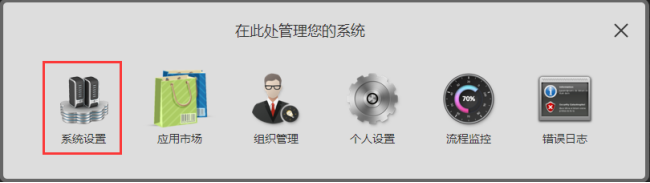
系统设置进入方式:以xadmin身份登录O2OA系统,点击左上系统应用菜单 -> 控制面板 -> 系统设置。
移动办公 模块配置
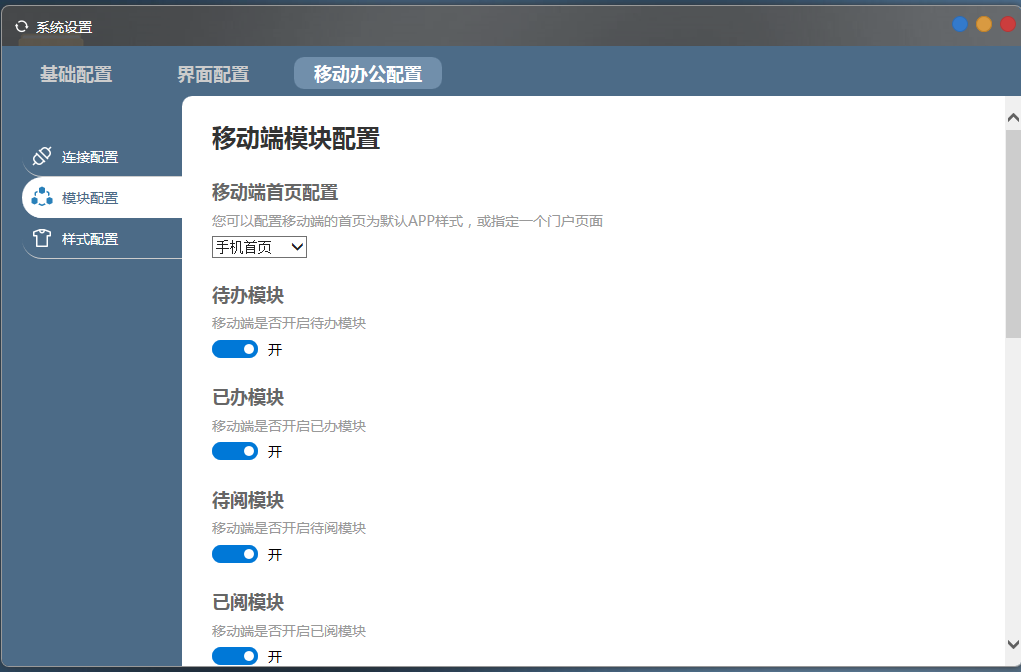
配置项:系统设置 - 移动办公配置 - 模块配置:
该配置用于对移动APP中需要开启的模块内容进行设置以及指定移动办公首页。
注意: 配置修改后重启服务器生效。
来自 “ ITPUB博客 ” ,链接:https://blog.itpub.net/31563356/viewspace-2638405/ ,如需转载,请注明出处,否则将追究法律责任。

最新文章
- O2OA(翱途)医院案例:80 余项流程落地,构建医院一体化协同办公平台
- 当AI真正进入业务:O2OA(翱途)开发平台正在重新定义企业协作
- 行业案例:O2OA 助力生物科技企业构建实验鼠数字化管理平台
- 能源行业一体化用工管理系统,O2OA(翱途)助推外包用工规范化数字化
- 制造业数字化协同落地实践:一体化办公平台破解工厂多环节协同痛点
- 高校数字化协同办公实践:O2OA(翱途) 一站式平台打造智慧校园办公体系
- 村镇金融数字化升级:O2OA(翱途) 赋能信贷全流程,革新协同办公体系
- 政务数字化办公解决方案 O2OA(翱途)构建机关一体化协同平台
- O2OA(翱途)V10 工作联系单:跨部门沟通标准化 工作流转可追溯闭环
- 翱途 (O2OA) V10采购管理:从请购到开票,如何打通企业采购全流程?
