Press Ctrl-H, and click the More button in the Find and Replace dialog. Click the find tab.
Click the Format button, and select Font.
Select the color to be changed—leaving all else blank—and click OK.
Click the Replace tab, and repeat steps 2 and 3 to select the new color.
Click Replace All.
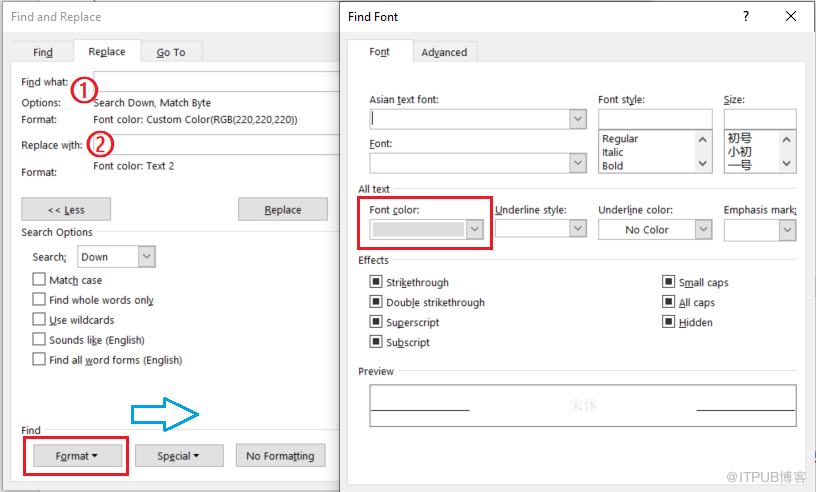
Another ref.
https://cybertext.wordpress.com/2019/03/30/word-find-and-replace-a-custom-font-colour/
- Open the Find and Replace dialog ( Ctrl+H).
- Make sure the cursor is in the Find field.
- Click More.
- Click Format.
- Choose Font.
- Click the drop-down arrow for Font Color.
- Click More Colors.
- Enter the RGB values you want to find (e.g. 255, 51, 153).
- Click OK. The text under the Find field should show the RGB values you selected; for example: Font Color: Custom Color (RGB(255,51,153)).
- Place your cursor in the Replace field.
- Repeat Steps 4 to 7.
- Enter the RGB values you want to use for the replace (e.g. 230, 131, 76).
- Click OK. The text under the Find field should show the RGB values you selected; for example: Font Color: Custom Color (RGB(230,131,76)).
- Click Find Next, then click Replace for the first one found.
- Repeat Step 14 until all are found, or, if you are confident that you won’t mess up anything else, click Replace All.
来自 “ ITPUB博客 ” ,链接:https://blog.itpub.net/12707874/viewspace-2885816/ ,如需转载,请注明出处,否则将追究法律责任。
上一篇:
SSMS 显示行号
下一篇:
Chrome 获取网页颜色(文字、图片)

请登录后发表评论
登录
全部评论
