一、安装插件
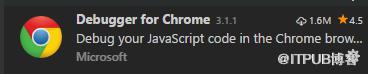
在 Visual Studio Code 中打开扩展面板(快捷键 Ctrl+Shift+X),搜索安装 Debugger for chrome 插件)。
二、配置启动参数
在 Visual Studio Code 中快捷键 Ctrl+Shift+D 打开调试面板。
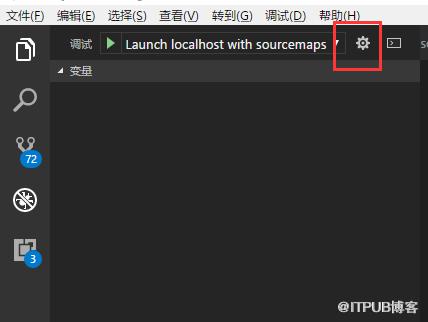
点击右上角 “齿轮” 按钮,打开 launch.json 文件,添加如下配置:
launch.json
{ "version": "0.2.0", "configurations": [ { "name": "Launch localhost with sourcemaps", "type": "chrome", "request": "launch", "url": "http://localhost:4200", "sourceMaps": true, "webRoot": "${workspaceRoot}", "trace": true, "userDataDir": "${workspaceRoot}/.vscode/chrome" } ]}
三、配置 TypeScript
打开项目中的 tsconfig.json 文件,修改如下配置:
tsconfig.json
{ "compileOnSave": false, "compilerOptions": { "outDir": "../dist/", // 注意这个路径 "rootDir": ".", "baseUrl": "src", "sourceMap": true, // 这个必须要启用,重要 "declaration": false, "moduleResolution": "node", "emitDecoratorMetadata": true, "experimentalDecorators": true, "target": "es5", "typeRoots": [ "node_modules/@types" ], "lib": [ "es2016", "dom" ] }}
五、开始调试
1、添加调试断点位置。
2、终端运行 ng serve ,先启动宿主。
3、在 VS Code 调试面板,选择刚刚配置的 Launch localhost with sourcemaps,
点击启动调试。
注意事项
1、使用 tsc -v 命令检查 ts 版本是否高于 2.1.x 。
2、运行下面命令
cd srctsc
在 src 文件夹运行 tsc 命令,观察在项目的 dist 文件夹 是否会生成 src 目录和目录中是否存在 *.js.map 文件。
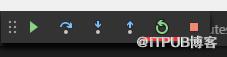
3、如果没有命中断点,点击 VS Code 中的重启(快捷键 Ctrl+Shift+F5), 再尝试。
来自 “ ITPUB博客 ” ,链接:https://blog.itpub.net/4362/viewspace-2812694/ ,如需转载,请注明出处,否则将追究法律责任。
下一篇:
git配置ssh

请登录后发表评论
登录
全部评论
