目录结构:
weblogic server的主目录是wlserver_10.3
server应用服务器。
bin:目录是,可执行文件,包括我们配置domain时候需要的命令。
lib:是weblogic启动等的jar包。包含创建domain时需要的jar包等。说白了就是java的class。
nodemanager:节点管理器。
templates:模板。
ext:xml jar files;扩展的jar包,包括jdbc driver。
db:oracle database 的ddl。
lib:是weblogic server的jar包。启动weblogic server至关重要。

启动管理服务器之后,我们就可以通过浏览器控制台访问管理服务器。同时配置,哪台server负责什么任务。在domain下config中配置。


定义domain的过程就是明确下面这些:
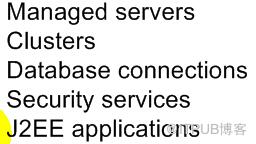
我们通过配置助手,配置在$WEBLOGIC_HOME/common/bin/config.sh
启动控制台,就得 config.sh -mode=console
[weblogic@test wlserver_10.3]$ cd common/bin/
[weblogic@test bin]$ ls
commEnv.sh config.sh setPatchEnv.sh startManagedWebLogic.sh unpack.sh wlscontrol.sh wlst.sh
config_builder.sh pack.sh startDerby.sh stopDerby.sh upgrade.sh wlsifconfig.sh
[weblogic@test bin]$ ./config.sh -mode=console --加了参数的意思是静默安装
<--------------------------------------- Fusion Middleware Configuration Wizard --------------------------------------->
Welcome:
--------
Choose between creating and extending a domain. Based on your selection, the Configuration Wizard guides you through
the steps to generate a new or extend an existing domain.
->1|Create a new WebLogic domain
| Create a WebLogic domain in your projects directory.
2|Extend an existing WebLogic domain
| Use this option to add new components to an existing domain and modify configuration settings.
Enter index number to select OR [Exit][Next]> 1
<--------------------------------------- Fusion Middleware Configuration Wizard --------------------------------------->
Select Domain Source:
---------------------
Select the source from which the domain will be created. You can create the domain by selecting from the required
components or by selecting from a list of existing domain templates.
->1|Choose Weblogic Platform components
| You can choose the Weblogic component(s) that you want supported in your domain.
2|Choose custom template
| Choose this option if you want to use an existing template. This could be a custom created template using the
|Template Builder.
Enter index number to select OR [Exit][Previous][Next]> 1
<--------------------------------------- Fusion Middleware Configuration Wizard --------------------------------------->
Application Template Selection:
-------------------------------
Available Templates
|_____Basic WebLogic Server Domain - 10.3.6.0 [wlserver_10.3]x
|_____Oracle WSM Policy Manager - 11.1.1.0 [oracle_common] [2]
|_____Oracle JRF WebServices Asynchronous services - 11.1.1.0 [oracle_common] [3]
|_____Oracle JRF - 11.1.1.0 [oracle_common] [4]
|_____Basic WebLogic SIP Server Domain - 10.3.6.0 [wlserver_10.3] [5]
|_____WebLogic Advanced Web Services for JAX-RPC Extension - 10.3.6.0 [wlserver_10.3] [6]
|_____WebLogic Advanced Web Services for JAX-WS Extension - 10.3.6.0 [wlserver_10.3] [7]
Enter number exactly as it appears in brackets to toggle selection OR [Exit][Previous][Next]>
<--------------------------------------- Fusion Middleware Configuration Wizard --------------------------------------->
Edit Domain Information:
------------------------
| Name | Value |
_|________|_____________|
1| *Name: | base_domain |
Enter value for "Name" OR [Exit][Previous][Next]>
<--------------------------------------- Fusion Middleware Configuration Wizard --------------------------------------->
Select the target domain directory for this domain:
---------------------------------------------------
"Target Location" = [Enter new value or use default "/u02/weblogic/user_projects/domains"]
Enter new Target Location OR [Exit][Previous][Next]>
<--------------------------------------- Fusion Middleware Configuration Wizard --------------------------------------->
Configure Administrator User Name and Password:
-----------------------------------------------
Create a user to be assigned to the Administrator role. This user is the default administrator used to start
development mode servers.
| Name | Value |
_|_________________________|_________________________________________|
1| *Name : | weblogic |
2| *User password: | |
3| *Confirm user password:| |
4| Description : | This user is the default administrator. |
Use above value or select another option:
1 - Modify "Name"
2 - Modify "User password"
3 - Modify "Confirm user password"
4 - Modify "Description"
Enter option number to select OR [Exit][Previous][Next]> 2
<--------------------------------------- Fusion Middleware Configuration Wizard --------------------------------------->
Configure Administrator User Name and Password:
-----------------------------------------------
Create a user to be assigned to the Administrator role. This user is the default administrator used to start
development mode servers.
"*User password:" = []
Enter new *User password: OR [Exit][Reset][Accept]>
<--------------------------------------- Fusion Middleware Configuration Wizard --------------------------------------->
Configure Administrator User Name and Password:
-----------------------------------------------
Create a user to be assigned to the Administrator role. This user is the default administrator used to start
development mode servers.
| Name | Value |
_|_________________________|_________________________________________|
1| *Name: | weblogic |
2| *User password: | ********* |
3| *Confirm user password: | |
4| Description: | This user is the default administrator. |
Use above value or select another option:
1 - Modify "Name"
2 - Modify "User password"
3 - Modify "Confirm user password"
4 - Modify "Description"
5 - Discard Changes
Enter option number to select OR [Exit][Previous][Next]> 2
<--------------------------------------- Fusion Middleware Configuration Wizard --------------------------------------->
Configure Administrator User Name and Password:
-----------------------------------------------
Create a user to be assigned to the Administrator role. This user is the default administrator used to start
development mode servers.
"*User password:" = [*********]
Enter new *User password: OR [Exit][Reset][Accept]>
<--------------------------------------- Fusion Middleware Configuration Wizard --------------------------------------->
Configure Administrator User Name and Password:
-----------------------------------------------
Create a user to be assigned to the Administrator role. This user is the default administrator used to start
development mode servers.
| Name | Value |
_|_________________________|_________________________________________|
1| *Name: | weblogic |
2| *User password: | ******** |
3| *Confirm user password: | |
4| Description: | This user is the default administrator. |
Use above value or select another option:
1 - Modify "Name"
2 - Modify "User password"
3 - Modify "Confirm user password"
4 - Modify "Description"
5 - Discard Changes
Enter option number to select OR [Exit][Previous][Next]> 3
<--------------------------------------- Fusion Middleware Configuration Wizard --------------------------------------->
Configure Administrator User Name and Password:
-----------------------------------------------
Create a user to be assigned to the Administrator role. This user is the default administrator used to start
development mode servers.
"*Confirm user password:" = []
Enter new *Confirm user password: OR [Exit][Reset][Accept]>
<--------------------------------------- Fusion Middleware Configuration Wizard --------------------------------------->
Configure Administrator User Name and Password:
-----------------------------------------------
Create a user to be assigned to the Administrator role. This user is the default administrator used to start
development mode servers.
| Name | Value |
_|_________________________|_________________________________________|
1| *Name: | weblogic |
2| *User password: | ******** |
3| *Confirm user password: | ******** |
4| Description: | This user is the default administrator. |
Use above value or select another option:
1 - Modify "Name"
2 - Modify "User password"
3 - Modify "Confirm user password"
4 - Modify "Description"
5 - Discard Changes
Enter option number to select OR [Exit][Previous][Next]>
<--------------------------------------- Fusion Middleware Configuration Wizard --------------------------------------->
Configure Administrator User Name and Password:
-----------------------------------------------
Create a user to be assigned to the Administrator role. This user is the default administrator used to start
development mode servers.
| Name | Value |
_|_________________________|_________________________________________|
1| *Name: | weblogic |
2| *User password: | ******** |
3| *Confirm user password: | ******** |
4| Description: | This user is the default administrator. |
Use above value or select another option:
1 - Modify "Name"
2 - Modify "User password"
3 - Modify "Confirm user password"
4 - Modify "Description"
5 - Discard Changes
** CF**K-60050: Property "Password" of User "weblogic" is invalid.
** CF**K-60455: The password must be at least 8 alphanumeric characters with at least one number or special
** character.
Enter option number to select OR [Exit][Previous][Next]> 2
<--------------------------------------- Fusion Middleware Configuration Wizard --------------------------------------->
Configure Administrator User Name and Password:
-----------------------------------------------
Create a user to be assigned to the Administrator role. This user is the default administrator used to start
development mode servers.
"*User password:" = [********]
Enter new *User password: OR [Exit][Reset][Accept]>
<--------------------------------------- Fusion Middleware Configuration Wizard --------------------------------------->
Configure Administrator User Name and Password:
-----------------------------------------------
Create a user to be assigned to the Administrator role. This user is the default administrator used to start
development mode servers.
| Name | Value |
_|_________________________|_________________________________________|
1| *Name: | weblogic |
2| *User password: | ********** |
3| *Confirm user password: | ******** |
4| Description: | This user is the default administrator. |
Use above value or select another option:
1 - Modify "Name"
2 - Modify "User password"
3 - Modify "Confirm user password"
4 - Modify "Description"
5 - Discard Changes
Enter option number to select OR [Exit][Previous][Next]> 3
<--------------------------------------- Fusion Middleware Configuration Wizard --------------------------------------->
Configure Administrator User Name and Password:
-----------------------------------------------
Create a user to be assigned to the Administrator role. This user is the default administrator used to start
development mode servers.
"*Confirm user password:" = [********]
Enter new *Confirm user password: OR [Exit][Reset][Accept]>
<--------------------------------------- Fusion Middleware Configuration Wizard --------------------------------------->
Configure Administrator User Name and Password:
-----------------------------------------------
Create a user to be assigned to the Administrator role. This user is the default administrator used to start
development mode servers.
| Name | Value |
_|_________________________|_________________________________________|
1| *Name: | weblogic |
2| *User password: | ********** |
3| *Confirm user password: | ********** |
4| Description: | This user is the default administrator. |
Use above value or select another option:
1 - Modify "Name"
2 - Modify "User password"
3 - Modify "Confirm user password"
4 - Modify "Description"
5 - Discard Changes
Enter option number to select OR [Exit][Previous][Next]>
<--------------------------------------- Fusion Middleware Configuration Wizard --------------------------------------->
Domain Mode Configuration:
--------------------------
Enable Development or Production Mode for this domain.
->1|Development Mode
2|Production Mode
Enter index number to select OR [Exit][Previous][Next]> 2
<--------------------------------------- Fusion Middleware Configuration Wizard --------------------------------------->
Java SDK Selection:
-------------------
->1|Sun SDK 1.6.0_29 @ /u02/weblogic/jdk160_29
2|Other Java SDK
Enter index number to select OR [Exit][Previous][Next]>
<--------------------------------------- Fusion Middleware Configuration Wizard --------------------------------------->
Select Optional Configuration:
------------------------------
1|Administration Server [ ]
2|Managed Servers, Clusters and Machines [ ]
3|RDBMS Security Store [ ]
Enter index number to select OR [Exit][Previous][Next]> 1
<--------------------------------------- Fusion Middleware Configuration Wizard --------------------------------------->
Select Optional Configuration:
------------------------------
1|Administration Server [x]
2|Managed Servers, Clusters and Machines [ ]
3|RDBMS Security Store [ ]
Enter index number to select OR [Exit][Previous][Next]>
<--------------------------------------- Fusion Middleware Configuration Wizard --------------------------------------->
Configure the Administration Server:
------------------------------------
Each WebLogic Server domain must have one Administration Server. The Administration Server is used to perform
administrative tasks.
| Name | Value |
_|__________________|_____________________|
1| *Name: | AdminServer |
2| *Listen address: | All Local Addresses |
3| Listen port: | 7001 |
4| SSL listen port: | N/A |
5| SSL enabled: | false |
Use above value or select another option:
1 - Modify "Name"
2 - Modify "Listen address"
3 - Modify "Listen port"
4 - Modify "SSL enabled"
Enter option number to select OR [Exit][Previous][Next]>
<--------------------------------------- Fusion Middleware Configuration Wizard --------------------------------------->
Creating Domain...
0% 25% 50% 75% 100%
[------------|------------|------------|------------]
[***************************************************]
**** Domain Created Successfully! ****
点击(此处)折叠或打开
-
[weblogic@test weblogic]$ pwd
-
/u02/weblogic
-
[weblogic@test weblogic]$ ll
-
total 200
-
drwxrwxr-x 6 weblogic weblogic 4096 Nov 14 10:08 coherence_3.7
-
-rw-rw---- 1 weblogic weblogic 133 Nov 14 10:06 domain-registry.xml
-
drwxr-x--- 8 weblogic weblogic 4096 Nov 14 10:08 jdk160_29
-
drwxrwxr-x 2 weblogic weblogic 4096 Nov 14 10:08 logs
-
drwxrwxr-x 7 weblogic weblogic 36864 Nov 14 10:06 modules
-
-rw-rw-r-- 1 weblogic weblogic 625 Nov 14 10:08 ocm.rsp
-
drwxrwxr-x 11 weblogic weblogic 4096 Nov 14 10:08 oepe_11.1.1.8.0
-
drwxrwxr-x 13 weblogic weblogic 4096 Nov 14 10:08 oracle_common
-
-rw-rw-r-- 1 weblogic weblogic 121710 Nov 14 10:08 registry.dat
-
-rw-rw-r-- 1 weblogic weblogic 2672 Nov 14 10:08 registry.xml
-
drwxrwxr-x 8 weblogic weblogic 4096 Nov 14 10:06 utils
- drwxrwxr-x 8 weblogic weblogic 4096 Nov 14 10:08 wlserver_10.3
点击(此处)折叠或打开
-
[weblogic@test weblogic]$ cd wlserver_10.3/
-
[weblogic@test wlserver_10.3]$ ll
-
total 24
-
drwxrwxr-x 11 weblogic weblogic 4096 Nov 14 10:06 common
-
drwxrwxr-x 3 weblogic weblogic 4096 Nov 14 10:08 inventory
-
drwxrwxr-x 2 weblogic weblogic 4096 Nov 14 10:06 L10N
-
drwxrwxr-x 11 weblogic weblogic 4096 Nov 14 10:06 server
-
drwxrwxr-x 3 weblogic weblogic 4096 Nov 14 10:06 sip
- drwxrwxr-x 2 weblogic weblogic 4096 Nov 14 10:08 uninstall
点击(此处)折叠或打开
-
[weblogic@test common]$ pwd
- /u02/weblogic/wlserver_10.3/common
-
[weblogic@test common]$ ll
-
total 36
-
drwxrwxr-x 2 weblogic weblogic 4096 Nov 14 10:08 bin
-
drwxrwxr-x 2 weblogic weblogic 4096 Nov 14 10:06 deployable-libraries
-
drwxr-x--- 4 weblogic weblogic 4096 Nov 14 10:06 derby
-
drwxrwxr-x 2 weblogic weblogic 4096 Nov 14 10:06 eval
-
drwxr-x--- 3 weblogic weblogic 4096 Nov 14 10:06 lib
-
drwxrwxr-x 2 weblogic weblogic 4096 Nov 14 10:06 nodemanager
-
drwxrwxr-x 4 weblogic weblogic 4096 Nov 14 10:06 quickstart
-
drwxrwxr-x 6 weblogic weblogic 4096 Nov 14 10:06 templates
- drwxrwxr-x 4 weblogic weblogic 4096 Nov 14 10:06 wlst
lib:是weblogic启动等的jar包。包含创建domain时需要的jar包等。说白了就是java的class。
nodemanager:节点管理器。
templates:模板。
点击(此处)折叠或打开
-
[weblogic@test wlserver_10.3]$ cd server/
-
[weblogic@test server]$ ls
-
adr bin db ext include lib locale native plugin
-
[weblogic@test server]$ ll
-
total 44
-
drwxrwxr-x 2 weblogic weblogic 4096 Nov 14 10:06 adr
-
drwxr-x--- 3 weblogic weblogic 4096 Nov 14 10:06 bin
-
drwxrwxr-x 8 weblogic weblogic 4096 Nov 14 10:06 db
-
drwxrwxr-x 3 weblogic weblogic 4096 Nov 14 10:06 ext
-
drwxrwxr-x 3 weblogic weblogic 4096 Nov 14 10:06 include
-
drwxr-x--- 14 weblogic weblogic 12288 Nov 14 10:06 lib
-
drwxrwxr-x 3 weblogic weblogic 4096 Nov 14 10:06 locale
-
drwxrwxr-x 3 weblogic weblogic 4096 Nov 14 10:06 native
- drwxrwxr-x 7 weblogic weblogic 4096 Nov 14 10:06 plugin
db:oracle database 的ddl。
lib:是weblogic server的jar包。启动weblogic server至关重要。

启动管理服务器之后,我们就可以通过浏览器控制台访问管理服务器。同时配置,哪台server负责什么任务。在domain下config中配置。


定义domain的过程就是明确下面这些:
我们通过配置助手,配置在$WEBLOGIC_HOME/common/bin/config.sh
启动控制台,就得 config.sh -mode=console
[weblogic@test wlserver_10.3]$ cd common/bin/
[weblogic@test bin]$ ls
commEnv.sh config.sh setPatchEnv.sh startManagedWebLogic.sh unpack.sh wlscontrol.sh wlst.sh
config_builder.sh pack.sh startDerby.sh stopDerby.sh upgrade.sh wlsifconfig.sh
[weblogic@test bin]$ ./config.sh -mode=console --加了参数的意思是静默安装
<--------------------------------------- Fusion Middleware Configuration Wizard --------------------------------------->
Welcome:
--------
Choose between creating and extending a domain. Based on your selection, the Configuration Wizard guides you through
the steps to generate a new or extend an existing domain.
->1|Create a new WebLogic domain
| Create a WebLogic domain in your projects directory.
2|Extend an existing WebLogic domain
| Use this option to add new components to an existing domain and modify configuration settings.
Enter index number to select OR [Exit][Next]> 1
<--------------------------------------- Fusion Middleware Configuration Wizard --------------------------------------->
Select Domain Source:
---------------------
Select the source from which the domain will be created. You can create the domain by selecting from the required
components or by selecting from a list of existing domain templates.
->1|Choose Weblogic Platform components
| You can choose the Weblogic component(s) that you want supported in your domain.
2|Choose custom template
| Choose this option if you want to use an existing template. This could be a custom created template using the
|Template Builder.
Enter index number to select OR [Exit][Previous][Next]> 1
<--------------------------------------- Fusion Middleware Configuration Wizard --------------------------------------->
Application Template Selection:
-------------------------------
Available Templates
|_____Basic WebLogic Server Domain - 10.3.6.0 [wlserver_10.3]x
|_____Oracle WSM Policy Manager - 11.1.1.0 [oracle_common] [2]
|_____Oracle JRF WebServices Asynchronous services - 11.1.1.0 [oracle_common] [3]
|_____Oracle JRF - 11.1.1.0 [oracle_common] [4]
|_____Basic WebLogic SIP Server Domain - 10.3.6.0 [wlserver_10.3] [5]
|_____WebLogic Advanced Web Services for JAX-RPC Extension - 10.3.6.0 [wlserver_10.3] [6]
|_____WebLogic Advanced Web Services for JAX-WS Extension - 10.3.6.0 [wlserver_10.3] [7]
Enter number exactly as it appears in brackets to toggle selection OR [Exit][Previous][Next]>
<--------------------------------------- Fusion Middleware Configuration Wizard --------------------------------------->
Edit Domain Information:
------------------------
| Name | Value |
_|________|_____________|
1| *Name: | base_domain |
Enter value for "Name" OR [Exit][Previous][Next]>
<--------------------------------------- Fusion Middleware Configuration Wizard --------------------------------------->
Select the target domain directory for this domain:
---------------------------------------------------
"Target Location" = [Enter new value or use default "/u02/weblogic/user_projects/domains"]
Enter new Target Location OR [Exit][Previous][Next]>
<--------------------------------------- Fusion Middleware Configuration Wizard --------------------------------------->
Configure Administrator User Name and Password:
-----------------------------------------------
Create a user to be assigned to the Administrator role. This user is the default administrator used to start
development mode servers.
| Name | Value |
_|_________________________|_________________________________________|
1| *Name : | weblogic |
2| *User password: | |
3| *Confirm user password:| |
4| Description : | This user is the default administrator. |
Use above value or select another option:
1 - Modify "Name"
2 - Modify "User password"
3 - Modify "Confirm user password"
4 - Modify "Description"
Enter option number to select OR [Exit][Previous][Next]> 2
<--------------------------------------- Fusion Middleware Configuration Wizard --------------------------------------->
Configure Administrator User Name and Password:
-----------------------------------------------
Create a user to be assigned to the Administrator role. This user is the default administrator used to start
development mode servers.
"*User password:" = []
Enter new *User password: OR [Exit][Reset][Accept]>
<--------------------------------------- Fusion Middleware Configuration Wizard --------------------------------------->
Configure Administrator User Name and Password:
-----------------------------------------------
Create a user to be assigned to the Administrator role. This user is the default administrator used to start
development mode servers.
| Name | Value |
_|_________________________|_________________________________________|
1| *Name: | weblogic |
2| *User password: | ********* |
3| *Confirm user password: | |
4| Description: | This user is the default administrator. |
Use above value or select another option:
1 - Modify "Name"
2 - Modify "User password"
3 - Modify "Confirm user password"
4 - Modify "Description"
5 - Discard Changes
Enter option number to select OR [Exit][Previous][Next]> 2
<--------------------------------------- Fusion Middleware Configuration Wizard --------------------------------------->
Configure Administrator User Name and Password:
-----------------------------------------------
Create a user to be assigned to the Administrator role. This user is the default administrator used to start
development mode servers.
"*User password:" = [*********]
Enter new *User password: OR [Exit][Reset][Accept]>
<--------------------------------------- Fusion Middleware Configuration Wizard --------------------------------------->
Configure Administrator User Name and Password:
-----------------------------------------------
Create a user to be assigned to the Administrator role. This user is the default administrator used to start
development mode servers.
| Name | Value |
_|_________________________|_________________________________________|
1| *Name: | weblogic |
2| *User password: | ******** |
3| *Confirm user password: | |
4| Description: | This user is the default administrator. |
Use above value or select another option:
1 - Modify "Name"
2 - Modify "User password"
3 - Modify "Confirm user password"
4 - Modify "Description"
5 - Discard Changes
Enter option number to select OR [Exit][Previous][Next]> 3
<--------------------------------------- Fusion Middleware Configuration Wizard --------------------------------------->
Configure Administrator User Name and Password:
-----------------------------------------------
Create a user to be assigned to the Administrator role. This user is the default administrator used to start
development mode servers.
"*Confirm user password:" = []
Enter new *Confirm user password: OR [Exit][Reset][Accept]>
<--------------------------------------- Fusion Middleware Configuration Wizard --------------------------------------->
Configure Administrator User Name and Password:
-----------------------------------------------
Create a user to be assigned to the Administrator role. This user is the default administrator used to start
development mode servers.
| Name | Value |
_|_________________________|_________________________________________|
1| *Name: | weblogic |
2| *User password: | ******** |
3| *Confirm user password: | ******** |
4| Description: | This user is the default administrator. |
Use above value or select another option:
1 - Modify "Name"
2 - Modify "User password"
3 - Modify "Confirm user password"
4 - Modify "Description"
5 - Discard Changes
Enter option number to select OR [Exit][Previous][Next]>
<--------------------------------------- Fusion Middleware Configuration Wizard --------------------------------------->
Configure Administrator User Name and Password:
-----------------------------------------------
Create a user to be assigned to the Administrator role. This user is the default administrator used to start
development mode servers.
| Name | Value |
_|_________________________|_________________________________________|
1| *Name: | weblogic |
2| *User password: | ******** |
3| *Confirm user password: | ******** |
4| Description: | This user is the default administrator. |
Use above value or select another option:
1 - Modify "Name"
2 - Modify "User password"
3 - Modify "Confirm user password"
4 - Modify "Description"
5 - Discard Changes
** CF**K-60050: Property "Password" of User "weblogic" is invalid.
** CF**K-60455: The password must be at least 8 alphanumeric characters with at least one number or special
** character.
Enter option number to select OR [Exit][Previous][Next]> 2
<--------------------------------------- Fusion Middleware Configuration Wizard --------------------------------------->
Configure Administrator User Name and Password:
-----------------------------------------------
Create a user to be assigned to the Administrator role. This user is the default administrator used to start
development mode servers.
"*User password:" = [********]
Enter new *User password: OR [Exit][Reset][Accept]>
<--------------------------------------- Fusion Middleware Configuration Wizard --------------------------------------->
Configure Administrator User Name and Password:
-----------------------------------------------
Create a user to be assigned to the Administrator role. This user is the default administrator used to start
development mode servers.
| Name | Value |
_|_________________________|_________________________________________|
1| *Name: | weblogic |
2| *User password: | ********** |
3| *Confirm user password: | ******** |
4| Description: | This user is the default administrator. |
Use above value or select another option:
1 - Modify "Name"
2 - Modify "User password"
3 - Modify "Confirm user password"
4 - Modify "Description"
5 - Discard Changes
Enter option number to select OR [Exit][Previous][Next]> 3
<--------------------------------------- Fusion Middleware Configuration Wizard --------------------------------------->
Configure Administrator User Name and Password:
-----------------------------------------------
Create a user to be assigned to the Administrator role. This user is the default administrator used to start
development mode servers.
"*Confirm user password:" = [********]
Enter new *Confirm user password: OR [Exit][Reset][Accept]>
<--------------------------------------- Fusion Middleware Configuration Wizard --------------------------------------->
Configure Administrator User Name and Password:
-----------------------------------------------
Create a user to be assigned to the Administrator role. This user is the default administrator used to start
development mode servers.
| Name | Value |
_|_________________________|_________________________________________|
1| *Name: | weblogic |
2| *User password: | ********** |
3| *Confirm user password: | ********** |
4| Description: | This user is the default administrator. |
Use above value or select another option:
1 - Modify "Name"
2 - Modify "User password"
3 - Modify "Confirm user password"
4 - Modify "Description"
5 - Discard Changes
Enter option number to select OR [Exit][Previous][Next]>
<--------------------------------------- Fusion Middleware Configuration Wizard --------------------------------------->
Domain Mode Configuration:
--------------------------
Enable Development or Production Mode for this domain.
->1|Development Mode
2|Production Mode
Enter index number to select OR [Exit][Previous][Next]> 2
<--------------------------------------- Fusion Middleware Configuration Wizard --------------------------------------->
Java SDK Selection:
-------------------
->1|Sun SDK 1.6.0_29 @ /u02/weblogic/jdk160_29
2|Other Java SDK
Enter index number to select OR [Exit][Previous][Next]>
<--------------------------------------- Fusion Middleware Configuration Wizard --------------------------------------->
Select Optional Configuration:
------------------------------
1|Administration Server [ ]
2|Managed Servers, Clusters and Machines [ ]
3|RDBMS Security Store [ ]
Enter index number to select OR [Exit][Previous][Next]> 1
<--------------------------------------- Fusion Middleware Configuration Wizard --------------------------------------->
Select Optional Configuration:
------------------------------
1|Administration Server [x]
2|Managed Servers, Clusters and Machines [ ]
3|RDBMS Security Store [ ]
Enter index number to select OR [Exit][Previous][Next]>
<--------------------------------------- Fusion Middleware Configuration Wizard --------------------------------------->
Configure the Administration Server:
------------------------------------
Each WebLogic Server domain must have one Administration Server. The Administration Server is used to perform
administrative tasks.
| Name | Value |
_|__________________|_____________________|
1| *Name: | AdminServer |
2| *Listen address: | All Local Addresses |
3| Listen port: | 7001 |
4| SSL listen port: | N/A |
5| SSL enabled: | false |
Use above value or select another option:
1 - Modify "Name"
2 - Modify "Listen address"
3 - Modify "Listen port"
4 - Modify "SSL enabled"
Enter option number to select OR [Exit][Previous][Next]>
<--------------------------------------- Fusion Middleware Configuration Wizard --------------------------------------->
Creating Domain...
0% 25% 50% 75% 100%
[------------|------------|------------|------------]
[***************************************************]
**** Domain Created Successfully! ****
/u02/weblogic/user_projects/domains/base_domain
这里就是domain的目录。
这里就是domain的目录。
来自 “ ITPUB博客 ” ,链接:https://blog.itpub.net/29990276/viewspace-1332460/ ,如需转载,请注明出处,否则将追究法律责任。

请登录后发表评论
登录
全部评论
最新文章
- chrony /ˈkrɑːni/ vs ntpd 的核心区别
- LightDB新特性-Oracle模式支持回收站功能
- centos stream 8
- benchmarksql 压测MySQL报Every derived table must have its own alias解决
- LightDB-A gpfdist 命令初体验
- 数据库的sort group by和hash group by
- PostgreSQL citus常见报错问题分析(二)DETAIL: Distributed relations cannot have
- 事务可见性的判断和事务隔离级别,PostgreSQL和MySQL实现上有啥区别
- LightDB Canopy 常见报错问题分析(一)
- LightDB/postgresql内置特性之访问oracle之oracle_fdw介绍
