在Windows Mobile的控制台应用中使用Notification
Google了一把,排在前面的就是MSDN上的帮助,居然还是中文的,真是太难得了。这篇技术资源文章《Notification类》讲解如何实现用于显示和响应用户通知的 Windows CE 功能。需要主意的是,在备注中有这么一段话,“此类提供 Windows CE 通知功能的托管实现。只有 Pocket PC 上支持此类。”显然,我们要在WM6上调试的话,要选择professional的版本才行。下面就一步步来进行讲解吧。
1. 在Visual Studio 2005中,在C#的smart device下,选择Windows Mobile 6 Professional,在右边选中console application,即控制台应用程序。选定好工程的名称和路径等之后,点击确定。如下图1所示:

图1:新建工程页面
2. 将《Notification类》中C#下的代码全部复制,拷贝到工程的program.cs中,进行编译。
3. 发现编译出错,提示是“没有找到System.Windows.Forms、System.Drawing和Microsoft.WindowsCE.Forms”之类的引用。解决方法:在工程的Refence中点击右键,添加相关的引用,然后编译,就可以通过了,如下图2所示:
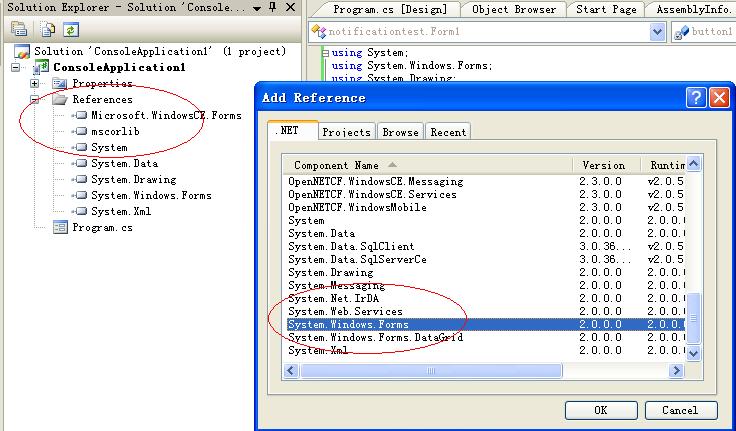
图2:添加引用界面
4. 选择Windows Mobile 6 Professional Emulator进行调试,如下图3所示:
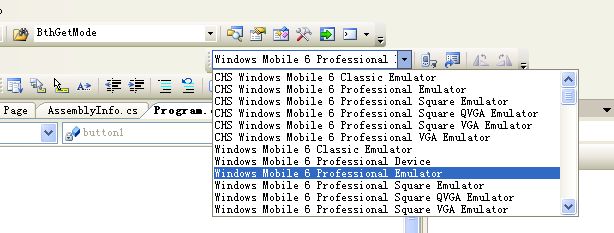
图3:选择模拟器进行调试
5. 程序下载以后运行,发现程序立即抛出一个异常,“value does not fall within the expected range”,如下图4所示:
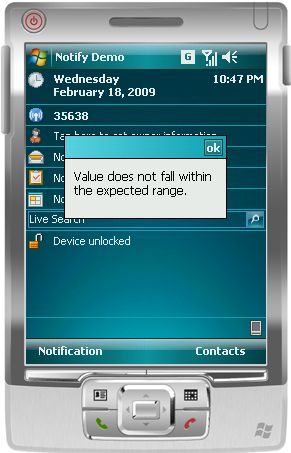
图4:程序异常界面
6. 这个时候,就得单步调试来寻找问题了,觉得是初始化的时候出了问题。果然,在ConfigNotification函数中,执行到获取notification的Icon时,程序抛出了异常,该函数的代码如下:

 Code
Code<!--
Code highlighting produced by Actipro CodeHighlighter (freeware)
http://www.CodeHighlighter.com/
--> 1
 private void ConfigNotification()
2
 {
{3
 // Create a Notification.
4
notification1 = new Microsoft.WindowsCE.Forms.Notification();5
6
try7

 {
{8
// Provide an icon for the notification to appear in the title bar when dismissed.9
// Assumes an icon file is compiled with the assembly as an embedded resource.10
Assembly asm = Assembly.GetExecutingAssembly();11
//notification1.Icon = new Icon(asm.GetManifestResourceStream("notify.ico"), 16, 16);12
13
notification1.Caption = "Notification scenario - data download";14
15
// If notification is urgent, set to true.16
notification1.Critical = false;17
18
// Create the text for the notification.19
// Use a StringBuilder for better performance.20
StringBuilder HTMLString = new StringBuilder();21
22
HTMLString.Append("");23
HTMLString.Append("24
HTMLString.Append(" 25
HTMLString.Append("26
HTMLString.Append("27
HTMLString.Append("28
HTMLString.Append("29
HTMLString.Append("30
HTMLString.Append("31
HTMLString.Append("32
HTMLString.Append("33
HTMLString.Append("");34
35
// Set the Text property to the HTML string.36
notification1.Text = HTMLString.ToString();37
38
// Add event handlers.39
40
notification1.BalloonChanged += new BalloonChangedEventHandler(OnBalloonChanged);41
notification1.ResponseSubmitted += new ResponseSubmittedEventHandler(OnResponseSubmitted);42
43
 }
}44
45
catch (Exception ex)46
{47
MessageBox.Show(ex.Message);48
}49
50
51
 }
}52
其实程序中已经有注释了,提醒用户说,假设该icon已经作为嵌入的资源被编译。
找到问题了,最简单的处理方法,不就是icon嘛,我不看也行,直接屏蔽掉这句吧,先看程序运行的效果如何。单击界面的Notify按钮,弹出来用户设置界面,如下图5所示:
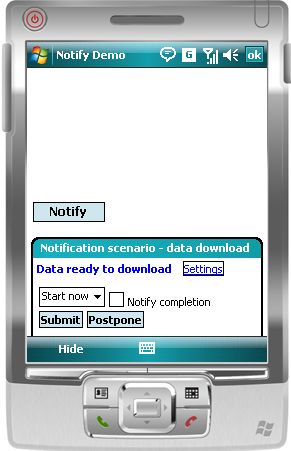
图5:Notify程序运行界面
参考链接:
MSDN:Notification类
来自 “ ITPUB博客 ” ,链接:https://blog.itpub.net/14766526/viewspace-558128/ ,如需转载,请注明出处,否则将追究法律责任。

