WPF and Silverlight 学习笔记(十二):WPF Panel内容模型
由于园子里昨天使用Live Writer上传出现问题,昨天只能使用Web上的文本编辑器上传本文,造成代码、内容等格式的错误,现重发本文。
一、Panel内容模型
Panel内容模型指从System.Windows.Controls.Panel继承的控件,这些控件都是容器,可以在内部承载其他的控件和子容器。Panel内容模型包含的容器有:
-
Canvas
-
DockPanel
-
Grid
-
TabPanel
-
ToolBarOverflowPanel
-
UniformGrid
-
StackPanel
-
ToolBarPanel
-
VirtualizingPanel
-
VirtualizingStackPanel
-
WrapPanel
对于Panel模型,其包含一个Children属性,表示其所有的子控件和子容器的集合,在XAML代码中可以省略
1: <StackPanel x:Name="mainPanel">
2: <StackPanel x:Name="panelA">
3: <StackPanel.Children>
4: <Button>Button AButton>
5: StackPanel.Children>
6: StackPanel>
7: <Button>Button BButton>
8: <StackPanel x:Name="panelB">
9: StackPanel>
10: StackPanel>
也可以通过代码,动态添加Children中的对象
1: // 定义一个Button
2: Button btn = new Button();
3: btn.Content = "Button C";
4: 5: // 将Button添加到StackPanel中
6: panelB.Children.Add(btn);二、Decorator内容模型
Decorator内容模型指的是从System.Windows.Controls.Decorator类继承的控件,主要是对其中的一个子元素的边缘进行修饰。Decorator模型的主要控件包含:
-
AdornerDecorator
-
Border
-
BulletDecorator
-
ButtonChrome
-
ClassicBorderDecorator
-
InkPresenter
-
ListBoxChrome
-
SystemDropShadowChrome
-
Viewbox
Decorator模型包含一个Child属性,表示其包含的一个子元素(注意,只能是一个子元素(控件或容器,在容器中可以再添加其他的控件)),Child属性的XAML标记可以省略。
例如,对于一个TextBox添加一个边框,使用XAML语言定义:
1: <StackPanel x:Name="mainPanel">
2: <Border BorderThickness="5" BorderBrush="DarkBlue" Margin="5">
3: <Border.Child>
4: <TextBox Text="TextBox Content"/>
5: Border.Child>
6: Border>
7: StackPanel>
也可以使用代码完成上述功能:
1: // 定义一个Border对象,并设置其边框的大小,颜色,外边距
2: Border border = new Border();
3: border.BorderThickness = new Thickness(5);
4: border.BorderBrush = new SolidColorBrush(Colors.DarkRed);
5: border.Margin = new Thickness(5);
6: 7: // 定义一个TextBox对象
8: TextBox textBox = new TextBox();
9: textBox.Text = "TextBox Content Text";
10: 11: // 使用Border修饰TextBox的边框
12: border.Child = textBox; 13: 14: // 将Border添加到StackPanel中
15: mainPanel.Children.Add(border);
三、TextBlock模型
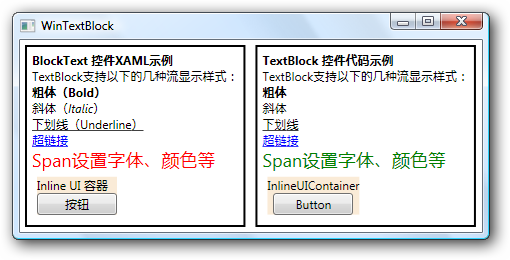
TextBlock模型实际上指的就是System.Windows.Controls.TextBlock类,它是一个用于显示少量流内容的轻量控件。其中包含一个InLines属性,支持 Inline 流内容元素的承载和显示。 支持的元素包括 AnchoredBlock、Bold(粗体字符串)、Hyperlink(超链接,在浏览器支持的模式下有效)、InlineUIContainer(承载其他控件的容器)、Italic(斜体字符串)、LineBreak(换行符)、Run(普通字符串)、Span(可以设置字体、颜色等的Span) 和 Underline(下划线)。
例如:
1: <StackPanel Orientation="Horizontal">
2: <Border BorderThickness="2" Margin="5" BorderBrush="Black">
3: <TextBlock Margin="5" TextWrapping="WrapWithOverflow">
4: <TextBlock.Inlines>
5: <Bold>
6: <Run>BlockText 控件XAML示例Run>
7: Bold>
8: <LineBreak/>
9: <Run>TextBlock支持以下的几种流显示样式:Run>
10: <LineBreak/>
11: <Bold>粗体(Bold)Bold>
12: <LineBreak/>
13: <Italic>斜体(Italic)Italic>
14: <LineBreak/>
15: <Underline>下划线(Underline)Underline>
16: <LineBreak/>
17: <Hyperlink NavigateUri="http://www.microsoft.com">超链接Hyperlink>
18: <LineBreak/>
19: <Span Foreground="Red" FontSize="18">Span设置字体、颜色等Span>
20: <LineBreak />
21: <InlineUIContainer>
22: <StackPanel Background="AntiqueWhite" Margin="5">
23: <TextBlock>Inline UI 容器TextBlock>
24: <Button Content="按钮" Width="80" />
25: StackPanel>
26: InlineUIContainer>
27: TextBlock.Inlines>
28: TextBlock>
29: Border>
30: <Border BorderThickness="2" Margin="5" BorderBrush="Black">
31: <TextBlock Margin="5" TextWrapping="WrapWithOverflow" x:Name="textBlock">
32: <TextBlock.Inlines>
33: <Bold>
34: <Run x:Name="title">Run>
35: Bold>
36: <LineBreak x:Name="line"/>
37: <InlineUIContainer x:Name="container">
38: <StackPanel Background="AntiqueWhite" Margin="5" x:Name="panel">
39: StackPanel>
40: InlineUIContainer>
41: TextBlock.Inlines>
42: TextBlock>
43: Border>
44: StackPanel>
使用代码操作Inlines:
1: // 设置Inline对象的属性值
2: title.Text = "TextBlock 控件代码示例";
3: 4: // 添加Inline对象
5: Run content = new Run("TextBlock支持以下的几种流显示样式:");
6: Bold bold = new Bold(new Run("粗体"));
7: Italic italic = new Italic(new Run("斜体"));
8: Underline underline = new Underline(new Run("下划线"));
9: Hyperlink hyperlink = new Hyperlink(new Run("超链接"));
10: hyperlink.NavigateUri = new Uri("http://www.microsoft.com");
11: Span span = new Span(new Run("Span设置字体、颜色等"));
12: span.Foreground = new SolidColorBrush(Colors.Green);
13: span.FontSize = 18; 14: 15: textBlock.Inlines.InsertBefore(container, content);16: textBlock.Inlines.InsertBefore(container, new LineBreak());
17: textBlock.Inlines.InsertBefore(container, bold);18: textBlock.Inlines.InsertBefore(container, new LineBreak());
19: textBlock.Inlines.InsertBefore(container, italic);20: textBlock.Inlines.InsertBefore(container, new LineBreak());
21: textBlock.Inlines.InsertBefore(container, underline);22: textBlock.Inlines.InsertBefore(container, new LineBreak());
23: textBlock.Inlines.InsertBefore(container, hyperlink);24: textBlock.Inlines.InsertBefore(container, new LineBreak());
25: textBlock.Inlines.InsertBefore(container, span);26: textBlock.Inlines.InsertBefore(container, new LineBreak());
27: 28: // 设置InlineUIContainer的成员
29: panel.Children.Add(new TextBlock(new Run("InlineUIContainer")));
30: Button button = new Button();
31: button.Content = "Button";
32: button.Width = 80; 33: panel.Children.Add(button);执行结果:
四、TextBox模型
System.Windows.Controls.TextBox类,实现的是可编辑的文本框,文本框的内容由字符串类型的Text属性指定,并且整个TextBox的内容使用共同的(即TextBox指定的)样式。
来自 “ ITPUB博客 ” ,链接:https://blog.itpub.net/12639172/viewspace-590781/ ,如需转载,请注明出处,否则将追究法律责任。

